
![How to Type an Em Dash on Mac or Windows [2025]](https://runable.blog/blog/how-to-type-an-em-dash-on-mac-or-windows-2025/image-1-1765665510648.jpg)
How to Type an Em Dash on Mac or Windows [2025]
You're writing an important email, crafting a blog post, or editing a document, and you need an em dash. You look down at your keyboard. Nothing. No dedicated key. No obvious symbol staring back at you.
This is one of those quirks of modern typing that makes zero sense. We get the underscore (_), the hyphen (-), the period (.), the comma (,)—basically every other punctuation mark gets real estate on our keyboards. But the em dash (–)? The one punctuation mark that separates thoughts with real elegance? You're on your own.
The frustration is real, and you're not alone. Writers, editors, marketers, and anyone who cares about typography runs into this problem constantly. The em dash is more than just a styling choice. It's a punctuation mark that serves specific grammatical functions. It adds clarity, emphasis, and sophistication to written communication. Yet accessing it requires workarounds, keyboard shortcuts, or remembering obscure number combinations.
This guide walks you through every practical method to type an em dash on both Mac and Windows. Whether you're a casual writer who uses em dashes occasionally or a professional editor working with them daily, you'll find a solution that fits your workflow. We'll cover keyboard shortcuts that work immediately, text expansion tools that automate the process, and workarounds for when you're stuck on an unfamiliar computer.
By the end of this article, typing an em dash won't feel like a hassle anymore. It'll be second nature.
TL; DR
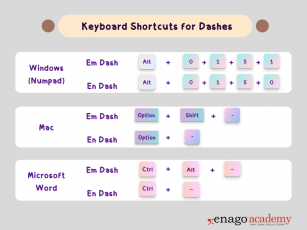
- Mac keyboard shortcut: Press Shift + Option + Minus (-) to create an em dash instantly
- Windows keyboard shortcut: Use Alt code 0150 by holding Alt and typing on the numeric keypad
- Text expanders save time: Tools like Phrase Express or Mac's built-in text replacement let you type shortcuts that auto-expand to em dashes
- Browser and app solutions: Most word processors and content platforms have built-in character insertion tools
- Google Docs alternative: Use Insert > Special Characters menu for quick access without memorizing shortcuts
- Microsoft Office trick: Type a space, hyphen, space (- ) and it auto-converts to an em dash in many cases
- Bottom line: The keyboard shortcut is fastest once memorized, but text expanders work best for professional writers who type em dashes multiple times daily
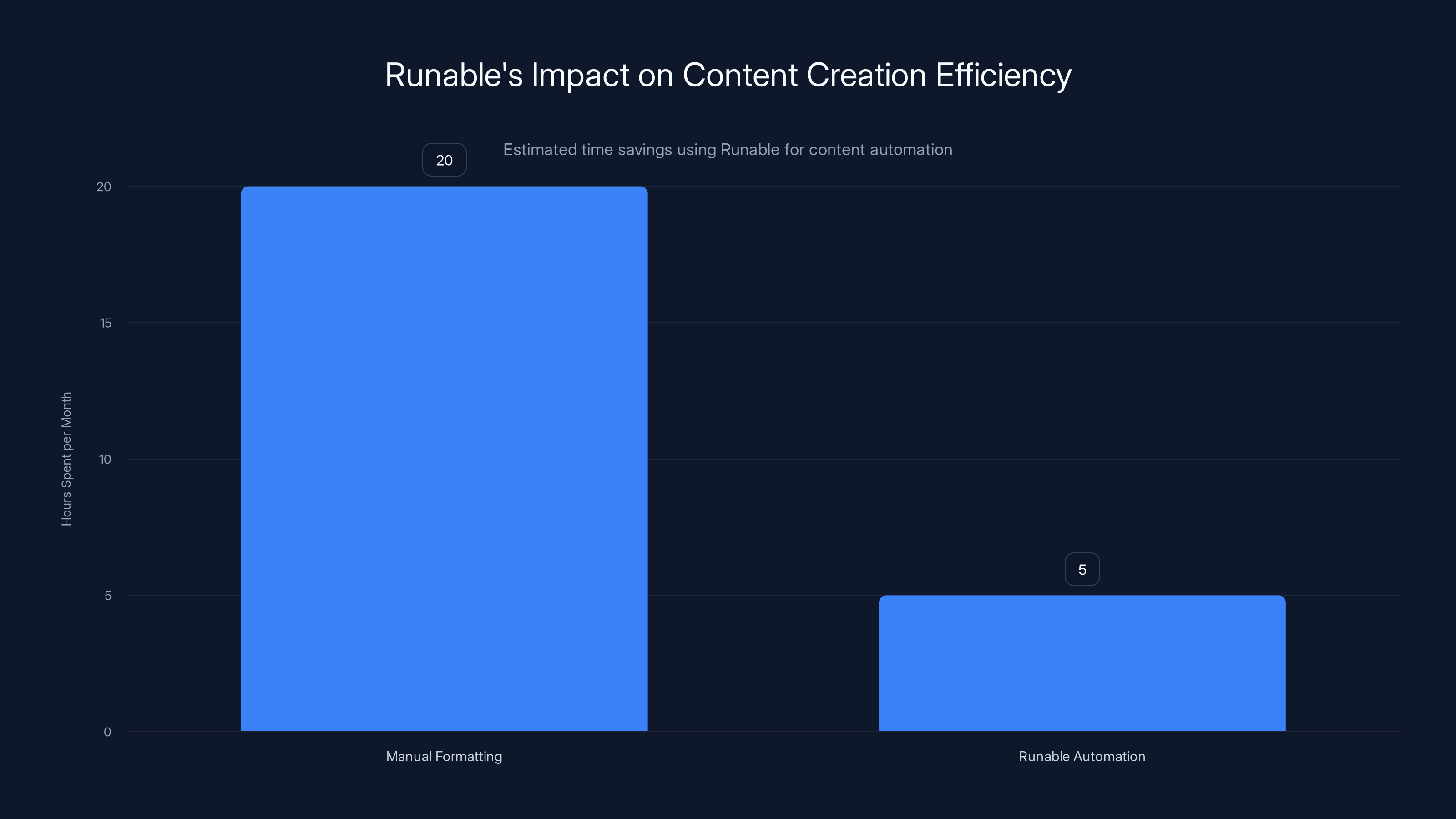
Using Runable can reduce content formatting time from 20 to 5 hours per month, offering significant efficiency gains. Estimated data.
Understanding Em Dashes vs. Other Dashes
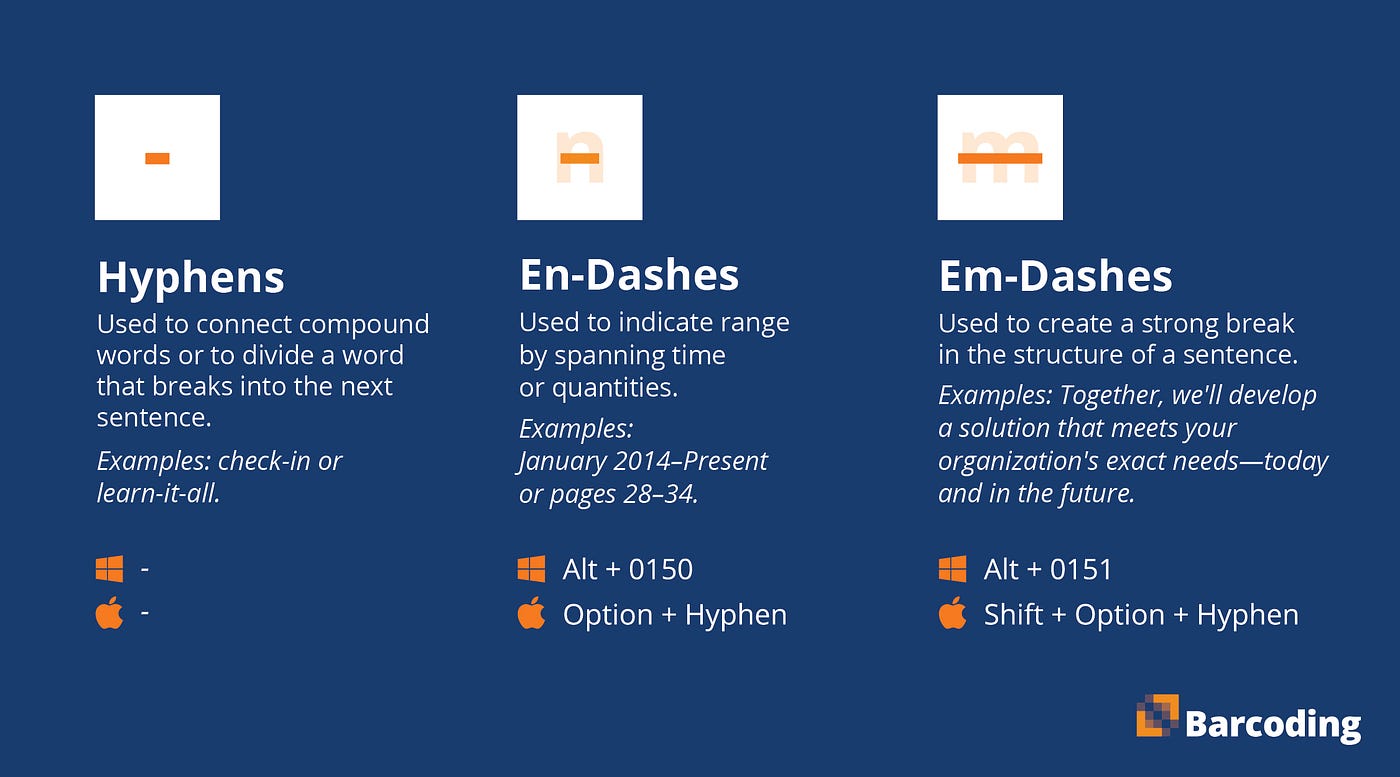
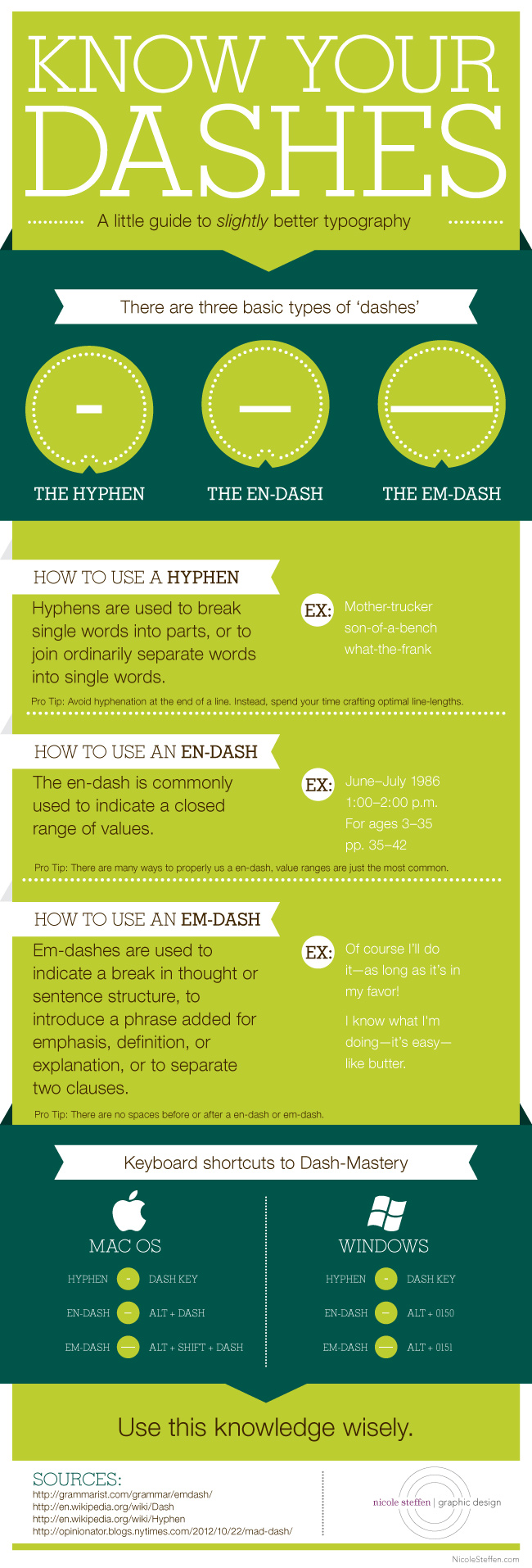
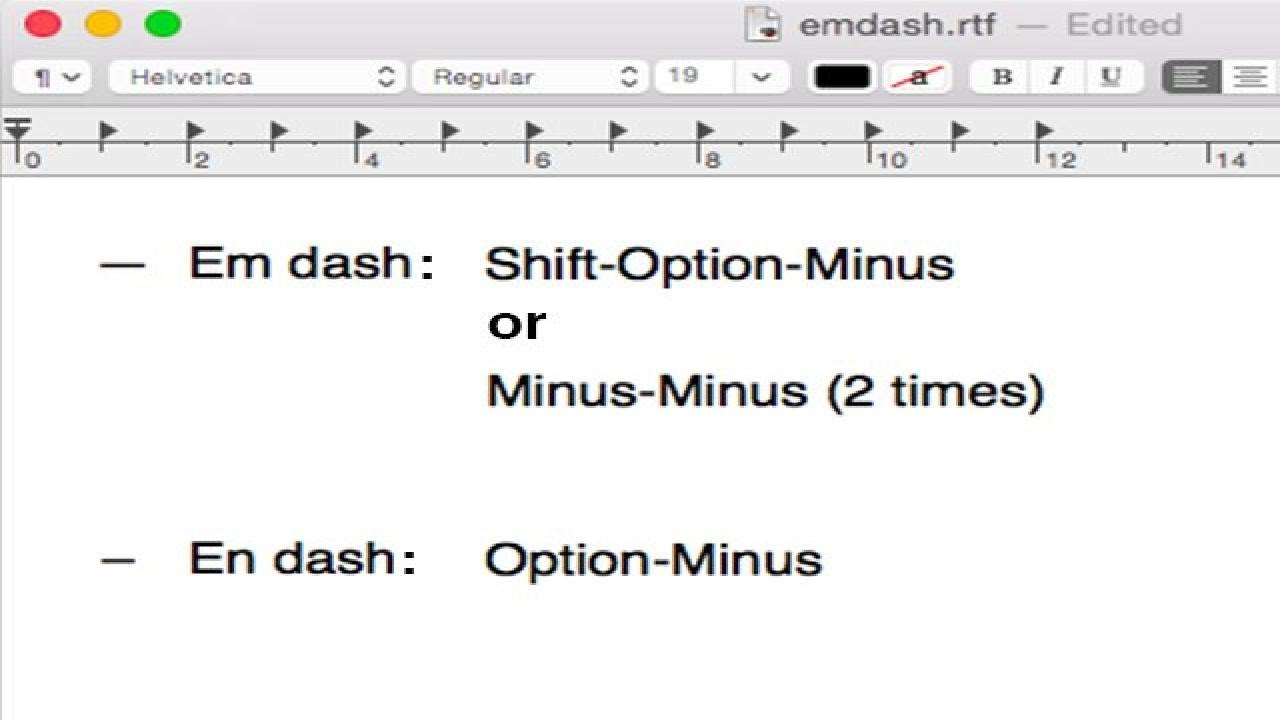
Before you start typing em dashes, it helps to understand what you're actually looking for. The em dash (—) isn't the same as a hyphen (-) or an en dash (–). These three punctuation marks look similar at first glance, but they serve completely different purposes and have different widths.
The hyphen (-) is the shortest. You'll find it right on your keyboard, usually next to the 0 key. Hyphens connect words together, like in compound adjectives ("well-known fact") or when breaking words across lines. Writers use them constantly without thinking about it.
The en dash (–) is medium-length. It's exactly as wide as the letter "n" in whatever font you're using. En dashes typically represent ranges, like "pages 5–10" or "2020–2024". They also work in some compound terms, particularly when one part is already hyphenated. Most people don't use en dashes regularly unless they're working in academic or publishing contexts.
The em dash (—) is the widest. It's as wide as the letter "m". This is the punctuation mark that adds drama and emphasis to your writing. Writers use em dashes to set off thoughts—like this—or to create a stronger pause than a comma would provide. It can replace colons, semicolons, or parentheses depending on context and style preference.
The reason keyboards don't have dedicated em dash keys comes down to history and design choices made decades ago. When typewriters dominated writing, designers had to prioritize which symbols mattered most. The hyphen was essential for everyday writing, so it got its own key. The em dash was considered a "special character," something for professional typists or printers to handle. That assumption never really changed when we moved to computers. We inherited the keyboard layout and kept it, even though typing has become everyone's primary form of written communication.
This matters because when you see an em dash rendered as two hyphens (--) in plain text or email, it usually means someone didn't know about these typing methods. It's not a mistake—it's a workaround that became visible. Once you know how to type a proper em dash, your writing looks more polished immediately.
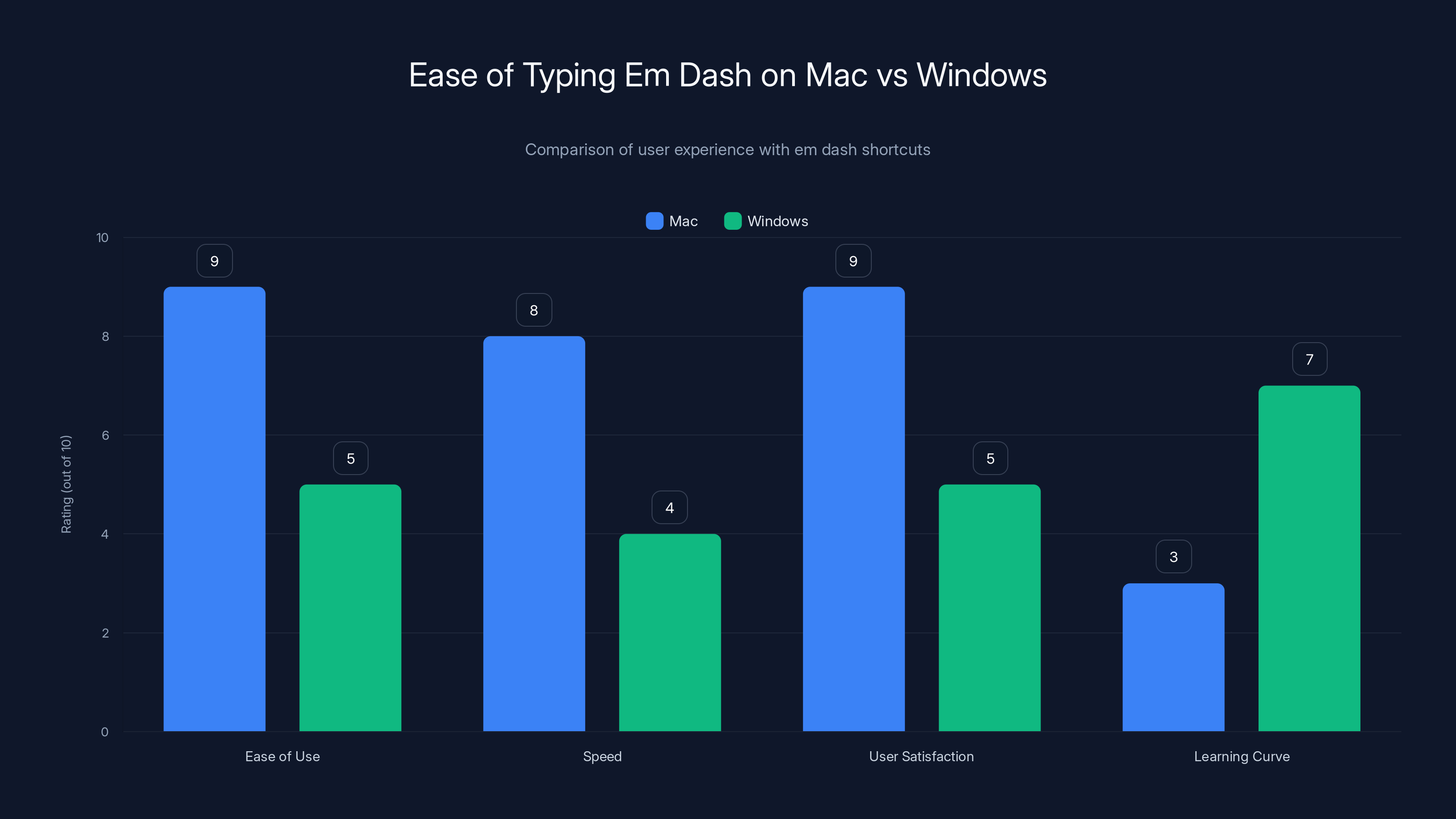
Mac users find typing em dashes easier and faster compared to Windows, with a lower learning curve. Estimated data based on user feedback.
Mac Users: The Easy Shortcut Method
Mac has the most elegant solution for typing em dashes, and once you learn the keyboard shortcut, you'll never think about it again. Apple designed their operating system with writers in mind, which means typography features work smoothly throughout mac OS.
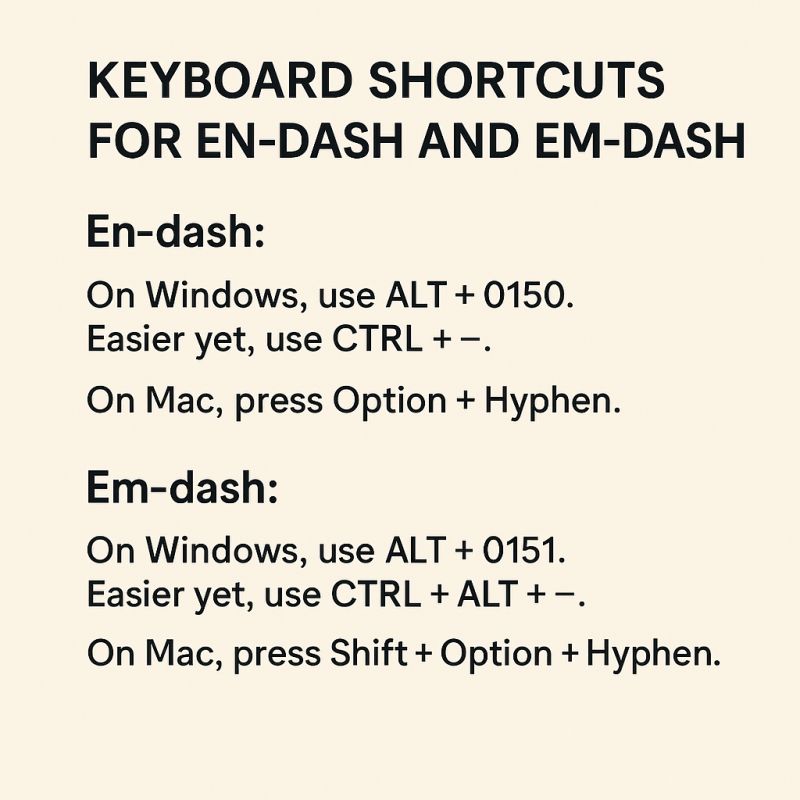
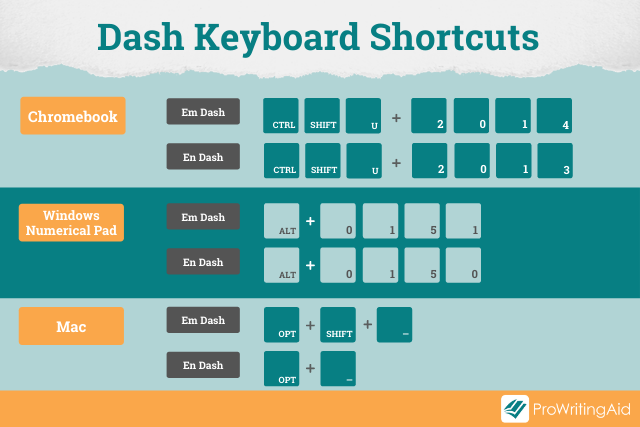
The keyboard shortcut for Mac is straightforward: Shift + Option + Minus (-), where the minus sign is the regular hyphen key on your keyboard (to the right of the 0). When you press these three keys together, mac OS instantly converts that input into an em dash.
Here's why this works so well on Mac. Apple's operating system was built with professional writers and designers as a core user group. The company understood that people working with text would need quick access to proper typographic characters. Unlike Windows, which relies on numeric codes, Mac uses a modifier key combination that feels natural once you practice it a few times.
The workflow is simple. You're typing along—say, writing an email—and you reach a point where you need an em dash. Your fingers hit Shift + Option + Minus simultaneously. The hyphen you typed gets replaced with a proper em dash instantly. No menus, no dialog boxes, no interruption to your flow.
Practice makes this automatic. Most Mac users report that within a week of conscious effort, the shortcut becomes muscle memory. Your fingers just know to hit those three keys when you need that punctuation. Some users even found themselves typing it on Windows machines and getting frustrated when it didn't work.
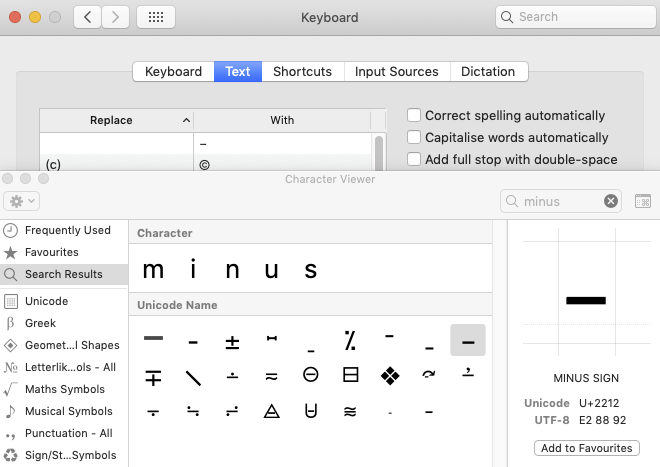
What if you forget the shortcut in a critical moment? Mac has you covered there too. Any Mac application—whether it's Mail, Word, Notes, or a web browser—can access special characters through the Edit menu or by pressing Control + Command + Space to open the Character Viewer. Once you open the Character Viewer, you can search for "em dash," click on the result, and insert it directly into your document. It's slower than the keyboard shortcut, but it works when you're drawing a blank.
Testing the Shortcut Across Mac Applications
The Shift + Option + Minus shortcut works consistently across most Mac applications, but there are exceptions worth knowing about. Native mac OS applications—Mail, Notes, Text Edit, Safari text fields—all recognize the shortcut perfectly. Microsoft Office for Mac also supports it without issues.
Web-based applications are where you might hit friction. If you're typing in Gmail, Google Docs, or a Slack message, the shortcut usually works. However, some web-based text editors have their own keyboard shortcut handlers that might intercept the input before mac OS can process it. In those rare cases, you'll need to use the Character Viewer method or your browser's built-in special character insertion tool.
One more advantage of the Mac shortcut: it's consistent across different keyboard layouts. Whether you have a US keyboard, UK keyboard, or any other layout, the modifier combination stays the same. The minus key is in the same physical location regardless of keyboard variant, so the shortcut remains intuitive.

Windows Users: Alt Code Method
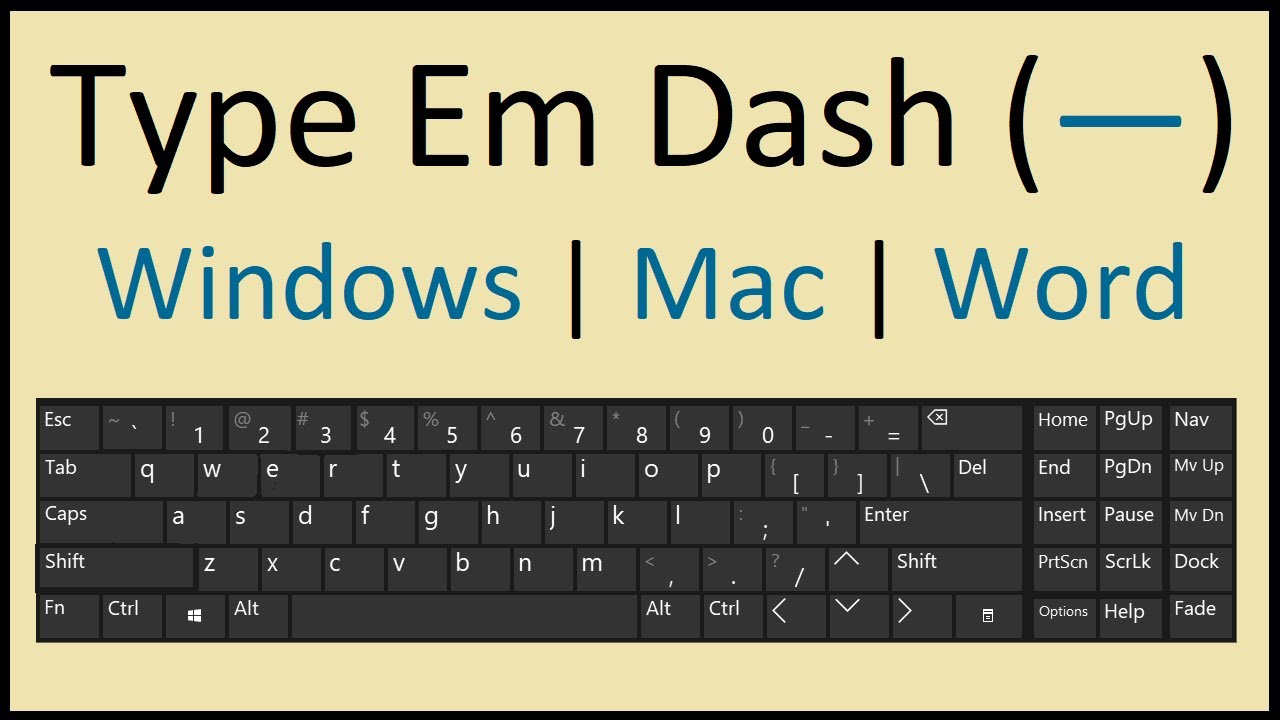
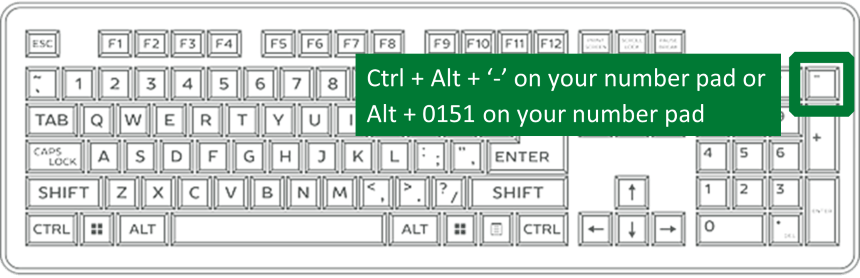
Windows handles special characters differently than Mac. Instead of elegant modifier combinations, Windows uses Alt codes—numeric sequences you enter while holding the Alt key. The em dash on Windows uses Alt code 0150, entered on the numeric keypad.
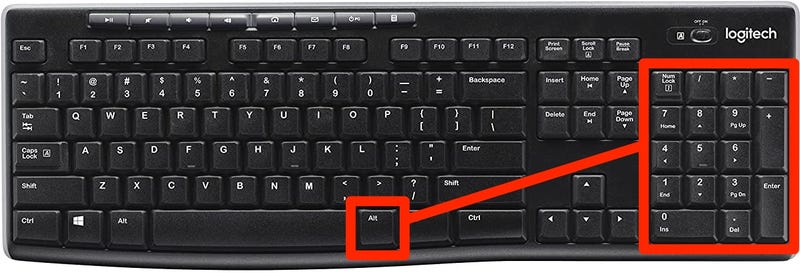
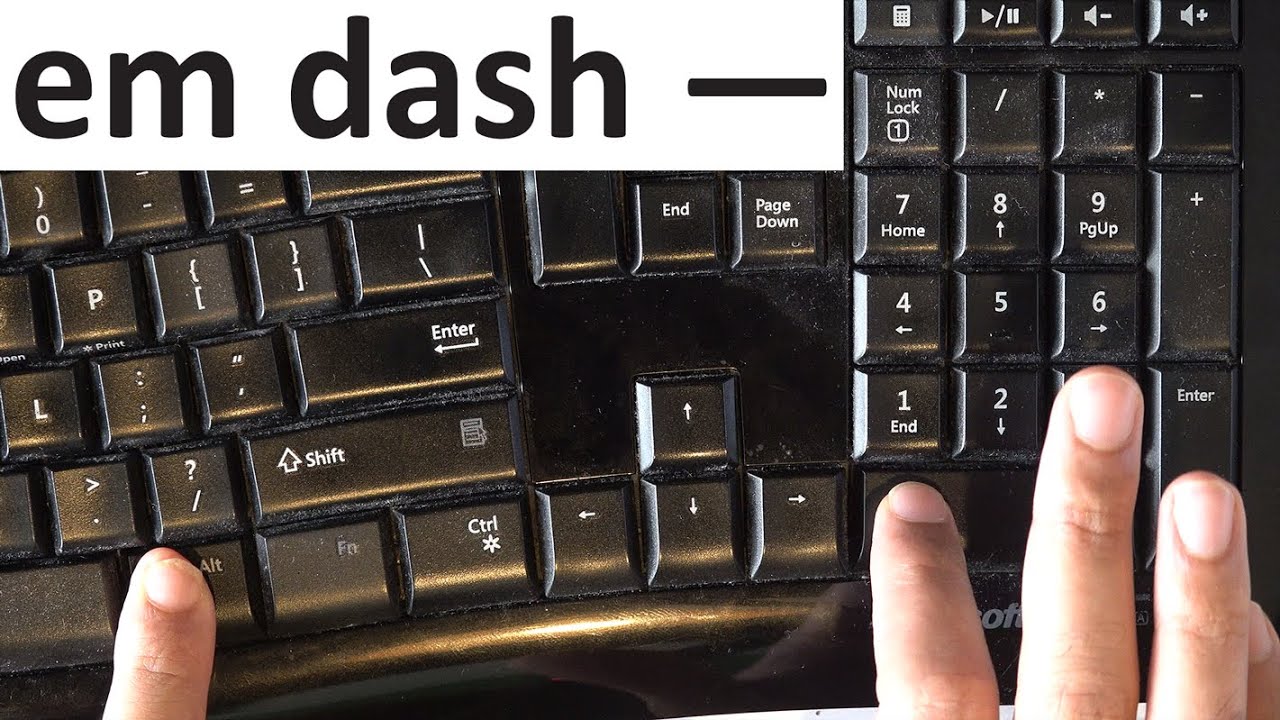
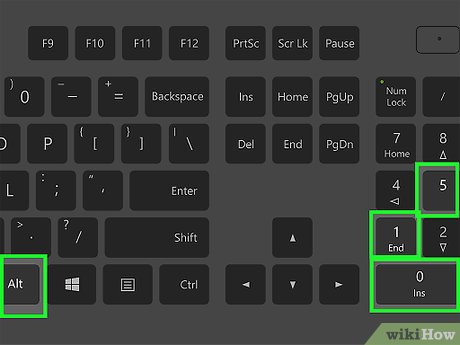
Here's the process. Press and hold the Alt key on your keyboard. With Alt held down, use the numeric keypad (the separate number pad on the right side of full-size keyboards) to type 0150. Release Alt, and an em dash appears in your document. The entire sequence takes about two seconds once you're familiar with it.
The tricky part? This only works on full-size keyboards with a numeric keypad. If you're using a laptop, an external compact keyboard, or a keyboard without a dedicated number pad, this method won't function. You'll need an alternative approach, which we'll cover in the workaround section below.
Why does Windows use Alt codes instead of keyboard shortcuts? It comes down to design philosophy. Microsoft built Windows as a general operating system serving many purposes. The Alt key was already used for menu shortcuts and application commands. Rather than creating a modifier combination that might conflict with existing shortcuts, Microsoft used the numeric keypad as a dedicated input method for special characters. Alt codes work consistently across almost all Windows applications because they're handled at the operating system level.
The challenge with Alt codes is remembering the numbers. 0150 for em dash isn't intuitive, and typing it on the numeric keypad while your hands are positioned for regular typing requires a mental shift. Many writers develop workarounds specifically because they find this method cumbersome.
Testing Alt Codes on Different Windows Versions
Alt code 0150 works consistently on Windows 10 and Windows 11. Older versions of Windows also support it. However, some applications don't respond to Alt codes at all. Older or specialized software sometimes bypasses Windows input methods and handles keyboard input directly, which blocks Alt codes from functioning.
Web browsers generally support Alt codes in text fields and text areas. Google Docs, Gmail, and Slack all accept Alt code input. Microsoft Office applications recognize Alt codes perfectly. But if you're using a specialized application—certain email clients, older software, or proprietary tools—you might find that Alt codes don't work.
One important consideration: the numeric keypad layout. On standard US keyboards, the numeric keypad is on the right side. But depending on your keyboard layout, keyboard region, or laptop design, the numbers might be in a different location or use Fn key combinations. If Alt code 0150 doesn't work, check that you're using the actual numeric keypad rather than the number row above the QWERTY keys.
Laptop Alternatives for Windows Users
Laptop keyboards often lack a dedicated numeric keypad to save space. If you're on a Windows laptop, you have options. Some laptops have a hidden numeric keypad activated by pressing Fn + a specific key or Num Lock. Check your keyboard documentation to see if this applies to yours. If it does, you can use Alt codes with the hidden keypad.
If your laptop doesn't support a numeric keypad at all, you'll need to use one of the alternative methods covered later in this guide. The character insertion tools in Windows (Character Map), text expanders, or workarounds like hyphen conversion become more practical for laptop users.
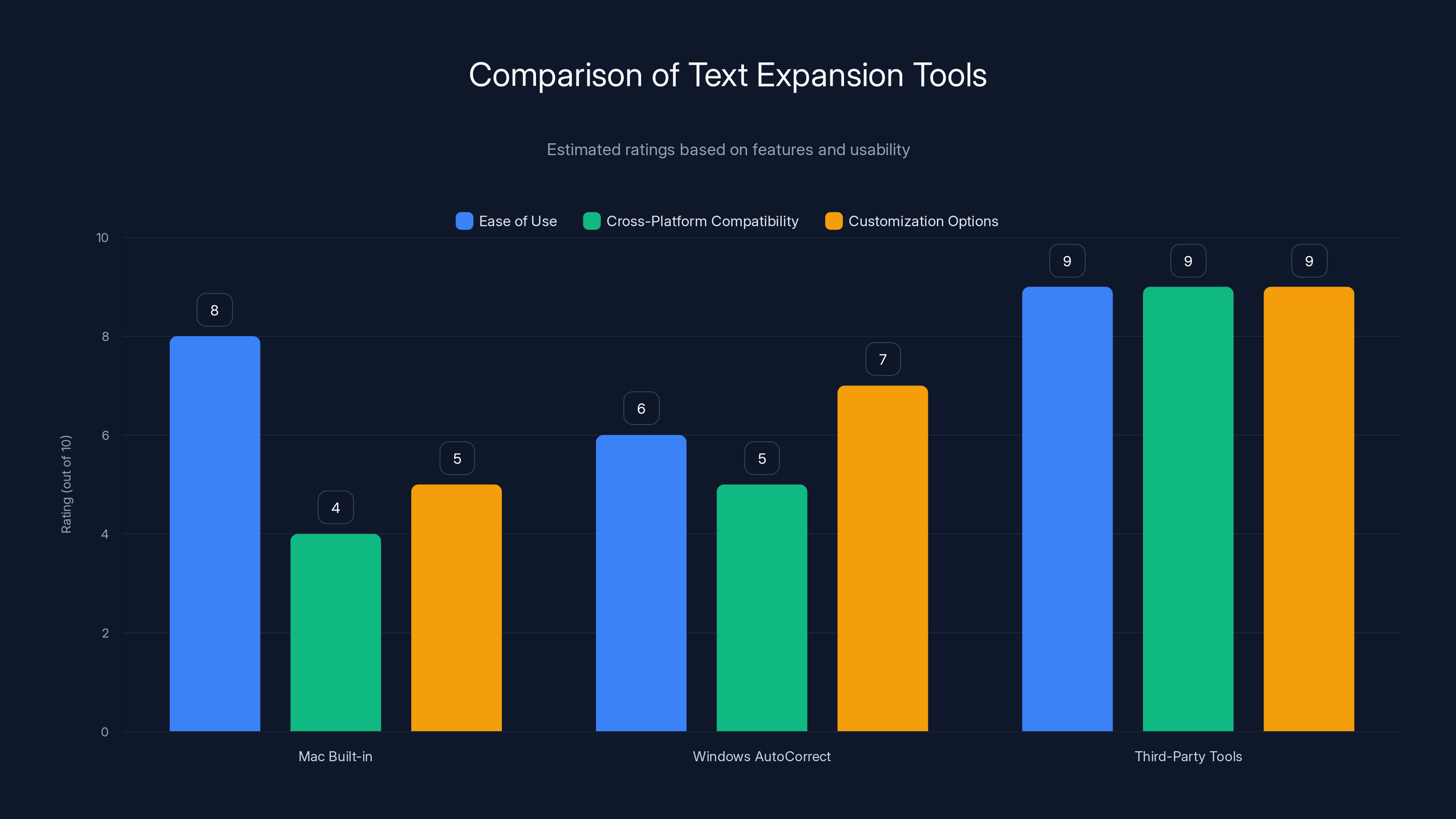
Third-party tools generally offer the best combination of ease of use, cross-platform compatibility, and customization options. Estimated data based on typical features.
Windows 11: Character Map Tool
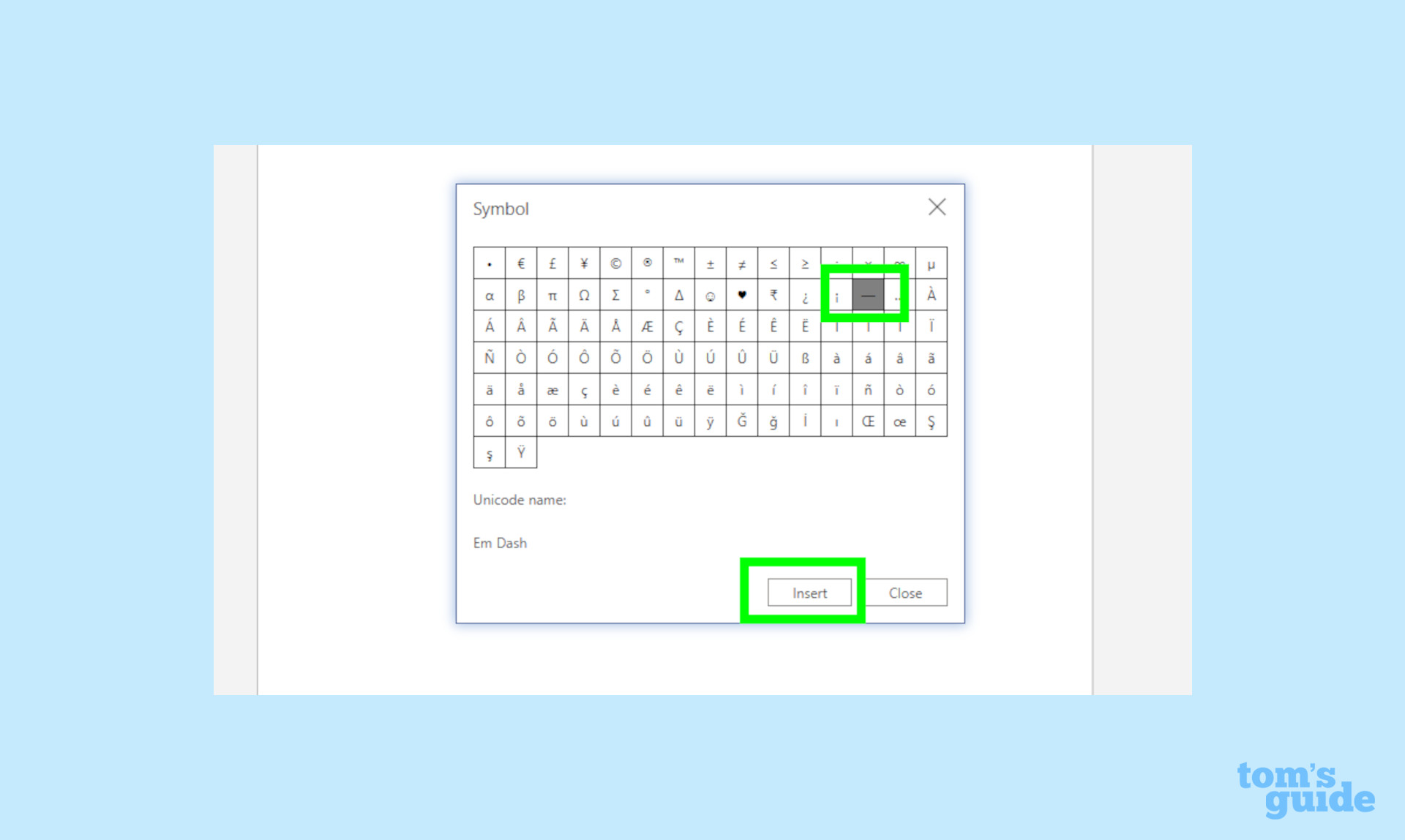
Windows includes a built-in utility called Character Map that lets you browse and insert special characters without memorizing Alt codes. This tool exists on Windows 10 and Windows 11, though the interface looks slightly different between versions.
To access Character Map on Windows 11, press the Windows key and search for "Character Map." Click the app to open it. You'll see a grid of characters from whatever font is selected. The default is usually a standard font like Arial or Segoe UI.
The em dash appears in the character grid, but finding it manually by scrolling isn't practical. Instead, use the search function. In Windows 11's Character Map, there's a search field where you can type "em dash" and the tool instantly filters to show matching characters. Click on the em dash, and you'll see it highlighted in the grid. A button labeled "Copy" appears, which you click to copy the em dash to your clipboard. Then you switch to your document and paste it wherever you need it.
The entire process takes about 10 seconds the first time, and maybe 5 seconds after you're familiar with the interface. For someone writing occasionally and not wanting to memorize keyboard shortcuts, this is a practical solution.
Character Map also serves as a discovery tool. If you're curious about what special characters exist—what accented letters you can type, what mathematical symbols are available, what currency symbols exist—browsing Character Map shows you everything. It's educational and practical simultaneously.
When to Use Character Map vs. Alt Codes
If you're typing em dashes constantly throughout your workday, memorizing Alt code 0150 makes more sense than opening Character Map every time. The keyboard shortcut is faster once you know it.
If you're typing an em dash maybe once or twice a day, or if you're on a laptop without a numeric keypad, Character Map becomes the better choice. You don't need to remember anything—just open the tool, search for the character, copy and paste.
If you're on a computer you're unfamiliar with and need to type an em dash, Character Map is your safety net. It works on any Windows computer without requiring you to know keyboard shortcuts or Alt codes specific to that system.
Text Expansion Tools: Automate the Process
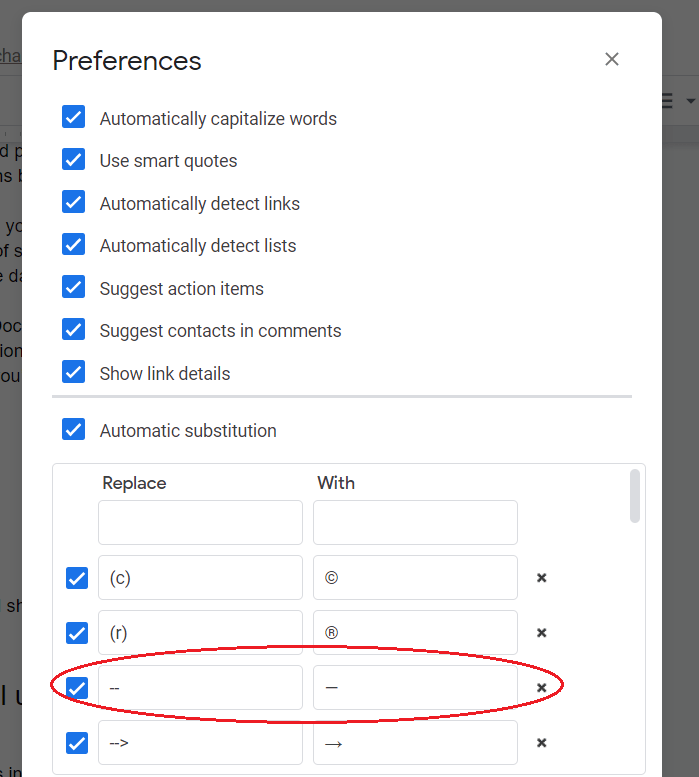
For professional writers, editors, content creators, and anyone typing em dashes daily, text expansion tools offer the most practical solution. These applications let you create shortcuts that automatically expand to their full forms when typed. Instead of remembering Shift + Option + Minus or Alt + 0150, you could simply type "--" and have it automatically convert to an em dash.
Text expanders work across your entire operating system. Whether you're typing in Word, Google Docs, an email client, a web browser, or any other application, the shortcuts work uniformly. You create the shortcut once and use it everywhere.
Mac Built-in Text Replacement
Mac has a text replacement feature built directly into the operating system. Go to System Preferences (or System Settings on newer mac OS versions), navigate to Keyboard, and find the "Text" tab. Click the plus button to create a new replacement rule.
Set the "Replace" field to your chosen shortcut—something short like "--" or "em" (though using just "em" might cause replacements in the middle of other words, so be careful). Set the "With" field to an actual em dash. You can copy one from another source or use the keyboard shortcut to create one.
Once saved, whenever you type your shortcut in any mac OS application, the system automatically replaces it with an em dash. No menu clicking, no dialog boxes, pure automation.
The advantage of using mac OS's built-in feature is that it requires no additional software. It's always available, it's free, and it works consistently across all applications. The disadvantage is that it only works on mac OS computers. If you switch between Mac and Windows, you'd need separate shortcuts for each platform.
Windows Built-in Autoreplace
Windows doesn't have a system-wide text replacement feature like mac OS does, but Microsoft Office includes Auto Correct functionality that serves the same purpose. If you use Word regularly, you can set up Auto Correct entries that replace shortcuts with em dashes.
In Word, go to File > Options > Proofing > Auto Correct Options. In the Auto Correct dialog, you'll see a field for "Replace" and one for "With." Type your shortcut in the Replace field (like "--") and paste an em dash in the With field. Click Add, then OK.
Now, whenever you type "--" followed by a space in Word, it automatically converts to an em dash. This works great if you spend most of your time in Word. For other applications—web browsers, email clients, note-taking apps—the Auto Correct rule won't apply.
Third-Party Text Expanders
If you work across multiple applications and platforms, or if you want more advanced text expansion features, dedicated text expander applications offer greater flexibility.
Phrase Express is a popular third-party option available for both Windows and Mac. It creates shortcuts that expand to full phrases or even complex text blocks. You could set up "--" to expand to an em dash, "--thanks" to expand to a professional email closing, or any other combination you find useful.
The advantage of third-party tools is sophistication. Some text expanders can include dates automatically, create variations based on context, or expand differently depending on which application you're using. For someone typing hundreds of emails daily, these tools pay for themselves in time saved.
The disadvantage is cost (some are subscription-based), learning curve, and the additional software running on your computer. Not everyone wants to install extra applications just to type an em dash more easily.
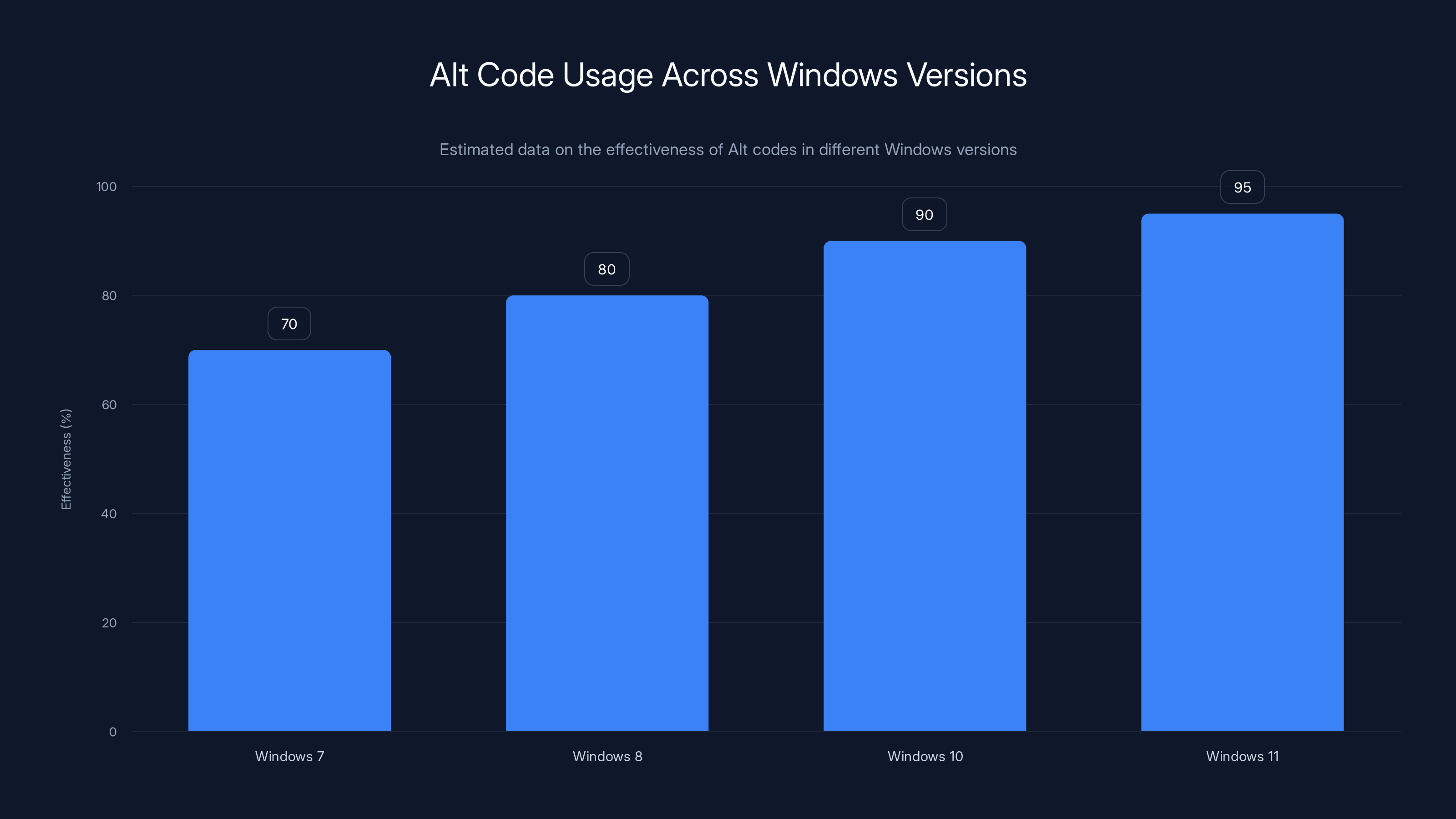
Alt code effectiveness has improved with newer Windows versions, reaching up to 95% in Windows 11. Estimated data.
Google Docs: The Special Characters Menu
If you spend most of your writing time in Google Docs, the platform includes a straightforward method for inserting special characters. You don't need to remember keyboard shortcuts or Alt codes—just use the menu.
While your cursor is positioned where you want the em dash, go to the top menu and click Insert. A dropdown menu appears. Click "Special characters." A search dialog opens where you can search for or visually browse characters.
Type "em dash" into the search field, and it immediately shows you the character. Click on it, and it inserts into your document at the cursor position. The entire process takes about 5 seconds and requires no memorization.
Google Docs also has a keyboard shortcut option if you prefer. When the Special Characters dialog is open, you can see the keyboard shortcut displayed for any character. For the em dash in Google Docs (on a Mac), it still shows as Shift + Option + Minus because Google Docs respects your operating system's shortcuts.
The advantage of this method is that it works identically on Mac, Windows, and even Linux—any device with a web browser and Google account. If you're switching between computers frequently or working on devices you don't own, Google Docs's built-in character insertion is always available.
The disadvantage is that it only works within Google Docs. If you're using a different platform—Microsoft Word, Notion, your email client—you need different methods. But if Google Docs is your primary writing tool, you've got a reliable solution without external tools.
Microsoft Word and Office: Auto Correct Magic
Microsoft Word includes intelligent Auto Correct that recognizes common patterns and replaces them automatically. One of the most useful features is that Word automatically converts a hyphen surrounded by spaces (" - ") into an em dash.
Here's the workflow. You're typing a sentence, and you reach a point where you need an em dash. You type a space, then a hyphen, then another space. When you hit the space after the hyphen or continue typing normally, Word recognizes the pattern and replaces the hyphen with a proper em dash automatically. It's seamless and requires no thinking on your part.
This feature works in Word for Windows, Word for Mac, and even Word Online. It's built into the software, so there's no configuration needed. For many Word users, they never even realize this is happening—they just notice their documents look more polished.
You can disable this behavior if you prefer not to use it, though most people find it helpful. In Word, go to File > Options > Proofing > Auto Correct Options. Look for "Replace hyphens with dashes" and toggle it off if you want to disable automatic em dash insertion.
Creating Custom Shortcuts in Word
Beyond the automatic hyphen replacement, you can set up additional Auto Correct entries in Word. If you want "--" to become an em dash (without needing spaces around it), you can create that rule.
Go to File > Options > Proofing > Auto Correct Options. In the Replace field, type "--". In the With field, type an em dash (paste one from elsewhere or use your operating system's keyboard shortcut to create one). Click Add, then OK.
Now, whenever you type "--" in Word, it becomes an em dash. This works great for writers who prefer the double-hyphen convention (common in plain text and email) and want their Word documents to render it properly.
The challenge is that Auto Correct in Word sometimes behaves unpredictably. It might apply at times you don't expect or skip applying when you do expect it. But for most writers, it's reliable enough to be useful.
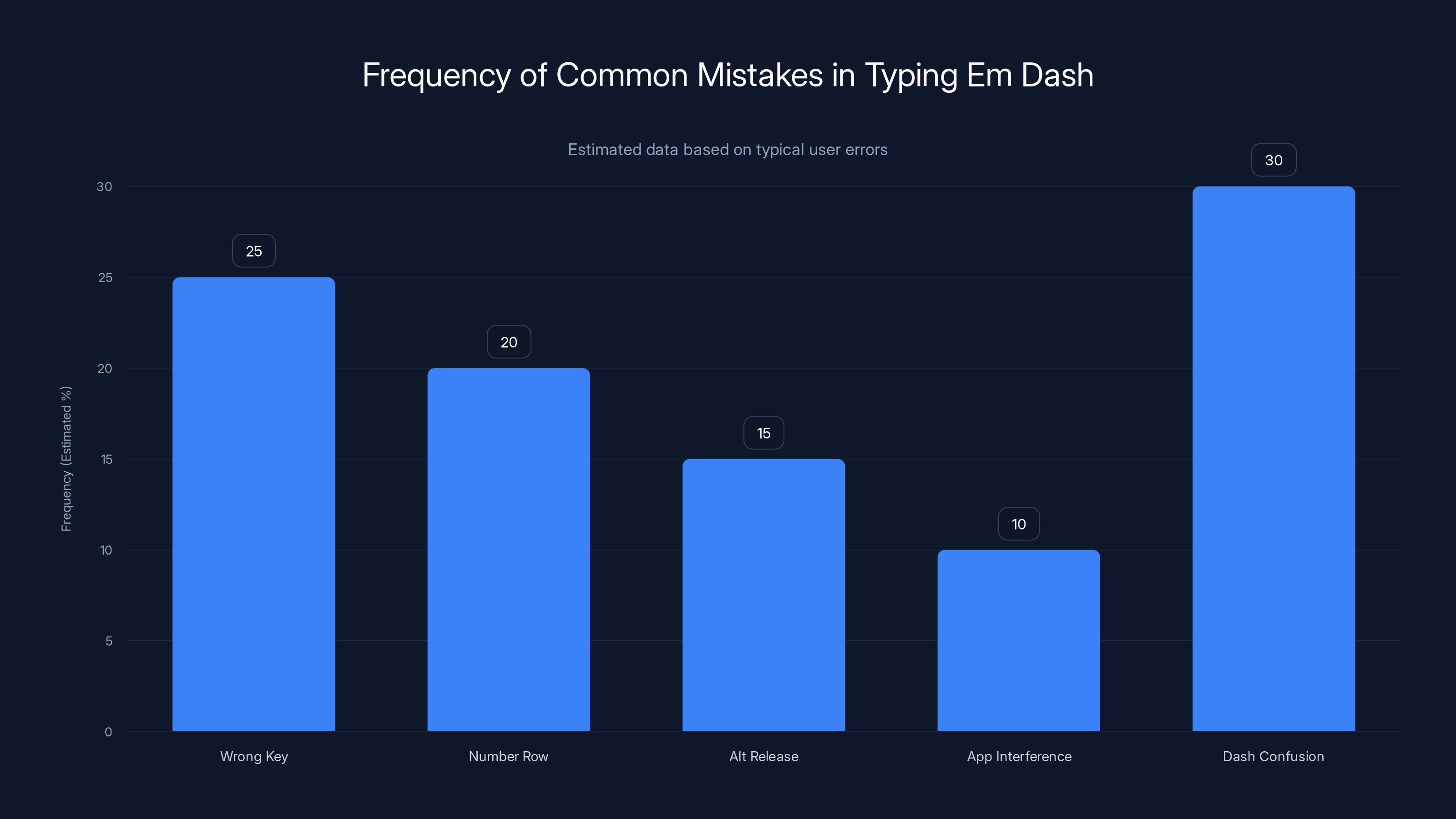
The most frequent mistake when typing an em dash is confusing it with an en dash, followed by using the wrong key. Estimated data based on typical user errors.
Browser-Based Solutions and Workarounds
If you're typing in a web-based application that doesn't recognize your keyboard shortcuts or special character insertion methods, you have several fallback options.
The most reliable workaround is to keep an em dash copied to your clipboard. Find an em dash somewhere—copy one from this article, or type one using your operating system's method—and copy it to your clipboard. Then, whenever you need an em dash in a web application, you can simply paste it using Ctrl + V (Windows) or Command + V (Mac). It's not elegant, but it works in 100% of web browsers and applications.
Another approach: use browser extensions designed for special character insertion. Several extensions exist for Chrome and Firefox that add a special characters palette to your browser toolbar. Click the extension icon, search for "em dash," and click it to insert directly into the web page. These extensions work consistently across all websites and require no memorization.
For Gmail specifically, you can use the keyboard shortcut if you're using it in a browser. Most browsers don't intercept special character keystrokes, so Shift + Option + Minus (Mac) or Alt + 0150 (Windows) usually work fine in Gmail text areas. Test it with a draft email to confirm it works on your setup.
Email Clients: Varying Compatibility
Desktop email clients vary in how they handle special characters. Outlook for Windows should support Alt codes. Apple Mail on Mac supports the native keyboard shortcut. Thunderbird, the open-source email client, usually supports both Alt codes (Windows) and keyboard shortcuts (Mac/Linux).
If your email client doesn't support these methods, copy-paste remains your reliable fallback. Type your em dash in a text editor, copy it, then paste it into your email.
Mobile Solutions: i Phone, i Pad, and Android
Typing an em dash on mobile devices presents different challenges because mobile keyboards don't have the same keys or keyboard shortcuts as computers. Fortunately, mobile systems have evolved to make special characters more accessible.
i Phone and i Pad
On i Phone and i Pad, the easiest method is to use the character palette. On the standard keyboard, press and hold the hyphen key (the key that looks like a dash). A pop-up menu appears showing several dash options: hyphen, en dash, and em dash. Tap on the em dash to insert it.
This works in almost all text input fields on i OS—notes, emails, messages, third-party apps. It's quick and intuitive once you know about it.
Alternatively, you can set up text replacement on i Phone and i Pad just like on Mac. Go to Settings > General > Keyboard > Text Replacement. Create a new shortcut where the replacement text is "--" and the replacement result is an em dash. Then, whenever you type "--" on your i OS device, it automatically becomes an em dash.
Android
Android keyboards work differently depending on which keyboard application you're using. The default Google Keyboard (Gboard) includes a symbols page where you can find the em dash. Tap the numbers/symbols key (usually a "?123" button), then look for a tab with special characters. The em dash usually appears there.
Alternatively, long-press the hyphen key on the Gboard keyboard, and similar to i Phone, a menu of dash options usually appears. Tap the em dash to insert it.
If you're using a different Android keyboard like Swift Key or Microsoft Keyboard, check your keyboard settings for text replacement options. Most Android keyboards support this feature, though the location varies between applications.
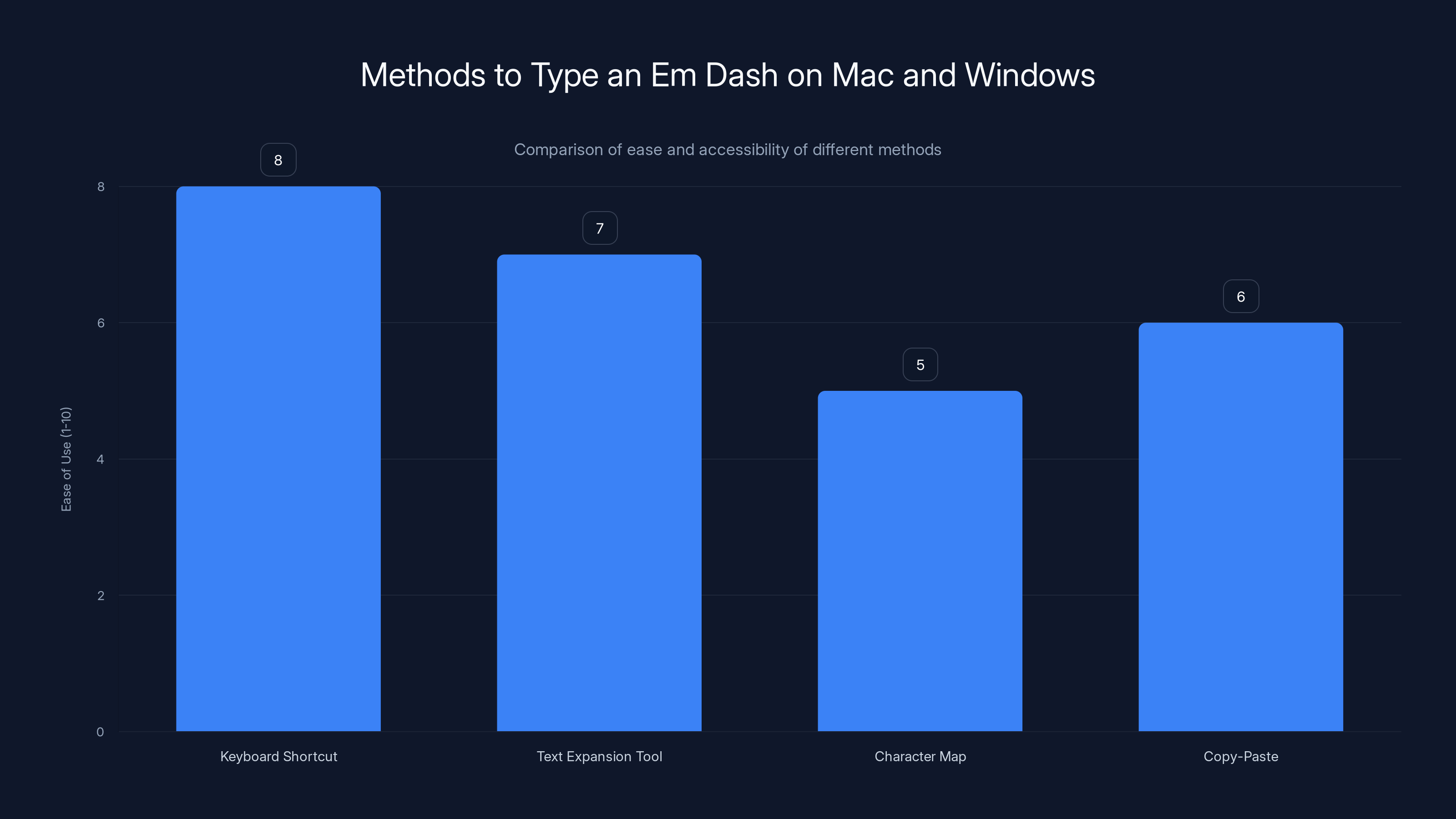
Keyboard shortcuts are the most efficient way to type an em dash, with a high ease of use rating. Estimated data based on typical user experience.
The Hyphen-Space-Hyphen Trick: When Nothing Else Works
If you're on an unfamiliar computer and can't access keyboard shortcuts, special character menus, or text expansion tools, there's one more trick that works in many situations.
Type a space, then a hyphen, then another space. Many applications—particularly web-based ones and Microsoft Office—automatically recognize this pattern and replace it with an em dash. It's not guaranteed to work everywhere, but it works surprisingly often.
The advantage: you're only using keys that exist on every keyboard worldwide. No numeric keypad required, no special shortcuts to remember, no special menus to access.
The disadvantage: it only works in applications with "smart" text replacement features. Plain text editors, some web forms, and older software might not recognize the pattern. Also, if you genuinely want a space-hyphen-space sequence (rare, but possible), this automatic replacement becomes annoying.
But in a pinch, when you're on a computer you've never used before and need to type an em dash quickly, the space-hyphen-space pattern is your safety net.
Styled vs. Unstyled Em Dashes: When Formatting Matters
When you type an em dash using the methods above, you get a proper character that displays correctly in any context. But sometimes—particularly when copying text from the web or working with plain text formats—you might encounter styled em dashes that don't transfer cleanly.
The em dash has a Unicode character code (U+2014). When you use proper methods to insert an em dash, you're inserting that exact Unicode character. It renders identically whether you're using it in Word, Google Docs, email, or web pages.
However, sometimes people use workarounds like two hyphens (--), which is plain text representation of an em dash. When you copy text from certain sources, you might get em dashes formatted in unusual ways—sometimes with extra spacing, sometimes as styled characters that don't transfer to other applications.
If you're pasting content that contains em dashes and they're rendering strangely, you might need to delete them and re-type them using the proper methods in your application. It's a minor annoyance that occurs occasionally in professional writing workflows.
Common Mistakes and Troubleshooting
If you've been trying to type an em dash and it's not working, here are the most common causes and solutions.
Mistake 1: Using the regular hyphen key instead of the minus key. On some keyboards, particularly older keyboards, the hyphen and minus look identical but are different characters. On modern keyboards, the key to the right of the 0 is both the hyphen and minus. Make sure you're using the right key.
Mistake 2: On Windows, using the number row instead of the numeric keypad. Alt codes require the separate numeric keypad on the right side of full-size keyboards. The number row above the QWERTY letters doesn't work for Alt codes. If your laptop lacks a numeric keypad, you can't use Alt codes without enabling a hidden keypad via Num Lock or using an external keyboard.
Mistake 3: Forgetting to hold Alt for the entire code sequence. When typing Alt + 0150 on Windows, you must hold Alt while typing all the numbers. If you release Alt early, the numbers get interpreted as regular keyboard input instead of special character codes.
Mistake 4: Application interference. Some web applications or specialized software bypass your operating system's input methods. If a keyboard shortcut or Alt code works everywhere except in one specific application, the application is probably intercepting the keyboard input. Use Character Map (Windows) or Character Viewer (Mac) as a workaround.
Mistake 5: Confusing en dash and em dash. You intended to type an em dash (—) but ended up with an en dash (–), which is narrower. This sometimes happens with auto-correct features. Check your document to ensure you have the right character. The em dash is wider and more prominent.
Integrating Em Dash Usage Into Your Writing Workflow
Once you've chosen a method for typing em dashes, the key is integrating it into your daily workflow so it becomes automatic. Intentional practice helps this process significantly.
If you're using a keyboard shortcut, practice typing it consciously for a few days. Set an intention: "I'm going to notice every em dash opportunity and type it using the shortcut." This active awareness trains your muscle memory faster than passive exposure.
If you're using text expansion, create a shortcut that feels natural to you. Some writers prefer "--", others prefer "`em", others prefer "emdash". Whatever you choose, make sure it's a pattern you'll naturally type in context.
If you're using a special characters menu, take a moment the first few times to familiarize yourself with the interface. This reduces friction significantly.
Within a week or two of intentional practice, whichever method you choose becomes second nature. You'll stop thinking about the mechanics and start focusing purely on your writing.
For teams or workplaces where consistency matters, consider standardizing the method. If your entire team uses the same keyboard shortcut or text expansion rule, you can support each other and troubleshoot issues together. This also ensures consistency in how em dashes are typed across shared documents.
Professional Writing Standards and Em Dash Usage
Understanding how to type an em dash is only half the equation. The other half is using it correctly in your writing. Professional writers and editors follow specific guidelines about when and how to use em dashes.
Em dashes replace other punctuation marks and add emphasis or create dramatic pauses. You might use an em dash instead of a comma, parentheses, or a colon, depending on the effect you want. They appear in published books, magazines, newspapers, and professional documents constantly.
Different style guides—Chicago Manual of Style, AP Stylebook, APA, MLA—have slightly different conventions about em dash spacing and usage. In American English, em dashes typically appear without spaces on either side (like this—example). In British English, spaces sometimes surround the em dash (like this – example). Check the relevant style guide for your context.
Unfortunately, not all platforms render em dashes correctly. Some email systems, older software, or poorly configured websites convert em dashes to plain hyphens or double hyphens. This is why writers sometimes see documents with "--" instead of proper em dashes—it's often a rendering issue, not a typing mistake.
Using Runable for Content Creation and Automation
If you're writing content regularly and dealing with formatting across multiple platforms, Runable offers AI-powered automation that can help streamline your entire workflow. Rather than manually managing typography details in multiple documents and presentations, Runable can automatically generate and format content while maintaining proper punctuation and styling.
For writers creating presentations, documents, or reports, Runable's AI agents handle repetitive formatting tasks, including proper punctuation. Starting at just $9/month, Runable can significantly reduce the time spent on manual formatting and content creation, letting you focus on the writing itself rather than technical details.
Use Case: Automatically generate professional documents and presentations with correct punctuation and formatting without manual intervention.
Try Runable For Free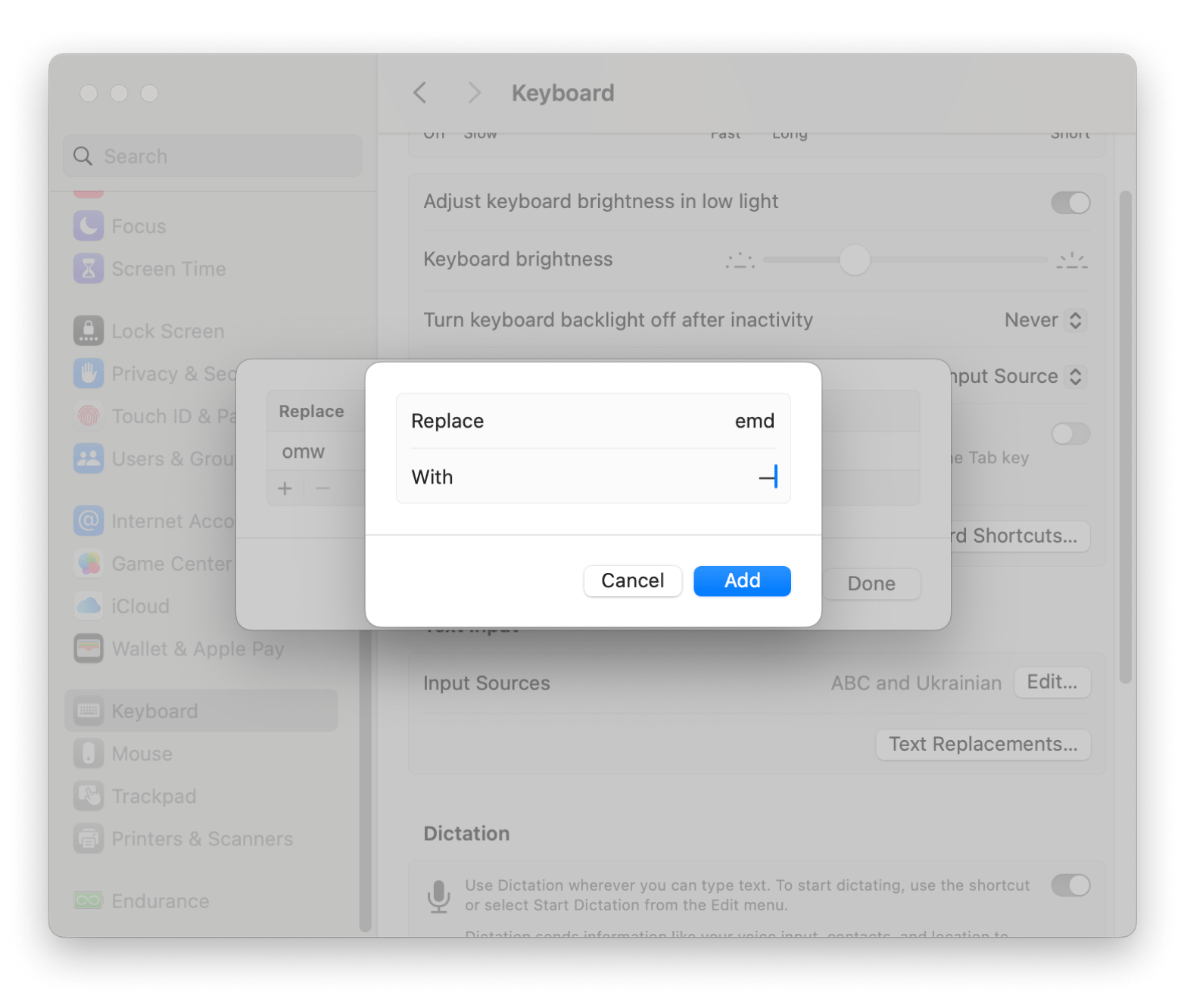
Future of Keyboard Design and Punctuation Access
The fact that we still don't have dedicated keys for em dashes in 2025 is somewhat absurd given how prevalent digital writing has become. Some keyboard manufacturers and software designers have explored solutions, though none have become mainstream.
Chromebook keyboards, designed for web-based writing, sometimes include special character keys or quick-access menus. Some gaming keyboards offer programmable keys that could be configured for frequently-used characters. But the standard QWERTY layout persists largely due to inertia—changing the physical keyboard would require massive industry coordination.
It's more likely that software solutions will continue evolving. Voice typing assistants might recognize "em dash" spoken aloud and insert the character. AI-powered text editors might automatically insert proper punctuation. Mobile keyboards continue becoming more sophisticated in making special characters accessible.
Until then, we're stuck with workarounds. The good news is that the workarounds are simple, reliable, and fast once you've learned them.
FAQ
What is an em dash and why is it important?
An em dash (—) is a punctuation mark that's as wide as the letter "m" in your current font. It serves critical grammatical functions: adding emphasis, setting off thoughts, creating dramatic pauses, and replacing other punctuation marks for stylistic effect. In professional writing, proper em dashes make your work look polished and credible. Many readers unconsciously notice when documents use proper em dashes instead of workarounds like double hyphens.
How do I type an em dash on Mac?
On Mac, the keyboard shortcut is Shift + Option + Minus (the minus key is to the right of the 0). Press all three keys simultaneously, and an em dash appears. This works in almost all mac OS applications. If you forget the shortcut, you can also use the Character Viewer by pressing Control + Command + Space, searching for "em dash," and clicking to insert.
How do I type an em dash on Windows?
On Windows with a full-size keyboard, hold Alt and type 0150 on the numeric keypad (the separate number pad on the right side). Release Alt, and an em dash appears. This works in most applications. If you're on a laptop without a numeric keypad, use Character Map instead (search for it in Windows, find em dash, copy it, and paste into your document).
What's the difference between an em dash, en dash, and hyphen?
A hyphen (-) is the shortest and appears on your keyboard by default. It connects compound words like "well-known." An en dash (–) is medium-length and shows ranges like "2020–2024." An em dash (—) is the widest and creates emphasis or sets off thoughts. The names come from typography: an en dash is as wide as the letter "n", and an em dash is as wide as the letter "m".
Can I use text expansion for em dashes?
Yes, and many professional writers do. On Mac, use built-in text replacement in System Preferences > Keyboard > Text. On Windows, use Auto Correct in Microsoft Word. Third-party tools like Phrase Express work across applications on both platforms. You can create a shortcut like "--" that automatically expands to an em dash whenever you type it.
Does the space-hyphen-space trick work as a universal method?
It works in many applications (Microsoft Word, Google Docs, web-based tools) but not everywhere. Type a space, then a hyphen, then a space. Many smart editors recognize this pattern and auto-convert to an em dash. However, plain text editors, some web forms, and older software don't recognize it. It's a useful fallback when other methods aren't available, but not reliable as a primary method.
How do I type an em dash on my phone or tablet?
On i Phone and i Pad, press and hold the hyphen key on the keyboard—a menu appears with dash options. Tap the em dash to insert it. On Android, tap the symbols key (usually "?123"), find the em dash in the special characters section, and tap it. Alternatively, set up text replacement on your device so a shortcut automatically becomes an em dash.
Why don't keyboards have a dedicated em dash key?
Historically, typewriters had limited space and physical keys. Designers prioritized the hyphen, which is used constantly in everyday writing, while treating the em dash as a special character for professional typists or printers. This keyboard layout persisted when computers were invented because changing physical standards requires massive industry coordination. We're essentially stuck with typing conventions from the 1870s.
My em dash doesn't work in a specific application. What should I do?
Try these solutions in order: (1) Use that application's built-in special character insertion menu if it has one, (2) Use your operating system's character viewer or Character Map, (3) Copy an em dash from elsewhere and paste it into the application, (4) Use the space-hyphen-space pattern if the application supports auto-replacement. If none of these work, the application might have unusual input handling.
How should I format em dashes in professional documents?
In American English, em dashes typically appear without spaces: "like this—example." In British English, spaces often surround the em dash: "like this – example." Check your relevant style guide (Chicago Manual of Style, AP Stylebook, APA, etc.) for your specific context. The key is consistency within a document.
Conclusion: Making Em Dashes Frictionless
Typing an em dash shouldn't be complicated. Yet, due to historical keyboard design decisions that never got updated, accessing this essential punctuation mark requires workarounds. The good news is that these workarounds are reliable, free, and simple once you know about them.
If you're on a Mac, the keyboard shortcut Shift + Option + Minus is your fastest solution. Practice it consciously for a few days, and it becomes automatic. If you're on Windows with a full-size keyboard, Alt code 0150 works consistently, though it requires more conscious effort each time. If you're on a laptop or prefer not memorizing codes, the Character Map tool is your reliable fallback.
For professional writers who type em dashes multiple times daily, text expansion tools deserve serious consideration. Setting up a shortcut that auto-expands to an em dash saves significant time over months and years of writing. The initial setup takes five minutes, and the time savings compound indefinitely.
Website writers and anyone using Google Docs can rely on built-in special character menus. Microsoft Word users benefit from automatic em dash insertion when you type space-hyphen-space. Mobile writers can use keyboard long-presses or text replacement.
The method matters less than consistency and practice. Choose whichever approach fits your workflow best, practice it intentionally for a week, and it becomes second nature. Your writing immediately looks more professional, and you'll never think about the mechanics again.
Stop settling for double hyphens or workarounds. You now have multiple proven methods for typing proper em dashes on any device, in any application, in any situation. Your writing deserves proper punctuation, and now you know exactly how to deliver it.
Start with whichever method feels most natural to your setup. If it doesn't work perfectly, try the next one. Within a few attempts, you'll find a solution that fits perfectly into your writing rhythm. That's when typing em dashes stops feeling like a technical hurdle and starts feeling like just another part of writing naturally.
Key Takeaways
- Mac users can type em dashes instantly with Shift + Option + Minus keyboard shortcut
- Windows users with numeric keypads can use Alt + 0150 code, while laptop users should use Character Map
- Text expansion tools and built-in AutoCorrect features automate em dash insertion for frequent writers
- Google Docs, Microsoft Word, and mobile devices all include alternative methods requiring no memorization
- Professional writing demands proper em dashes instead of workarounds like double hyphens for credibility
Related Articles
- Best Free CRM Software 2026: Complete Guide & Alternatives
- 10 Best To-Do List Apps for Productivity [2025]
- Asana vs. monday.com: Which Project Management Tool Wins? [2026]
- Obsidian Notes: Complete Guide to Getting Started [2025]
- Best Note-Taking Apps 2026: Complete Guide & Alternatives
- Best Journaling Apps in 2025: Complete Guide to Digital Reflection [2025]


