
![Mastering Screenshot Management with Pool: The Ultimate Guide [2025]](https://tryrunable.com/blog/mastering-screenshot-management-with-pool-the-ultimate-guide/image-1-1781354183072.png)
Mastering Screenshot Management with Pool: The Ultimate Guide [2025]
Managing screenshots can feel like wrangling a herd of digital cats. Whether you're a developer, a designer, or just someone who loves to capture everything on your screen, it's easy to end up with a chaotic mess. Enter Pool—an app designed to bring order to your screenshot chaos. In this guide, we'll explore how Pool can transform your screenshot management process, making it easier, faster, and more efficient.
TL; DR
- Streamlined Organization: Pool automatically categorizes screenshots, saving time and reducing clutter.
- Advanced Search: Find screenshots quickly with robust search capabilities, including text recognition and metadata tagging.
- Seamless Sharing: Share screenshots effortlessly with built-in sharing options for email, cloud, and social media.
- Integrations: Connect Pool with your favorite apps to enhance productivity further.
- Security Features: Keep your screenshots safe with encryption and secure backup options.
- Customization Options: Tailor Pool's features to your workflow for a personalized experience.
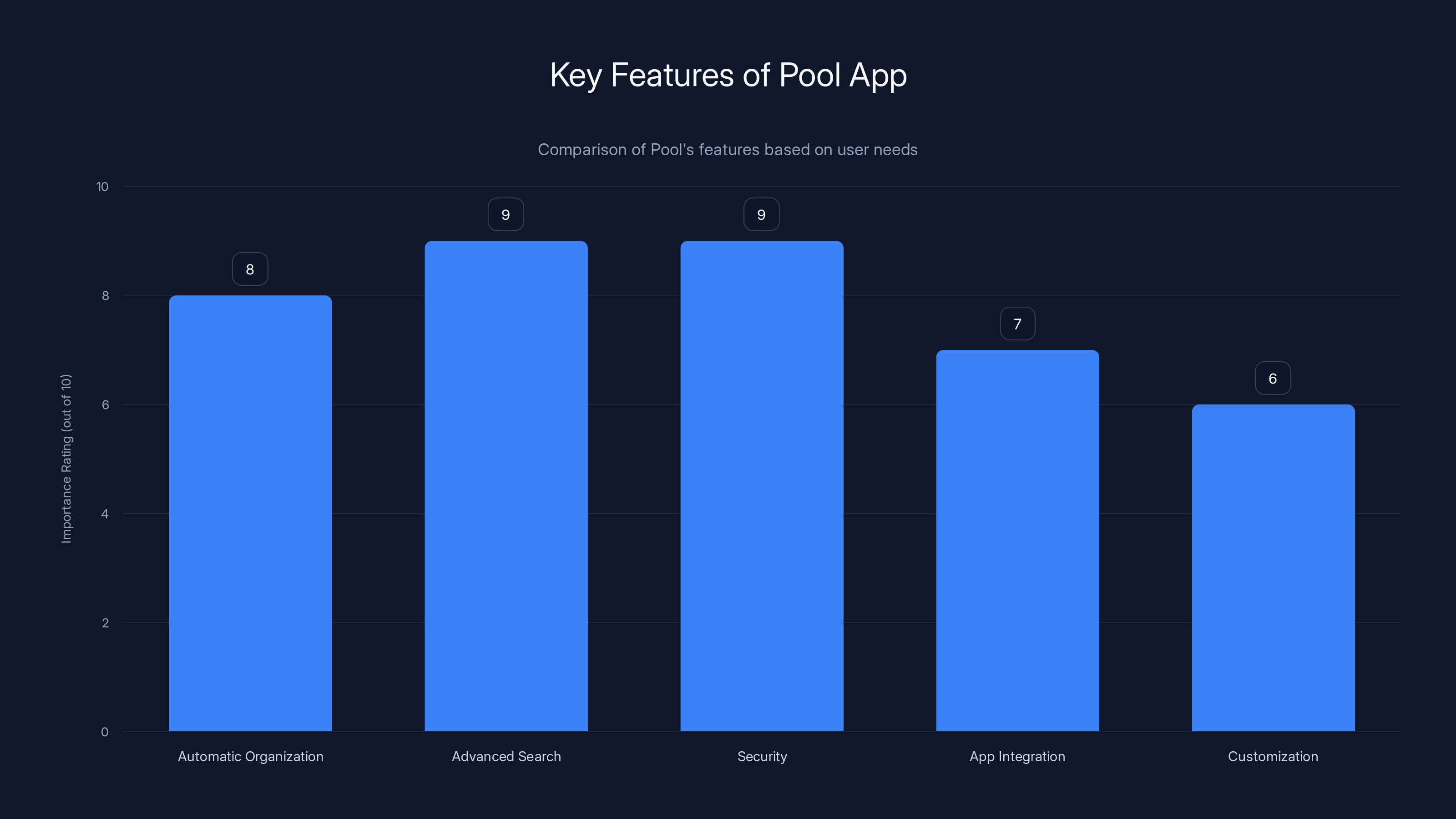
Estimated data showing the importance of Pool's features, highlighting advanced search and security as top priorities.
Why You Need Pool for Screenshot Management
Screenshots are invaluable for documentation, collaboration, and personal reference. However, managing them effectively is crucial to maintaining productivity. Here's why Pool stands out:
- Automatic Organization: Pool uses AI to categorize and tag screenshots based on content, date, and usage context. This feature is similar to how modern photo apps organize images using AI.
- Search Efficiency: Tired of scrolling through folders? Pool's text recognition allows for quick searches by keywords or phrases, akin to the advanced search capabilities seen in iOS updates.
- Sharing Made Easy: Integrated sharing options let you send screenshots directly from the app via email, cloud storage, or social media, similar to features highlighted in Apple's latest software updates.
Setting Up Pool: First Steps
Installation and Initial Setup
Getting started with Pool is straightforward. Here's how to do it:
- Download and Install: Head to the official Pool website and download the app for your operating system.
- Initial Configuration: Open Pool and follow the setup wizard to configure basic settings like save location and preferred file format.
- Integrate Your Apps: Connect Pool with other apps you use frequently, such as Google Drive or Slack, for seamless workflow integration, similar to how smart home devices integrate with various platforms.
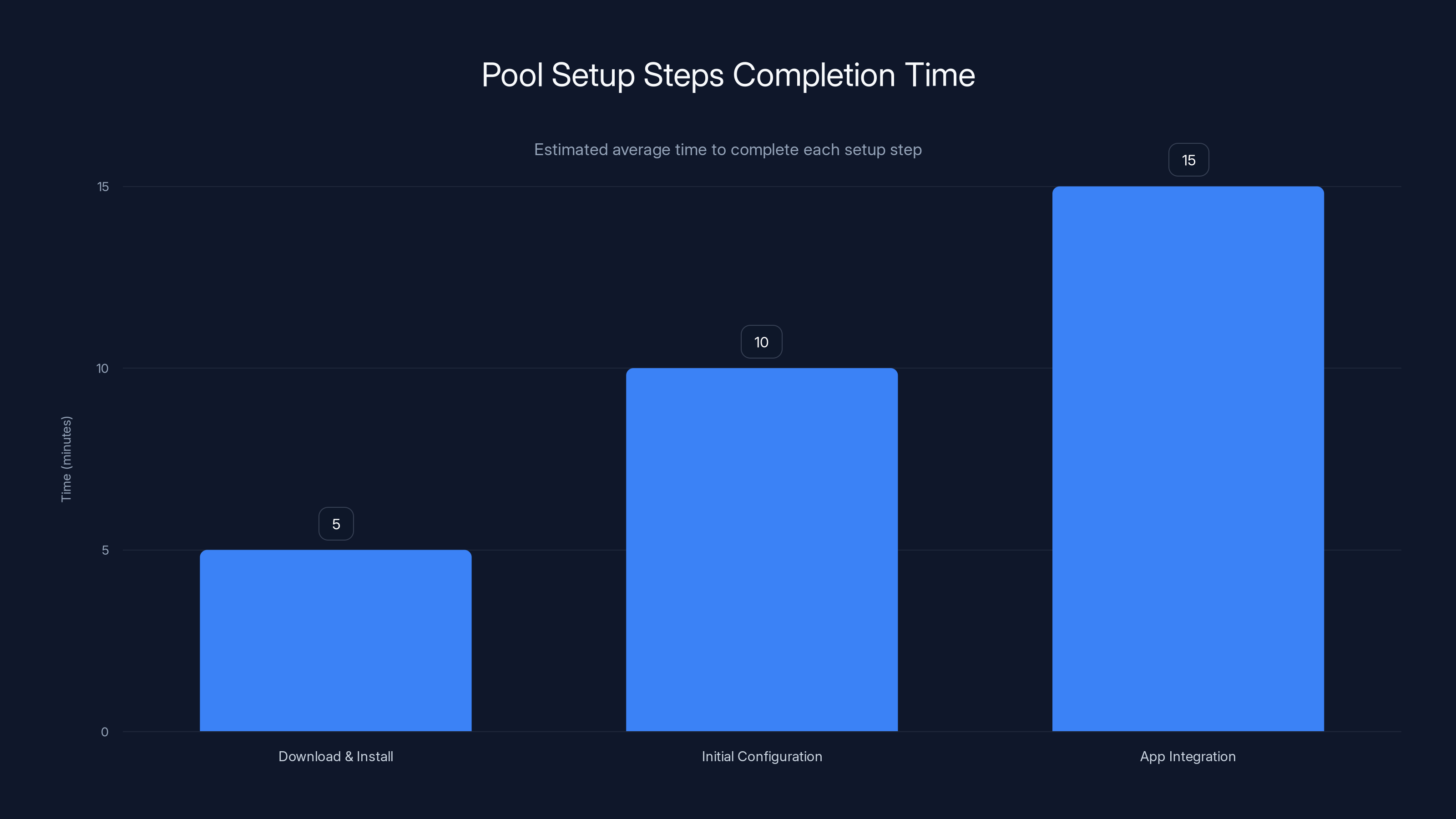
Estimated data shows that integrating apps takes the longest time, while downloading and installing Pool is the quickest step.
Organizing Your Screenshots
Automatic Categorization
Once you've set up Pool, it gets to work organizing your screenshots automatically. Here's how it does it:
- Content Recognition: Pool uses AI to identify the contents of your screenshots and categorize them accordingly, similar to the searchable memory features in modern photo apps.
- Date Sorting: Screenshots are organized by date, making it easy to find recent captures.
- Contextual Tags: Based on the apps or tasks you're working on, Pool tags screenshots with relevant keywords.
Manual Organization
For those who prefer a hands-on approach, Pool offers manual organization features:
- Custom Folders: Create your own folders and drag screenshots into them.
- Tagging: Add custom tags to screenshots for personalized organization.
Advanced Search Capabilities
Searching for a screenshot can be like finding a needle in a haystack, but not with Pool:
- Text Recognition: Pool's OCR (Optical Character Recognition) can identify text within screenshots, making it searchable, similar to features in iOS updates.
- Metadata Search: Search by metadata such as date, app, or device used for the screenshot.
- Keyword Search: Enter keywords or phrases to find screenshots containing specific content.
Sharing and Exporting Screenshots
Built-in Sharing Features
Pool makes sharing screenshots a breeze:
- Email: Send screenshots directly from the app via email.
- Cloud Storage: Upload screenshots to services like Google Drive or Dropbox with a single click, similar to the sharing features in popular apps.
- Social Media: Post screenshots to platforms like Twitter or LinkedIn directly from Pool.
Exporting Options
If you need to export screenshots for archiving or other purposes, Pool offers flexible options:
- Batch Export: Export multiple screenshots at once in your preferred format.
- Compression Options: Choose compression settings to balance quality and file size.
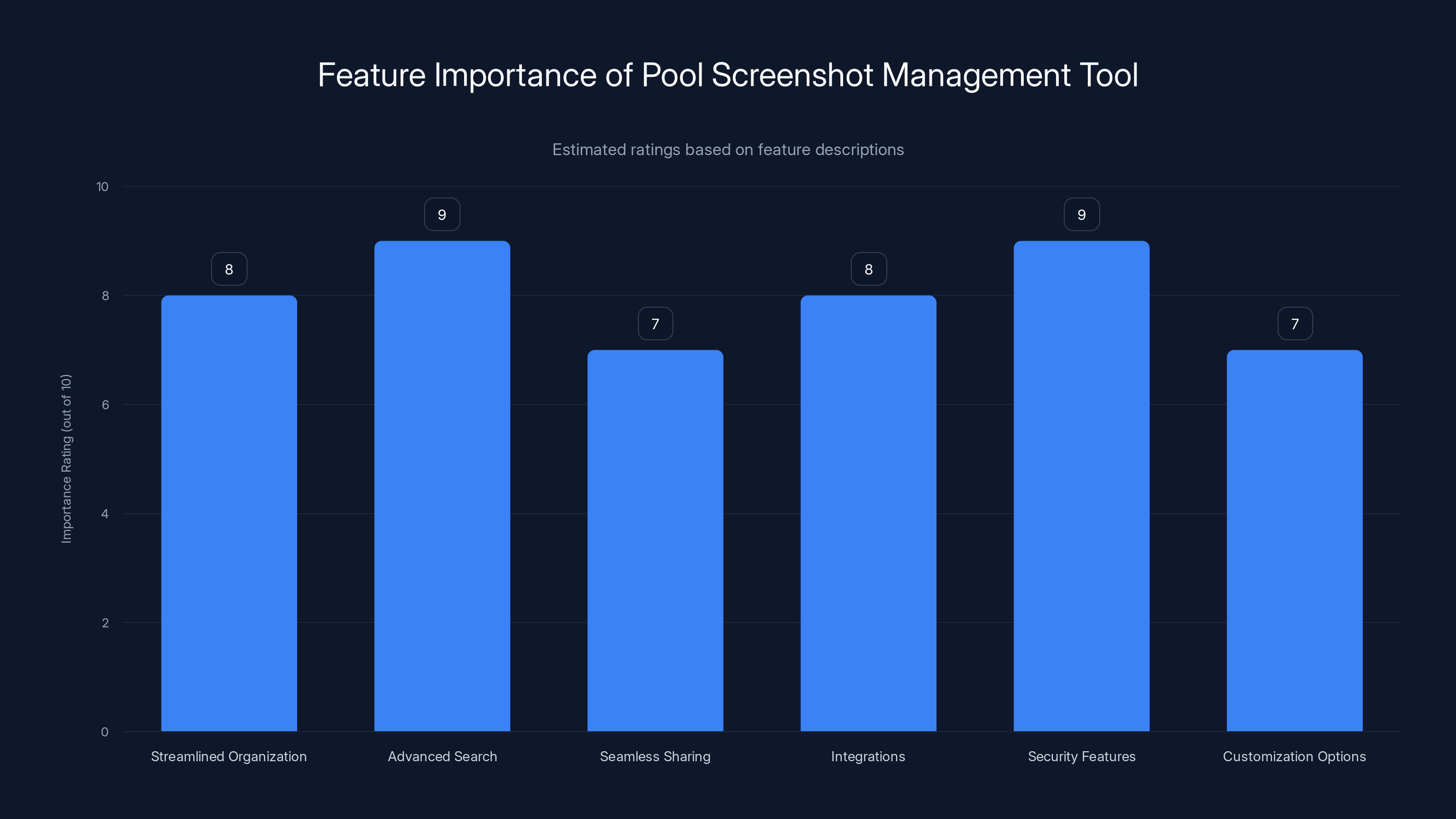
Advanced Search and Security Features are rated highest in importance, reflecting their critical role in user satisfaction. (Estimated data)
Security and Privacy
Keeping your screenshots secure is a top priority for Pool:
- Encryption: Screenshots are encrypted both in transit and at rest, similar to the security measures required by law for physical pools.
- Secure Backups: Automatically back up your screenshots to secure cloud storage.
- Access Control: Set permissions for who can view or edit your screenshots.
Customizing Pool to Fit Your Workflow
Personalization Options
Tailor Pool to your needs with customization features:
- Custom Shortcuts: Set up keyboard shortcuts for quick access to Pool features.
- Interface Themes: Choose from light, dark, or custom themes to suit your aesthetic.

Common Pitfalls and Solutions
Overwhelming Number of Screenshots
Solution: Use Pool's automatic categorization and search features to manage large volumes of screenshots efficiently.
Difficulty Finding Specific Screenshots
Solution: Leverage Pool's advanced search capabilities, including text recognition and metadata filtering.
Security Concerns
Solution: Enable encryption and secure backup features to protect your screenshots.

Future Trends in Screenshot Management
As technology evolves, so will the way we manage screenshots. Here's what to expect:
- AI Enhancements: Continued improvements in AI will make screenshot organization even smarter and more intuitive, similar to the advancements in photo organization.
- Integration Expansion: Expect more integrations with popular productivity and collaboration tools.
- Enhanced Security Features: As privacy concerns grow, screenshot management apps will offer more robust security options.

Conclusion: Embrace the Power of Pool
Pool is more than just a screenshot manager—it's a productivity enhancer. By automating organization, simplifying sharing, and ensuring security, Pool allows you to focus on what truly matters. Embrace the future of screenshot management and optimize your workflow with Pool.
FAQ
What is Pool?
Pool is an app designed to help users manage their screenshots efficiently through automatic organization, advanced search capabilities, and seamless sharing.
How does Pool organize screenshots?
Pool uses AI to categorize screenshots based on content, date, and context, allowing for easy retrieval and reduced clutter.
Is Pool secure for managing sensitive screenshots?
Yes, Pool offers encryption and secure backup options to protect your screenshots from unauthorized access.
Can I integrate Pool with other apps?
Absolutely. Pool integrates with popular apps like Google Drive and Slack to enhance your productivity workflow.
How do I search for specific screenshots in Pool?
Use Pool's advanced search features, including text recognition and metadata filtering, to find specific screenshots quickly.
What customization options does Pool offer?
Pool allows you to customize shortcuts, tags, and interface themes to match your personal workflow preferences.
Is Pool available for all devices?
Pool is available for most major operating systems, including Windows, macOS, and mobile platforms.
Key Takeaways
- Pool offers automatic organization of screenshots using AI for efficient management.
- The app provides advanced search capabilities including text recognition and metadata filtering.
- Pool's seamless sharing options allow users to quickly share via email, cloud, and social media.
- Customization features enable users to tailor Pool to their specific workflow preferences.
- Security in Pool is robust, offering encryption and secure backups to protect sensitive data.
- Future trends include AI enhancements and expanded integrations, improving functionality.
Related Articles
- Apple's AI Photo Editing Tools: The Good, The Bad, and The Future [2025]
- How Gemini Revolutionizes Picture Settings on Google TV [2025]
- The Role of AI Agents in Securing EV Charging Stations [2025]
- Why Smartphone Prices Are Set to Rise and What It Means for Consumers [2025]
- The Rise of Autonomous Vehicle Spoofing: A Deep Dive Into Tesla's Autopilot and Its Vulnerabilities [2025]
- Japanese Electricity Giant's Data Breach: Lessons and Future Implications [2025]


