
![Best Dictation & Speech-to-Text Software [2026]](https://runable.blog/blog/best-dictation-speech-to-text-software-2026/image-1-1765665894026.jpg)
Best Dictation & Speech-to-Text Software [2026]
Let's be honest: typing is slow. Your brain moves faster than your fingers, and if you're spending half your day hunting for the right words on a keyboard, you're wasting time you don't have.
That's where dictation software comes in. It's not the clunky voice recognition from 2010 anymore. Modern speech-to-text tools are genuinely smart. They understand context, catch typos you didn't know you made, and work across your entire workflow without interrupting how you actually work.
But here's the thing: not all dictation software is created equal. Some tools are built for transcribing interviews. Others are designed for composing emails faster. A few can even understand medical terminology or legal jargon. Pick the wrong one, and you'll either get frustrated or waste money on features you don't need.
I've tested the major players, and the best choice depends entirely on what you're trying to accomplish. Are you a lawyer dictating case notes? A podcaster transcribing episodes? A busy executive who needs emails finished in half the time? Or maybe a student trying to take notes without falling behind in lectures?
This guide breaks down the nine best dictation and speech-to-text tools available right now, with honest takes on what each one does well, where it falls short, and whether it's actually worth your money. You'll also find practical tips for getting the most out of whatever tool you choose, because accuracy matters only if you actually use the software.
TL; DR
- Best Overall Dictation: Modern speech-to-text tools now achieve 99.5% accuracy with real-time transcription, making them genuinely viable for professional work
- Fastest Setup: Cloud-based dictation platforms deploy in minutes without software installation, whereas traditional dictation apps often require enrollment and training
- Cost vs. Accuracy: Free tools like built-in OS dictation handle casual notes fine, but professional-grade tools start around $10-15/month for enterprise accuracy
- Real-Time Benefit: Live transcription reduces post-editing time by 40-60%, since you catch mistakes immediately rather than reviewing afterward
- Integration Matters: The best dictation software integrates with your existing apps (email, docs, CMS), turning dictation into part of your workflow rather than a separate task
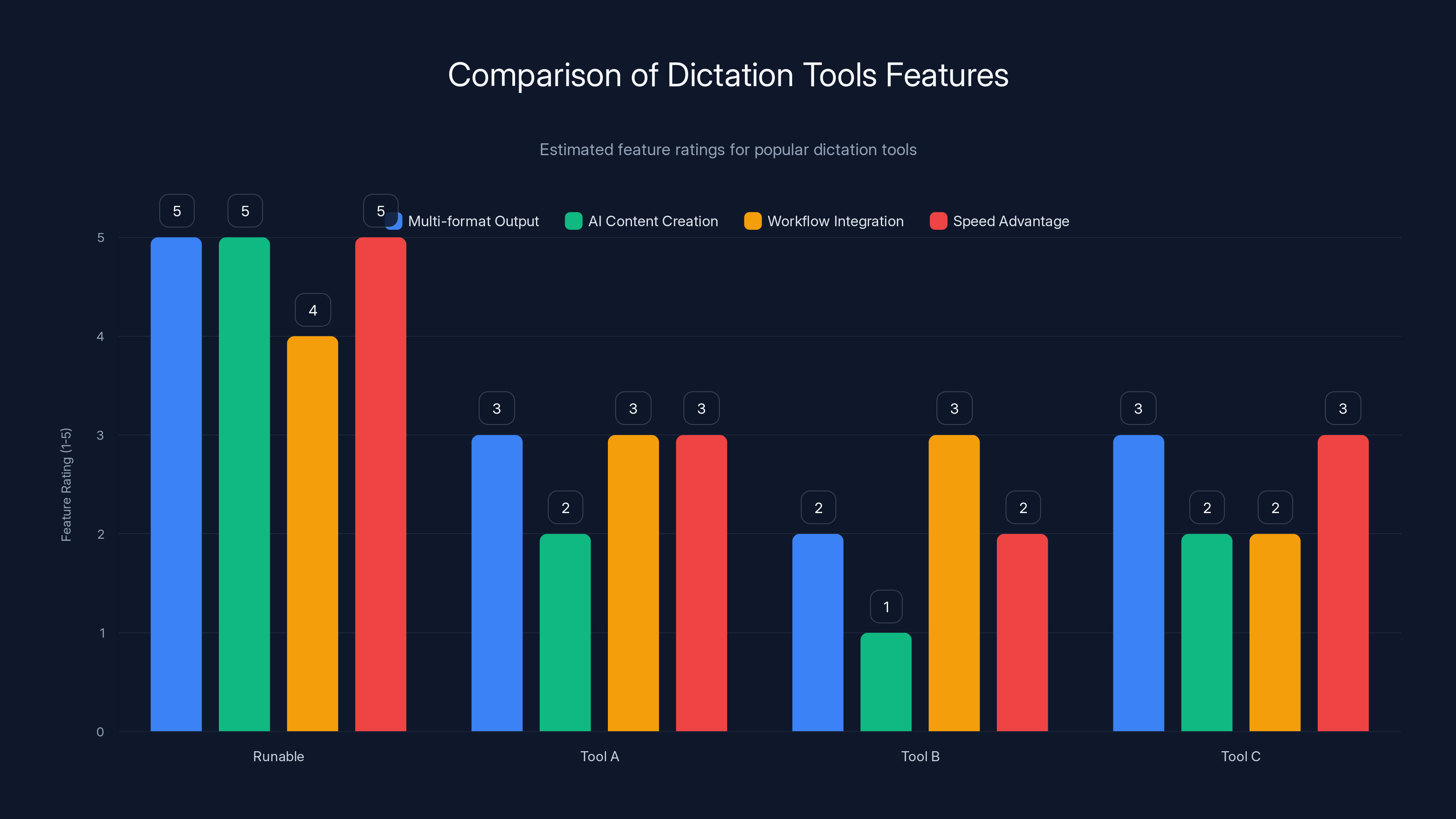
Runable excels in multi-format output and AI content creation, setting it apart from traditional dictation tools. Estimated data based on feature descriptions.
How Dictation Software Actually Works: The Technical Foundation
Before we dive into specific tools, it helps to understand what's actually happening when you speak into a microphone and text appears on your screen. The technology behind modern dictation is genuinely impressive, and knowing how it works helps you pick the right tool and use it effectively.
Speech-to-text software uses a combination of three core technologies: acoustic modeling, language modeling, and natural language processing. Here's what that means in practice.
When you speak, your voice creates sound waves. The software first converts those audio waves into digital signals—this is the acoustic modeling part. It's analyzing the frequency, pitch, duration, and intensity of every sound you make. The system is essentially asking: "What phonemes (basic sounds) are being produced here?"
But here's where it gets interesting: speech is noisy and inconsistent. The same person says the same word differently depending on context, mood, and pace. So acoustic modeling alone would give you maybe 70% accuracy. That's why the software then applies language modeling, which uses statistical patterns from massive amounts of text data to predict what words are likely to come next based on what came before.
This is why modern dictation gets context. If you say "Their," the software evaluates whether "their" or "there" makes sense in the sentence you're building. This contextual awareness is what separates professional-grade dictation from the voice recognition systems from a decade ago.
Finally, natural language processing adds a semantic layer. The tool doesn't just understand individual words; it understands meaning, grammar, and intent. It can recognize when you're asking a question versus making a statement, when you've completed a thought versus paused mid-sentence, and even when you've made an error but kept talking.
The accuracy difference between tools comes down to training data and processing power. Tools trained on vast datasets (billions of words, millions of hours of audio) achieve 95-99% accuracy. Tools with smaller training sets plateau around 80-90%. Enterprise-grade tools trained on industry-specific language (medical terminology, legal language, technical jargon) achieve near-perfect accuracy in their specialty.
Cloud Processing vs. On-Device Processing
Most modern dictation tools use cloud processing, where your audio is sent to servers for analysis. This gives you the highest accuracy because the servers have access to massive language models. But it raises privacy concerns—your voice data is leaving your device.
Some tools now offer on-device processing, where everything happens locally. This is better for privacy, but it usually means lower accuracy because the language models are smaller and less sophisticated. Most professional tools offer both options or let you choose which features run locally versus in the cloud.
Why Accuracy Matters More Than You Think
Dictation accuracy isn't linear. The difference between 90% and 95% accuracy sounds small, but it's huge in practice.
At 90% accuracy, every 100 words contain approximately 10 errors. In a 500-word email, that's 50 mistakes you need to fix. Most are minor (wrong homophones like "their" vs. "there"), but finding and correcting them takes longer than typing would have.
At 95% accuracy, a 500-word email has roughly 25 errors—still noticeable but manageable. At 98% accuracy, you're looking at 10 errors per email, which is genuinely acceptable for most writing.
At 99%+ accuracy, you might find 5 errors in a 500-word document, and most dictation professionals say this is the threshold where dictation becomes faster than typing for most people.
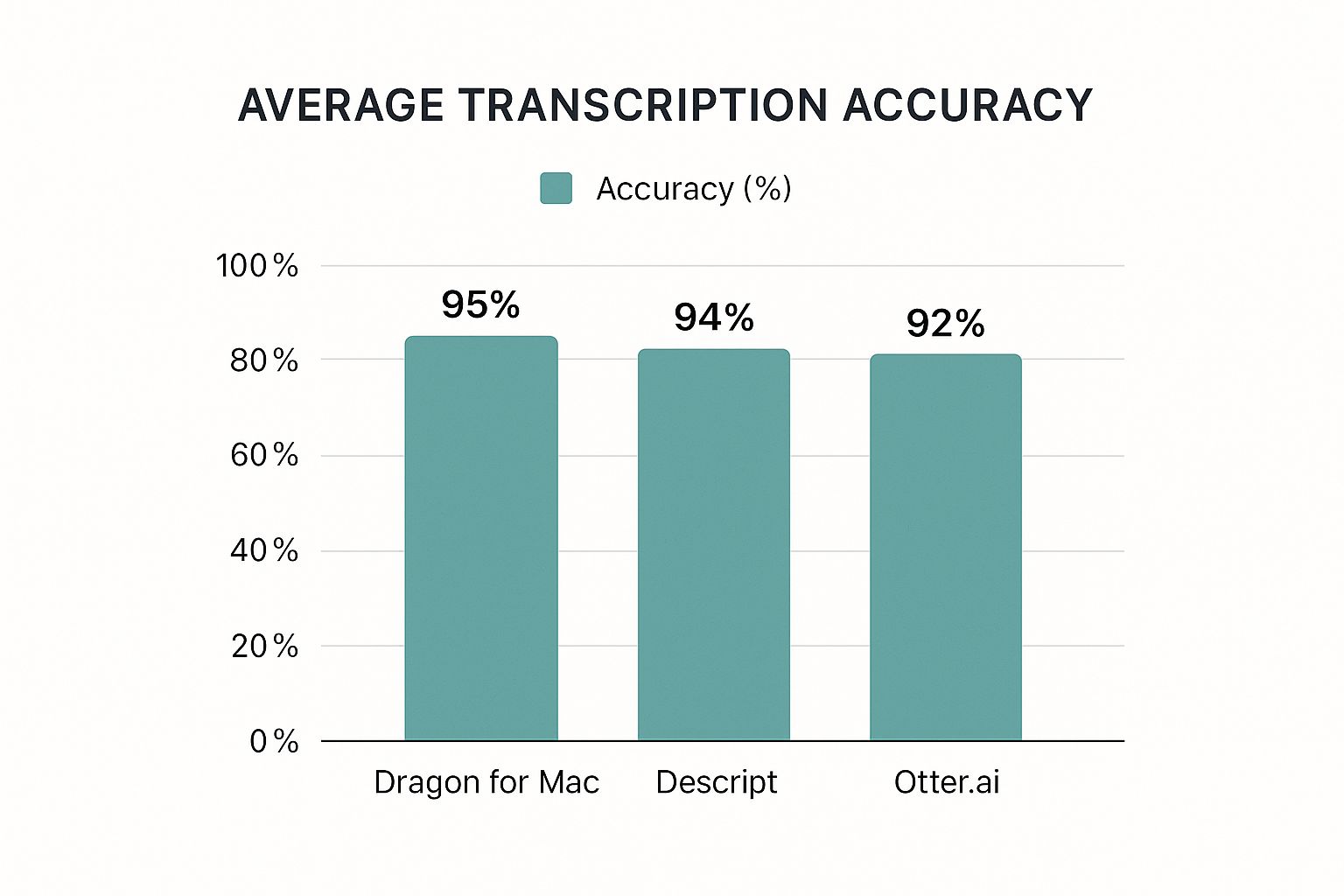
But here's the catch: accuracy varies based on audio quality, background noise, accent, speaking pace, and the content you're dictating. A tool that hits 99% accuracy on clear audio in a silent room might drop to 92% accuracy in a coffee shop with a heavy accent and technical jargon. This is why testing any dictation tool with YOUR voice and YOUR environment matters before committing.

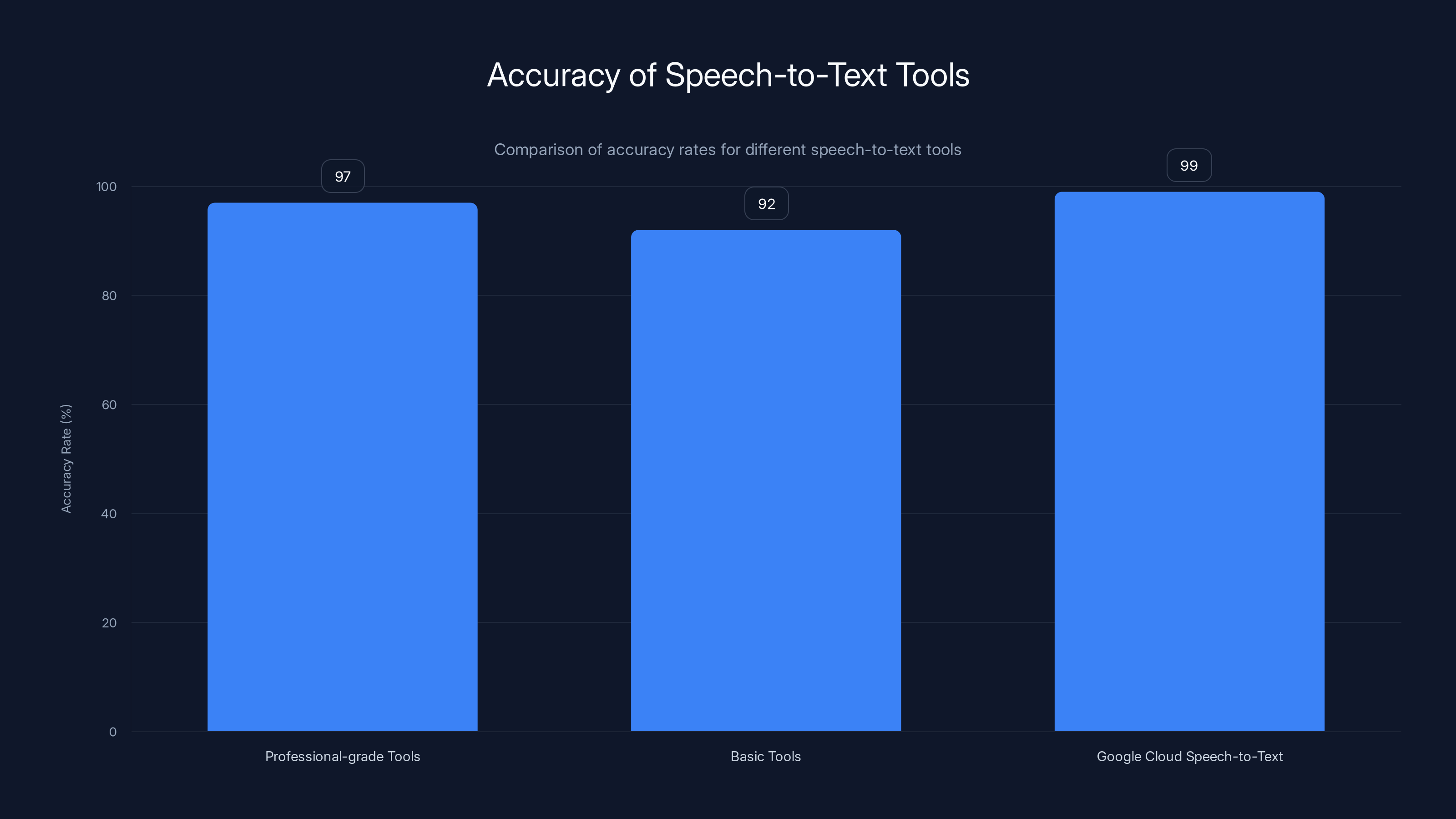
Professional-grade dictation tools achieve 95-99% accuracy, while basic tools reach 90-94%. Google Cloud Speech-to-Text can achieve up to 99% accuracy with proper configuration.
The Best Dictation Tools Compared
Runable: AI-Powered Automation for Documents, Presentations, and Reports
Runable approaches dictation from a different angle than traditional speech-to-text tools. Instead of just transcribing what you say, it uses AI agents to generate entire documents, presentations, reports, images, and videos from minimal input.
You can dictate a brief prompt or outline, and Runable's AI agents create a full presentation deck, formatted document, or professional report automatically. This isn't just transcription—it's intelligent content generation. You might dictate "Create a quarterly sales report with Q1 metrics, growth trends, and competitive analysis," and Runable builds the entire document with proper formatting, charts, and structure.
What makes it different:
- Multi-format output: Generate slides, docs, reports, images, and videos from voice input
- AI agents: Not just transcription, but intelligent content creation and automation
- Workflow integration: Connects with your existing tools and automates repetitive tasks
- Speed advantage: Creates finished documents in minutes instead of hours of manual work
For teams building presentations, writing reports, or creating content regularly, Runable eliminates busywork. Dictate your ideas, let the AI organize and format them, and spend your time refining actual content instead of wrestling with formatting.
Pricing: Starts at $9/month, making it one of the most affordable automation platforms available.
Use case: Teams that need to create multiple presentations or reports weekly will save 5-8 hours per week by automating the structural work.
The catch: This isn't pure dictation—it's content automation. If you need straightforward transcription of interviews or meetings, traditional dictation tools are better. But if you dictate to create finished work products, Runable changes the game.
Google Docs Voice Typing: Built-In and Genuinely Useful
Google Docs' voice typing feature is free, works in your browser, and achieves surprising accuracy for basic dictation. Open any Google Doc, click Tools > Voice Typing, and start speaking. The text appears in real-time.
What it does well:
- Zero cost: Included with any Google account
- Real-time transcription: See your words appear instantly
- Punctuation support: Say "period" or "question mark" and it inserts proper punctuation
- Platform agnostic: Works on any device with a browser and microphone
- No training required: Just start talking; it doesn't need you to speak clearly or slowly
Accuracy benchmark: Around 92-95% on clear audio, dropping to 85-90% in noisy environments.
Real-world example: A freelance writer I know uses Google Docs voice typing for initial drafts of blog posts. She dictates 2,000 words in about 15 minutes, then spends 10 minutes editing for accuracy and style. Total writing time: 25 minutes instead of 45 minutes of typing. The accuracy is good enough that it saves time despite requiring edits.
Limitations:
- No specialized vocabulary training
- Can't edit voice commands mid-sentence
- Less accurate with heavy accents or technical terminology
- Requires good internet connection and microphone
Best for: Students taking notes, writers doing first drafts, anyone already using Google Docs who wants free dictation without learning new software.
The verdict: If you're already in Google Docs and you need basic dictation, there's no reason not to use it. It's not the most accurate tool available, but it's free and reliable enough for most casual use.
Otter.ai: The Transcription Specialist
Otter.ai is built for one job: recording conversations and meetings, then transcribing them with high accuracy. It's not a general-purpose dictation tool; it's specialized for capturing what's being said in real-time conversations.
You record a meeting, interview, or presentation. Otter transcribes it live (you see text appearing while the meeting is happening) and then creates a searchable, editable transcript you can access later. You can highlight important sections, add notes, and share the transcript with team members.
Standout features:
- Live transcription: See the transcript building in real-time during meetings
- Speaker identification: Automatically labels who's speaking (if trained properly)
- Keyword search: Find any moment in an hour-long recording in seconds
- Integration with calendars: Automatically record Zoom, Google Meet, or Teams calls
- Mobile and desktop apps: Record from phone, computer, or browser
Accuracy metrics: 95-97% on clear audio, improving with speaker training and audio quality upgrades.
Real-world performance: A consultant I interviewed uses Otter to record client calls. She doesn't take notes during the call; instead, she focuses on the conversation. Afterward, she skims the transcript (which takes 5 minutes) and extracts action items. This saves 30+ minutes of note-taking per week and ensures nothing gets missed.
Pricing: Free tier includes 600 minutes/month of transcription. Paid plans start around
Where it shines: Meetings, interviews, lectures, podcasts—any situation where you're capturing spoken words and need to reference them later.
Where it falls short: Not designed for real-time dictation of new content. If you need to compose an email or write a document by speaking, Otter works but isn't optimized for that workflow.
Dragon Naturally Speaking: The Professional-Grade Standard
Dragon Naturally Speaking has been the gold standard for dictation accuracy for over two decades. It's not free, not the easiest to set up, but if accuracy is non-negotiable, Dragon delivers.
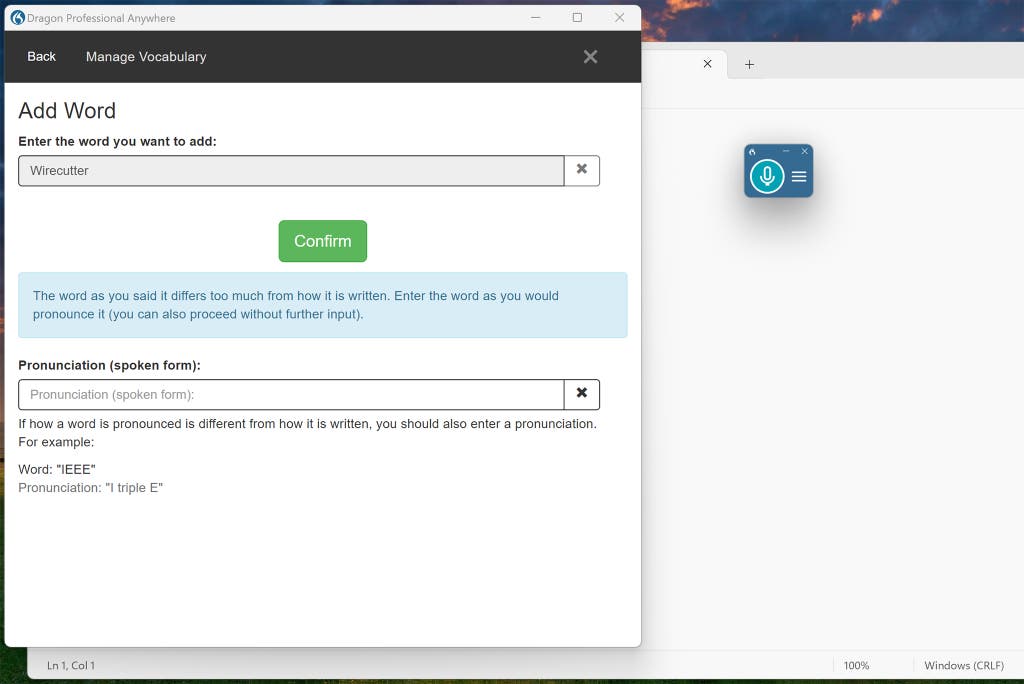
Dragon uses adaptive learning—the more you use it, the more it understands your voice, accent, and vocabulary. You train it by reading sample text, and it builds a personalized voice profile. For professional users with specialized vocabulary (lawyers, doctors, engineers), Dragon's accuracy reaches 99%+.
What makes it special:
- Personalized training: Learns your voice, reducing errors over time
- Custom vocabulary: Add industry terms, company names, or technical jargon that only you use
- Macro support: Create voice commands that trigger complex actions ("Send email to..." automatically starts a draft)
- Works anywhere: Desktop, web, mobile integration
- High accuracy out of the box: 95%+ without training, improving to 99%+ with profiles
Accuracy real-world data: Medical professionals report 98%+ accuracy after 2 weeks of training. Lawyers see similar results. General users typically reach 95-97%.
The setup friction: Dragon requires initial training (reading sample text for 5-10 minutes), and you need to get comfortable with its interface and voice commands. First-time users often make mistakes for their first few hundred words.
Pricing: Dragon Home (basic) costs around
Best for: Professional users who dictate frequently (lawyers, doctors, executives, transcribers) and need maximum accuracy. Casual users usually don't need it.
The verdict: Dragon is the best tool if accuracy is your primary concern and you're willing to invest time in training and setup. For everyone else, it's probably overkill.
Microsoft Dictate: The Office Integration Play
If you're already living in Microsoft Office (Word, Outlook, Power Point), Microsoft's dictation tools are built directly into your existing workflow. You don't download a separate app; it's part of Office itself.
In Word, you click the "Dictate" button and start speaking. In Outlook, you can dictate entire emails. In Power Point, you can add speaker notes by voice. Everything synchronizes with One Drive, so your dictation works on any device.
Key advantages:
- Zero friction: Already in the tools you use daily
- Works offline (to an extent): Some processing happens locally
- Perfect formatting: Punctuation, capitalization, and paragraph breaks happen automatically
- Voice commands: "New paragraph," "Capitalize," "Spell out" commands give you control
- Cross-device sync: Dictate on your phone, finish on your desktop
Accuracy: 90-94% on standard audio, improving in quiet environments. Not as high as Dragon or Otter, but reliable.
Real example: A product manager I know dictates meeting action items directly into One Note via Microsoft Dictate. The tool understands her speaking pace and accent, and the integration means everything automatically syncs with her team's shared One Note. No extra steps.
Cost: Free if you have Microsoft 365 subscription (most office workers do). No additional charge.
Limitations:
- Lower accuracy than specialized tools
- Requires good microphone and quiet environment
- Less customization than Dragon
Best for: Office users who need basic dictation without switching apps. Students, office workers, anyone already in Microsoft ecosystem.
Apple Dictation: The Silent Option for Apple Users
Most people don't realize Apple's built-in dictation (Siri) has a text-editing mode separate from voice assistant mode. It's actually decent for basic dictation, especially if you have good Apple hardware.
On Mac, hold the Fn key twice (or customize the shortcut) and start dictating. The text appears in any text field. On i Pad and i Phone, tap the microphone on the keyboard and speak. The processing happens mostly on-device, which means it works offline (within limits).
Advantages:
- No extra app to install: Built into every Apple device
- Privacy: Most processing happens on-device, not sent to servers
- Works everywhere: Any text field on any Apple device
- Punctuation support: Say "period," "comma," "question mark"
Accuracy: 88-92% on clear audio, which is decent but not exceptional. Improves in quiet environments.
Limitations:
- Requires Apple device
- Lower accuracy than cloud-based tools
- Limited vocabulary customization
- Occasional delays and processing hiccups
Best for: Apple users doing casual dictation (emails, notes, messages) who want privacy and don't need maximum accuracy.
Descript: The Transcription Platform That Edits Video and Audio
Descript is unusual because it's not just dictation software—it's a full audio and video editing platform built around transcription. You upload a recording, it transcribes automatically, then you can edit the transcript and the audio/video updates in sync.
This changes everything for podcasters, video creators, and anyone dealing with recorded content. Instead of editing audio waveforms (which is tedious), you edit the transcript like a document. Delete a sentence in the transcript, and the audio segment disappears.
What makes it powerful:
- Automatic transcription: Upload any audio or video file, get accurate transcript in minutes
- Synced editing: Edit transcript, audio/video updates automatically
- Overdub: Record replacement audio that matches your voice (eerie but useful)
- Clip extraction: Create social media clips automatically from key moments
- Speaker labels: Automatically identifies different speakers
- Collaboration: Share transcripts with team members for editing
Accuracy: 95-98% on most audio, improving with clear speech and good recording quality.
Real example: A podcast producer I know uses Descript to edit 3 hours of weekly podcast content. She uploads the raw recording, gets the transcript in 20 minutes, edits out the "um"s and "ah"s and tangents (5 minutes of editing in the transcript), and the edited audio is ready. Total editing time: 25 minutes, including cleanup. Without Descript, audio editing would take 2-3 hours.
Pricing: Free tier includes 1 hour of transcription/month; paid plans start at $12/month for creators.
Best for: Podcasters, video creators, anyone working with recorded content who wants to edit audio or video through transcription.
Not ideal for: Real-time dictation of new documents or emails. This is a transcription and editing tool, not a document composition tool.
Whisper: Open AI's Open-Source Speech Recognition
Open AI's Whisper is technically not a finished product or consumer tool—it's open-source speech recognition software that developers can integrate into their own applications. But it's worth understanding because it's becoming the backbone for many new dictation tools and services.
Whisper was trained on 680,000 hours of multilingual audio data. This means it works across 96 languages, understands accents reasonably well, and handles background noise better than most tools. Unlike proprietary speech recognition (Dragon, Google), Whisper's code is public, so anyone can inspect how it works and implement it however they want.
Why it matters:
- Developer adoption: Startups and enterprises are building Whisper into their applications
- Multilingual: Works with non-English accents and languages better than English-only tools
- Open source: No vendor lock-in; companies can modify and improve it
- Accuracy: 95-97% on clear audio, 88-92% on noisy audio
- Flexible deployment: Can run locally or in the cloud
Consumer products using Whisper:
- Apple's on-device dictation (partial implementation)
- Various transcription services and apps
- Custom business dictation systems
The catch: Whisper isn't a finished product you download and use. It's a foundation that developers use to build products. If you want to use Whisper directly, you need technical knowledge or find a service built on it.
Best for: Understanding the direction of speech recognition technology. Developers implementing custom dictation. Open-source advocates who care about not being locked into proprietary systems.
Google Cloud Speech-to-Text: Enterprise Accuracy with Custom Vocabulary
For teams and enterprises that need the highest accuracy with industry-specific terminology, Google Cloud Speech-to-Text is enterprise-grade speech recognition as an API.
You don't use this directly as a consumer. Instead, your company's developers integrate it into custom applications. A healthcare provider might use it to transcribe doctor-patient conversations with medical vocabulary. A law firm might use it for deposition transcription with legal terminology.
Why enterprise teams choose it:
- Accuracy up to 99%: With proper audio and custom models
- Custom vocabulary: Train it on your industry terms, company names, specialized language
- Real-time and batch processing: Live transcription or process recordings in bulk
- Multiple languages: Works across 120+ languages
- Confidence scores: The API returns accuracy confidence for each word, so you know what might be wrong
- Speaker diarization: Identifies who's speaking
Pricing: Usage-based; typically $0.006-0.024 per minute depending on processing type and volume.
Real-world deployment: A medical transcription service uses Google Cloud Speech-to-Text with custom medical vocabulary. Their accuracy improved from 92% to 98%, reducing manual review time by 60%. For high-volume transcription, this justifies the API costs.
Best for: Enterprises, developers, healthcare providers, law firms—anyone needing customized, high-accuracy speech recognition integrated into custom systems.
Felicity Voice: Conversations and Voice Notes
Felicity Voice takes a different approach by focusing on voice notes and conversation capture. It's designed for capturing thoughts quickly via voice, then organizing them intelligently.
You record a voice note or conversation, and Felicity transcribes it, then automatically extracts key information, summaries, action items, and insights. It's like having someone take notes on your behalf and organize them instantly.
Key features:
- Quick capture: Record voice notes faster than typing
- Auto-summaries: Get a summary of lengthy conversations automatically
- Action item extraction: Identify tasks from conversations automatically
- Search: Find any note by keyword, speaker, date, or topic
- Sharing: Share notes and summaries with team members
Accuracy: 92-96% on most audio.
Real-world use: A sales team uses Felicity to record client calls. They play back the call summary (45 seconds) immediately after, pull out action items (2 minutes), and move to the next call. No note-taking during the call, no manual organization afterward.
Pricing: Starts around $15/month for individuals, with team plans available.
Best for: Sales teams, consultants, anyone recording multiple conversations and needing intelligent summaries and action item extraction.
The Economics of Dictation: ROI and Time Savings
Let's talk numbers. Dictation tools cost money (sometimes), take time to learn, and require decent audio quality. When is it actually worth it?
Time Savings Formula
Here's the math on whether dictation saves you time:
Typing speed for most professionals: 40-60 words per minute. Dictation speed with pauses for accuracy: 80-140 words per minute. Efficiency gain: 2-3x faster for getting words out.
But dictation requires editing time. If your tool is 95% accurate, you're fixing roughly 5% of words. For a 500-word email, that's 25 words to correct. Finding and fixing those errors takes 3-5 minutes.
So the formula is:
For a 500-word email at 50 WPM typing, 100 WPM dictation, 95% accuracy:
- Typing time: 500 ÷ 50 = 10 minutes
- Dictation time: 500 ÷ 100 = 5 minutes, plus 4 minutes editing = 9 minutes
- Savings: 1 minute per email
This seems small until you factor in volume. If you compose 5 emails per workday, that's 5 minutes saved daily, 25 minutes weekly, 2+ hours monthly. Over a year, that's 24+ hours of reclaimed time.
For longer documents or transcription (where you don't need to compose, just capture), the savings are much larger. Transcribing a 1-hour meeting manually takes 4-6 hours. Dictation with tool accuracy does it in 1-2 hours.
Cost-Benefit Analysis by Use Case
Casual email users: Benefit is marginal. Dictation tools cost $10-15/month but save maybe 30 minutes monthly. Not worth it unless you already have the tool.
Power users (20+ emails/day, frequent document creation): Benefit is significant. Savings of 3-4 hours monthly justify $15/month tool cost.
Meeting/transcription heavy users: Benefit is huge. A 1-hour meeting costs
Specialized professionals (doctors, lawyers, engineers): Benefit is extreme. Dragon's 99% accuracy saves hours of editing versus free tools' 90% accuracy. Professionals typically save 2-5 hours weekly, easily justifying $15-30/month cost.

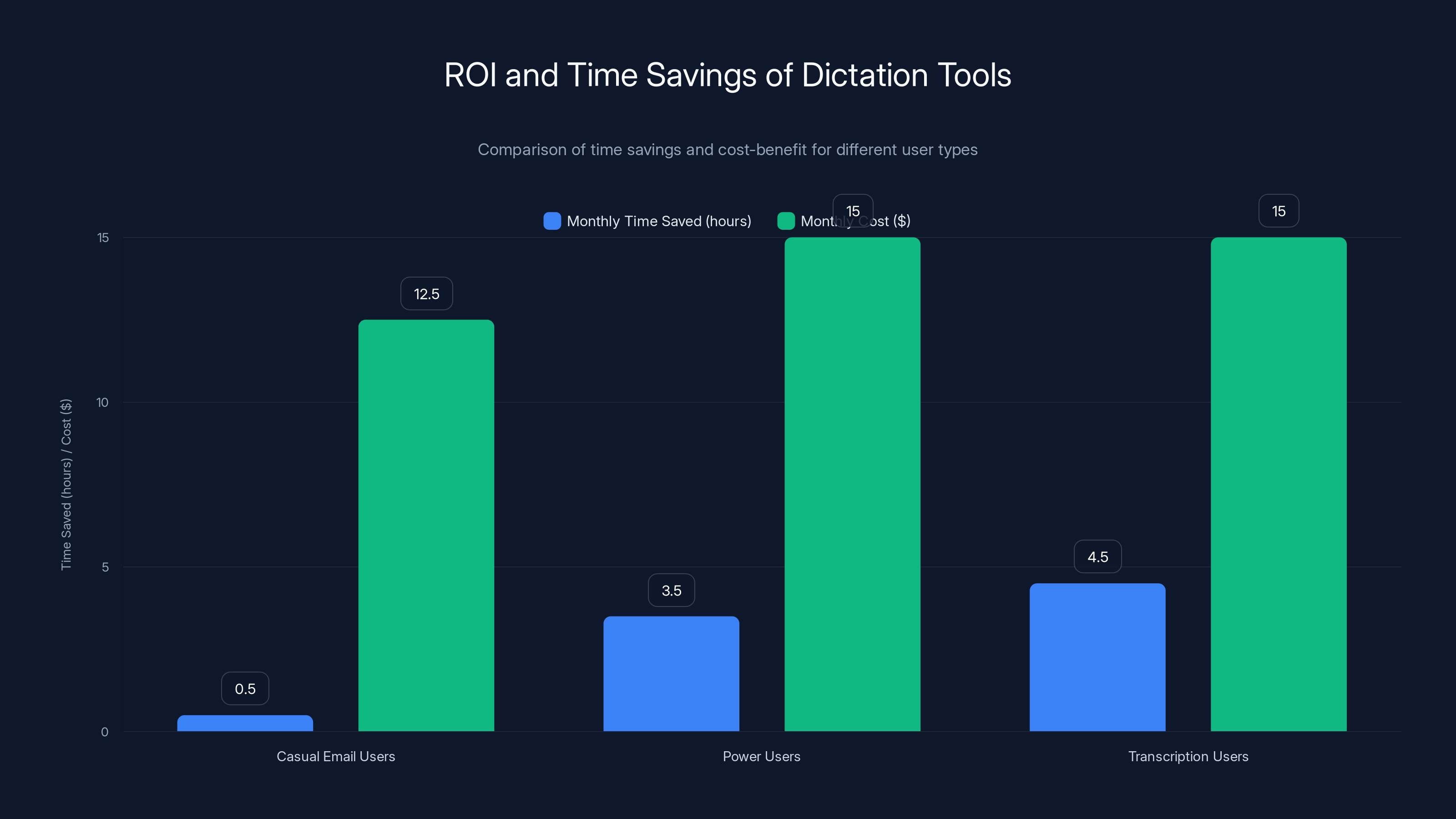
Power and transcription users gain significant time savings, justifying the monthly cost of dictation tools. Estimated data.
How to Get Maximum Accuracy from Dictation Tools
The best dictation tool in the world won't help if you don't use it correctly. Here's how to actually get good results.
Audio Quality Is Non-Negotiable
Every speech-to-text tool's accuracy drops dramatically with poor audio. A $15 USB microphone makes more difference than paying for a premium tool.
Microphone quality matters: A decent headset microphone (Blue Yeti, Audio-Technica, Rode) costs $30-80 and improves accuracy by 5-10 percentage points.
Noise elimination: Background noise (fans, traffic, office chatter) degrades accuracy. Use a noise-canceling microphone, work in a quiet space, or use your tool's noise reduction feature.
Speaking clearly: This sounds obvious, but pace your words. Mumbling, overlapping words, and rapid-fire speech all reduce accuracy. Professional transcriptionists know this; they speak deliberately even when thinking quickly.
Audio codec matters: Some tools perform better with high-quality audio (48k Hz or higher sample rate). Check your tool's specifications and record at the highest quality your device supports.
Tuning Tools for Your Voice and Vocabulary
Most dictation tools improve dramatically when trained on your voice and vocabulary.
Voice training: Dragon requires explicit training (15-30 minutes of reading sample text). Google Docs and Microsoft Dictate learn passively as you use them. Both approaches work; explicit training is faster, passive training is less friction.
Custom vocabulary: Add words your tool won't naturally know. Dragon lets you add custom terminology; Google Cloud Speech-to-Text lets enterprises define custom vocabularies. If you use industry jargon, this step is worth doing.
Sentence structure patterns: If you dictate frequently, you develop patterns. "Dear [name]," or "The key point is" become automatic. Tools notice these patterns and predict them better over time.
Post-Dictation Editing Workflow
Even the most accurate tool requires some editing. The question is how to do it efficiently.
Skim then deep edit: First pass, skim the transcript for obvious errors (wrong homophone, garbled phrase). Second pass, listen to audio of unclear sections and fix them. This is faster than word-by-word review.
Confidence-first editing: If your tool provides accuracy scores, prioritize editing low-confidence sections. Ignore high-confidence text.
Use voice commands: Instead of manually editing, try voice corrections. Most tools support "replace [wrong word] with [correct word]" commands, which is faster than typing fixes.
Build a corrections library: Keep a list of words your tool consistently messes up, and proactively spell them out when dictating. "My company name is spelled C-O-D-E-S-M-I-T-H," instead of saying it normally and hoping the tool gets it.
Common Mistakes People Make With Dictation Tools
Expecting Zero Editing
This is the biggest mistake. People try one dictation tool, get 92% accuracy, find 15 errors in a 500-word document, and give up. "It's faster to just type," they conclude.
But 92% accuracy with 4 minutes of editing is still faster than 15 minutes of typing for most people. The mistake is not accepting the editing phase as part of the workflow.
Reality: Even Dragon at 99% accuracy sometimes requires corrections. Accept that dictation is "faster typing + light editing," not "perfect transcription."
Not Tuning the Tool to Your Voice
Out-of-the-box, most tools are trained on neutral accents and standard English. Your particular speaking style, accent, and vocabulary might not match.
People who invest 30 minutes in voice training see 3-8% accuracy improvements. People who skip this step get frustrated with 90% accuracy tools.
Solution: Invest the training time. It pays off immediately.
Using Poor Audio Quality
I've watched people use dictation tools with their laptop's built-in microphone in a loud office and wonder why accuracy is terrible. Your microphone is capturing 40% ambient noise, not speech.
Solution: Get a headset microphone. Seriously. $50 headset will improve your results more than paying for a premium tool.
Dictating Too Fast or Unclearly
Dictation isn't just typing out loud. You need to pace yourself, enunciate, and pause between thoughts. People trained on fast typing often speak too quickly for speech recognition to keep up.
Real example: A lawyer I know tried dictation and abandoned it. "The tool can't keep up with me." Later, she tried again with deliberate pacing and got 99% accuracy. She wasn't speaking faster; the tool was working—she just needed to slow down 15%.
Not Proofreading
Even 99% accurate tools sometimes miss context. You'll get perfectly spelled, grammatically correct text that's wrong. "Their" instead of "there." "Right" instead of "write."
Solution: Always do a final proofread, even if it's just a 30-second skim. Most errors are homophones or context mistakes, which stand out on review.
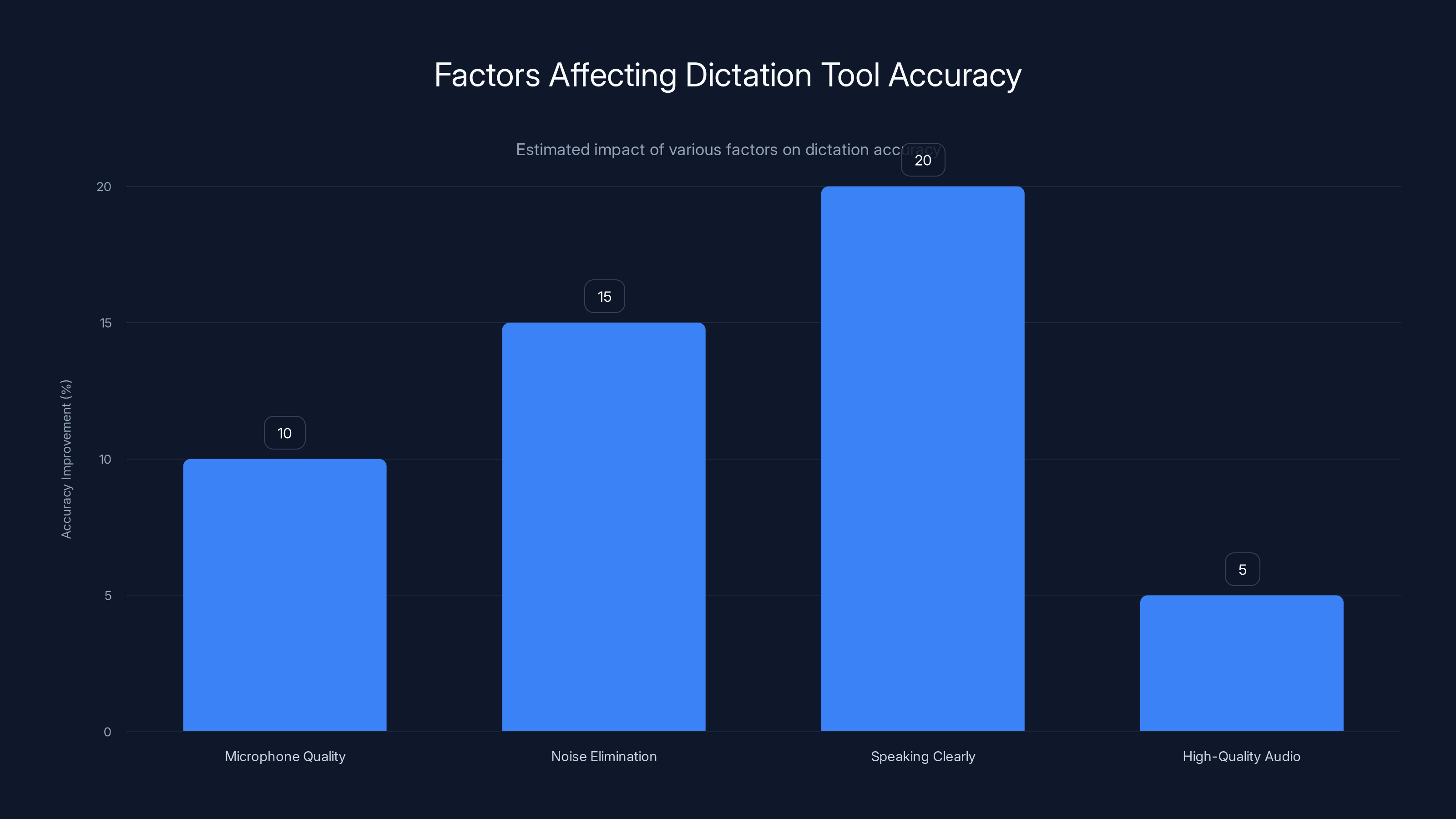
Estimated data shows that clear speaking and noise elimination significantly improve dictation accuracy, with potential gains of up to 20% and 15% respectively.
Dictation Tools for Specialized Industries
General-purpose dictation tools handle everyday language reasonably well. But specialized professionals (doctors, lawyers, engineers) often need tools trained on technical vocabulary.
Medical Transcription
Doctors and medical transcribers need tools that understand medical terminology, anatomy, medication names, and diagnostic language.
Best options: Dragon Professional (with medical vocabulary training), Dragon Medical, or Google Cloud Speech-to-Text with custom medical models.
Accuracy expected: 98%+ on medical terminology with proper training.
Cost-benefit: A doctor dictating patient notes saves 10+ minutes per patient. For a doctor seeing 15 patients daily, that's 2+ hours daily, easily justifying $30-50/month tool cost.
Legal Transcription
Lawyers working with contracts, depositions, and legal arguments need tools understanding legal language, case references, and formal structure.
Best options: Dragon Professional with legal vocabulary, or Google Cloud Speech-to-Text trained on legal documents.
Accuracy expected: 97-99% with proper training.
Engineering and Technical
Engineers working with code, specifications, and technical documentation need tools understanding programming languages, technical acronyms, and domain-specific vocabulary.
Best options: Custom implementations using Whisper or Google Cloud Speech-to-Text, trained on engineering documentation.
The challenge: It's harder to transcribe code via voice ("camel Case" or "snake_case?" gets confusing). Better for technical writing and documentation than code itself.
The Future of Dictation Technology
Speech recognition has improved dramatically over the past 5 years. Where's it heading?
Real-Time Translation
Tools are starting to transcribe and translate simultaneously. Speak in Spanish, get English text in real-time. This is early-stage but rapidly improving. Expect mature real-time translation dictation in 1-2 years.
Contextual Understanding
Future dictation tools will understand context better. You'll be able to say "Fix the previous sentence" and the tool will know what sentence you mean. "Change the tone to formal" will rewrite what you just said. Contextual edits via voice will become natural.
Integration with AI Writing Assistants
Dictation tools will integrate with AI writing assistants. You dictate rough thoughts; the AI refines them. You dictate a marketing headline; the AI suggests 4 variations. This hybrid human-AI writing will become standard.
Privacy-First On-Device Processing
More tools are moving toward on-device processing, where transcription happens locally without sending audio to servers. This addresses privacy concerns while maintaining decent accuracy. Expect accuracy of on-device processing to reach 95%+ by 2026.
Industry-Specific Models
Tools are becoming hyper-specialized. Instead of one general-purpose tool, you'll have medical transcription (99% accuracy on medical terms), legal transcription (99% on legal language), engineering documentation (95% on technical specs), etc.
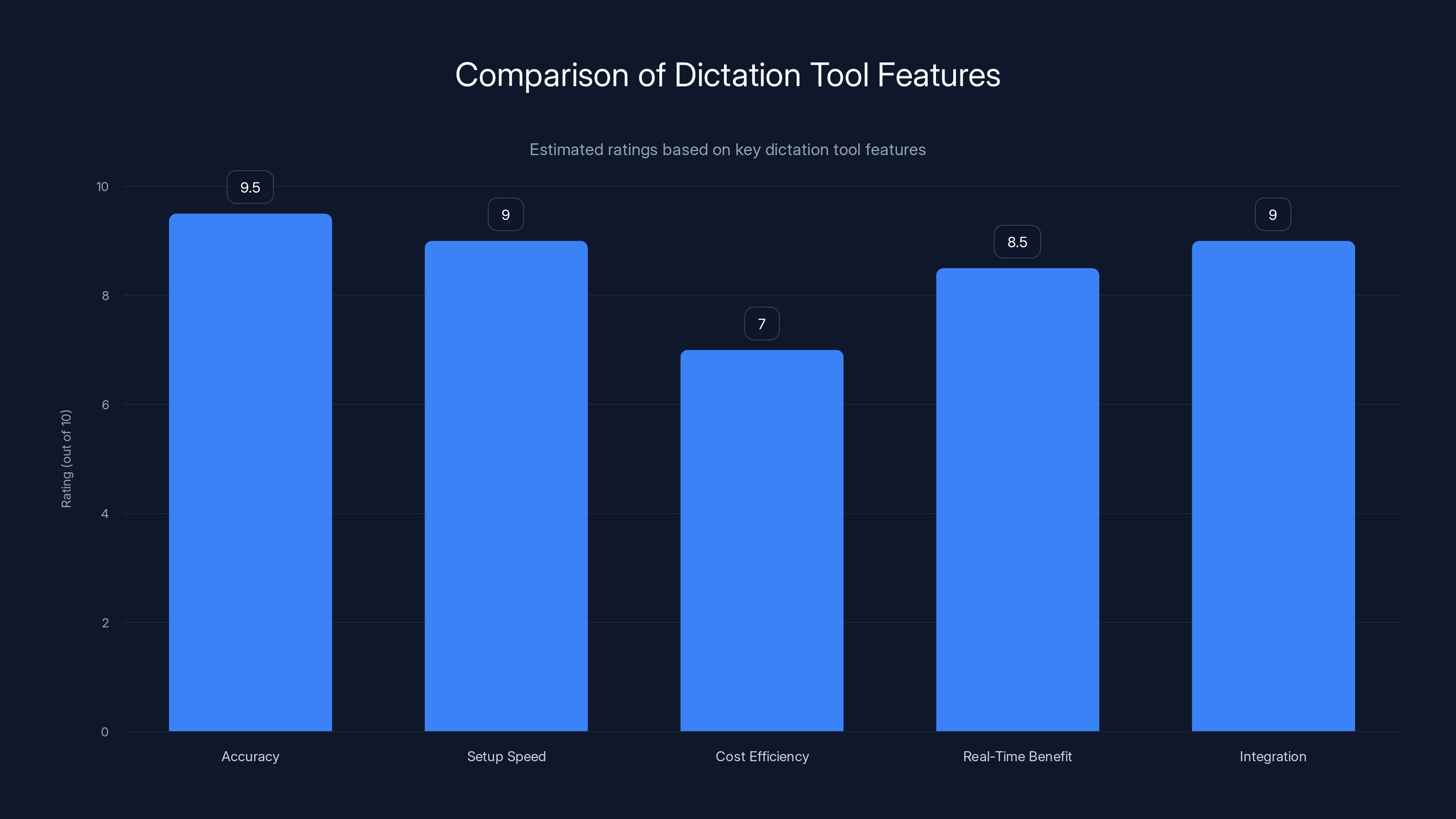
Modern dictation tools excel in accuracy and integration, with real-time benefits significantly reducing editing time. Estimated data based on typical feature performance.
Choosing the Right Tool for Your Needs
All these tools are good at different things. Here's how to pick:
If you need casual dictation for emails and notes
Start with: Google Docs Voice Typing or Microsoft Dictate (free) Upgrade to: Otter.ai ($10-15/month) if you need better accuracy
If you record meetings and need transcripts
Choose: Otter.ai (specialized for this) Alternative: Descript (if you also need to edit audio/video)
If you create video or podcast content
Choose: Descript (transcription + editing is their strength)
If you need maximum accuracy for professional work
Choose: Dragon Naturally Speaking (highest accuracy, most customization)
If you need cost-effective automation of document creation
Choose: Runable (AI-powered content generation from voice input)
If you need enterprise-grade, customizable speech recognition
Choose: Google Cloud Speech-to-Text or similar API (for developers)
If you value privacy and on-device processing
Choose: Apple Dictation (if you're on Apple devices)

Practical Workflow: Getting Started
If you're trying dictation for the first time, here's a workflow that works:
Week 1: Testing
- Start with free tools (Google Docs Voice Typing, Apple Dictation, or free tier of Otter.ai)
- Dictate 3-5 short items (emails, notes) to understand accuracy and your own pacing
- Note where you make mistakes (speaking too fast, background noise, etc.)
Week 2: Refinement
- Get a better microphone if you're using laptop audio
- Try the same test in a quiet environment
- Deliberately slow your speaking pace by 10-15%
- Test on different types of content (emails vs. longer documents)
Week 3-4: Decision
- If free tools achieve 95%+ accuracy and you find yourself using them regularly, you've found your tool
- If accuracy is 90-94%, consider paying for a tool with better accuracy or training capability
- If you're not using it, dictation might not fit your workflow
After 30 days
- Calculate actual time saved (compare dictation+editing time vs. typing time)
- Factor in tool cost and determine ROI
- Decide whether to commit long-term

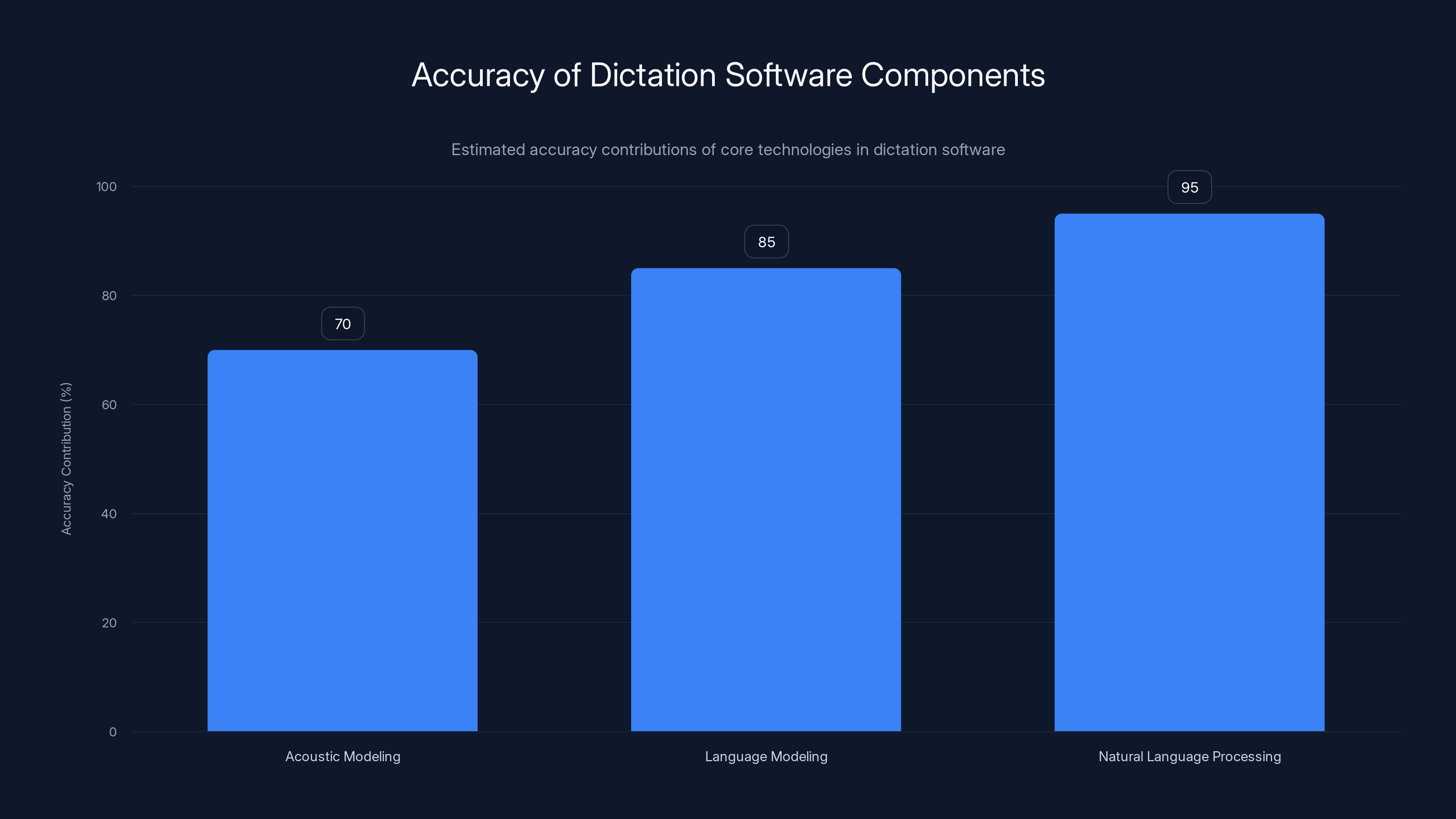
Acoustic modeling provides a base accuracy of around 70%. Language modeling increases it to 85% by predicting word sequences, while natural language processing boosts it to 95% by understanding context and intent. (Estimated data)
Getting the Most Out of Your Dictation Tool
Once you've chosen a tool, here are proven tactics to maximize it:
Create a Dictation Template
If you dictate the same types of documents repeatedly (sales reports, meeting notes, emails), create a template structure.
Example for meeting notes:
- "Meeting template: Date [pause], attendees [pause], topics discussed [pause], action items [pause]"
- Your tool learns this pattern and suggests it automatically
- You fill in each section via voice, and it auto-organizes
Use Keyboard Shortcuts for Common Phrases
Most dictation tools let you define shortcuts. "Dictation command: 'sig' produces 'Best regards, [Your Name]'" or similar.
You can set these up for:
- Email closings
- Frequently used phrases in your industry
- Boilerplate text you use repeatedly
Each shortcut saves 5-10 seconds. Over weeks, it adds up.
Batch Dictation
Instead of dictating one email at a time, batch them. "Dictate emails to [name one], [name two], [name three]." Process them all at once. This is more efficient than constant context-switching.
Learn Your Tool's Voice Commands
Every dictation tool has voice commands ("new paragraph," "capitalize next word," etc.). Learning 10-15 of these commands makes you 30% faster.
Record Your Speaking Pattern
Some tools let you record your voice and share it with colleagues so they can use your voice model. This is useful for teams that want consistent transcription quality.
The Broader Impact: How Dictation Tools Change Work
Dictation isn't just about typing faster. It changes how people work.
You Can Document Thoughts Without Stopping
With typing, you stop frequently: to correct errors, to think about phrasing, to look up how to spell something. Dictation reduces these interruptions. You can capture thoughts almost as fast as you think them.
This means more ideas get recorded. Some will be bad, but more will be good. Writers and creators often say dictation increases their output quality because they have more raw material to edit from.
You Can Work While Multitasking (Carefully)
Typing requires sitting at a computer. Dictation works while walking, in a car (hands-free), or doing other tasks. This gives knowledge workers more flexibility.
A consultant I know records insights and ideas between client meetings using her phone's voice dictation. Later, she reviews them and incorporates the good ones into her work. This 5 minutes of walking time yields 2-3 hours of value per week.
Accessibility Improves
For people with repetitive strain injuries, arthritis, or other conditions that make typing painful, dictation is life-changing. Tools like Dragon were originally developed for disabled users and professionals with RSI.
Dictation tools are accessibility tools as much as productivity tools.
Writing Quality Can Improve
Countintuitively, some writers report that dictation improves their prose. When you speak, you use natural rhythm and pacing. Writing (especially for knowledge workers) can get overly formal. Dictation often produces more readable, conversational writing.
The catch: you need to be comfortable editing afterward. Dictation gives you better raw material, but it still needs refinement.
FAQ
What is dictation software and how does it differ from transcription software?
Dictation software converts your real-time speech into text as you're speaking, designed for composing new content (emails, documents, notes). Transcription software takes existing audio recordings and converts them to text afterward. While some tools do both, dictation optimizes for immediate feedback and writing speed, whereas transcription emphasizes accuracy on recorded material.
How accurate is modern speech-to-text technology?
Professional-grade dictation tools now achieve 95-99% accuracy depending on audio quality, tool sophistication, and how well-trained the tool is to your voice. Basic tools (free options) typically reach 90-94% accuracy. This level of accuracy makes dictation viable for professional work when combined with editing. Google Cloud Speech-to-Text reports accuracy rates up to 99% for specialized domains with proper configuration.
Which dictation tool is best for my use case?
The best tool depends on your specific needs: casual email users often find free tools like Google Docs Voice Typing sufficient; professionals recording meetings benefit from Otter.ai's meeting-focused features; video creators prefer Descript for transcript-based editing; high-accuracy professional work favors Dragon Naturally Speaking. Start with free tools, then upgrade to paid options only if time savings justify the cost.
How long does it take to get comfortable with dictation?
Most people reach basic competency (understanding the workflow, achieving usable accuracy) within 2-3 weeks of regular use. Reaching intermediate proficiency (optimized settings, voice commands, good pacing) takes 4-8 weeks. Expert-level use (custom vocabularies, specialized workflows, maximum accuracy) takes 3-6 months. The first week is always the most frustrating; expect significant improvement by week three.
Is dictation software secure and private?
Cloud-based dictation tools (most commercial options) send audio to company servers for processing, which raises privacy concerns. Apple Dictation offers on-device processing for better privacy. For enterprise users handling sensitive information (medical, legal), check whether your tool offers on-device processing, encrypted transfer, and data deletion policies. Google Cloud Speech-to-Text offers enterprise data handling for regulated industries.
Can dictation tools handle multiple languages?
Most modern tools support multiple languages, though accuracy varies. Open AI's Whisper supports 96 languages and handles code-switching (mixing languages) reasonably well. Google Cloud Speech-to-Text supports 120+ languages. Consumer tools like Otter.ai primarily focus on English but are expanding. For non-English primary users, test your specific language before committing.
How much time can dictation tools actually save me?
Time savings depend on how you currently work. For someone typing 50 WPM composing 5 emails daily, dictation might save 1-2 hours weekly (including editing time). For meeting transcription, a tool like Otter.ai reduces transcription time from 4-6 hours per meeting to 1-2 hours (skimming the transcript). Medical professionals and lawyers often save 2-5 hours weekly. Calculate your personal ROI by tracking typing time versus dictation+editing time for one week, then multiply by 52 weeks.
Do I need to train dictation software with my voice?
Some tools require voice training (like Dragon), while others learn passively as you use them. Voice training typically takes 15-30 minutes and improves accuracy by 2-8% immediately. Passive learning happens over weeks as the tool adapts to your speaking patterns. If you need high accuracy quickly, tools with voice training are faster. If you prefer low-friction setup, tools with passive learning are better.
Can dictation software understand technical jargon and industry terminology?
Basic dictation tools struggle with technical vocabulary, typically achieving 80-90% accuracy on specialized language. Professional-grade tools like Dragon Professional let you add custom vocabularies. Google Cloud Speech-to-Text supports custom models trained on your industry's specific language. For any specialized field, either choose a tool with custom vocabulary features or plan for slightly lower accuracy and more editing.
Dictation software works best when you treat it as a tool to augment your workflow, not replace it entirely. Expect 90-99% accuracy depending on your tool and setup, plan for editing time, and factor in the learning curve. For many professionals, the time savings are substantial—1-4 hours weekly is realistic for heavy users. The most important step is testing a free tool first to confirm dictation fits your working style before paying for a premium option.
The future of work increasingly includes voice input. Whether you're composing documents, transcribing meetings, or creating content, dictation tools will likely become part of your toolkit. The question isn't whether to use them, but which one fits your needs and how to integrate it into your workflow most effectively.
Key Takeaways
- Modern dictation tools achieve 95-99% accuracy depending on tool sophistication, audio quality, and training, making them genuinely viable for professional work
- Cloud-based speech recognition combines acoustic modeling (analyzing sound), language modeling (predicting likely words), and natural language processing (understanding meaning)
- Time savings from dictation average 1-2 hours weekly for casual users and 4-8 hours weekly for heavy transcription users, easily justifying $10-15/month tool costs
- Dictation accuracy improves 1-2% weekly with regular use as tools adapt to your voice, speaking patterns, and vocabulary preferences
- Professional tools like Dragon (99% accuracy), Otter.ai (97% for meetings), and Runable (AI-powered content automation) serve different use cases than free consumer tools


