
Why Time Blocking Changed Everything (And Why Most People Still Miss It)
You probably check your calendar every morning. You see meetings scattered across the day. But between those meetings? That's usually blank space. And blank space on a calendar is like an open invitation to chaos.
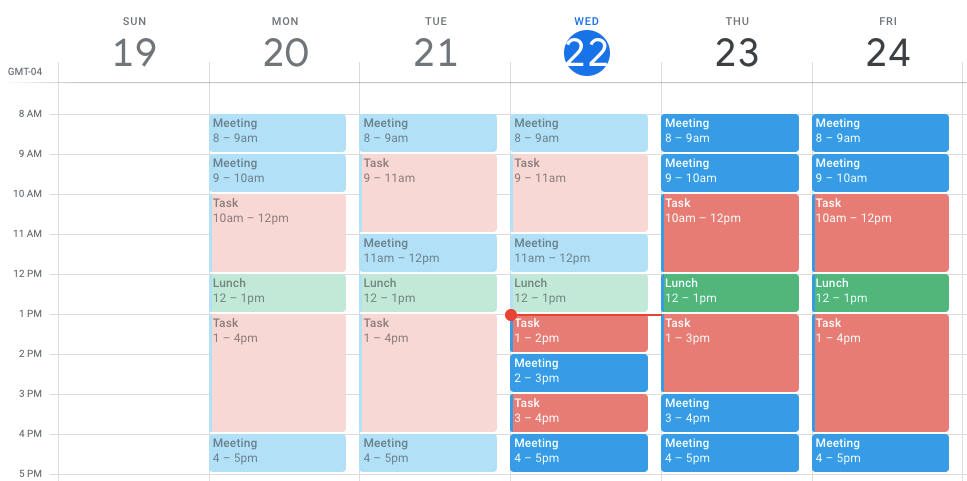
Time blocking fixes that problem by forcing you to decide what happens during every hour of your workday. Not just the meetings other people schedule for you, but the actual work you need to do. The deep focus sessions. The admin tasks. The thinking time.
The difference is remarkable. People who block time instead of just reacting to interruptions report getting more done in fewer hours. Some studies show productivity gains of 25-40% just from scheduling work blocks instead of letting time slip away between meetings.
Here's the thing though: time blocking only works if your calendar tool makes it easy. If you're wrestling with your calendar for 15 minutes just to add a work block, you're not going to do it consistently.
That's where time blocking apps come in. They handle the friction. They make blocking time as easy as clicking and dragging. Some even use AI to suggest the best blocks automatically.
We've tested the major players in this space. The tools that actually understand how people work, not the ones that just add colors to your calendar. Below, you'll find the best options based on features, integration depth, ease of use, and actual time-blocking capabilities.
TL; DR
- Time blocking is proven: Scheduling work blocks increases productivity by 25-40% versus reactive scheduling
- Integration matters more than you think: The best time blocking apps connect with your other tools (Slack, email, project management) to prevent conflicts
- AI is becoming standard: Modern apps now suggest optimal time blocks based on your habits and meeting patterns
- Google Calendar still leads: But standalone apps like Fantastical and Clockwise offer much smarter blocking features
- Mobile access is critical: Time blocking only works if you can block time from anywhere, not just your desktop
- Bottom line: Choose an app that integrates with tools you already use, not one that forces you into a new workflow
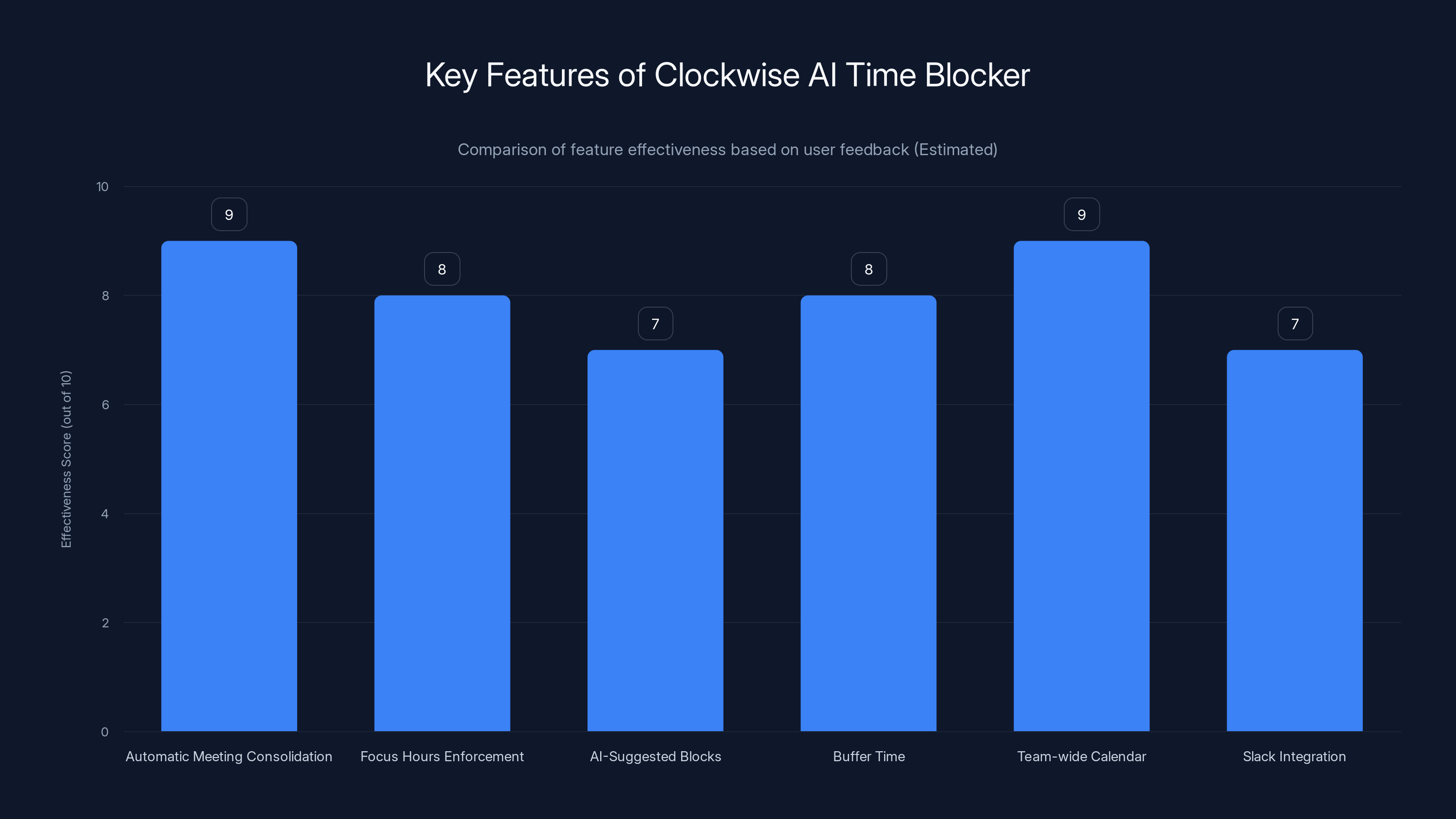
Clockwise's features like 'Automatic Meeting Consolidation' and 'Team-wide Calendar' are rated highly effective, with scores of 9 out of 10. (Estimated data)
Understanding Time Blocking: What It Is and Why It Actually Works
Time blocking isn't a new concept. It's been around since the early days of productivity management. But it's had a resurgence lately, and for good reason: it's one of the few scheduling methods that actually survive contact with a real workday.
At its core, time blocking is simple: you divide your day into blocks of time, and each block gets assigned to a specific task or category of work. You're not just tracking when meetings happen. You're actively scheduling when you'll do focused work, when you'll handle email, when you'll take breaks.
Why does this work better than just having a to-do list? Because your calendar is where your real commitments live. Everyone has 24 hours. Everyone says yes to too much. But when you actually block time on your calendar, you're making a promise to yourself that's visible the moment someone tries to schedule a meeting with you.
There are different time blocking methodologies. The most common ones:
Task batching: Grouping similar work together. All your emails at 10am and 2pm. All your deep work from 8-11am. This reduces context switching by 40% compared to jumping between different types of work throughout the day.
Time boxing: Setting specific time limits for tasks. "I'll work on the design mockup for exactly 90 minutes." When the time's up, you stop, even if you're not finished. Counterintuitive, but it forces prioritization and prevents perfectionism from stealing your day.
Theme days: Assigning entire days to specific work types. Mondays for planning, Tuesdays for meetings, Wednesdays for deep work. Some people find this extreme, but it works if your job allows it.
Buffer blocking: Scheduling breaks and transition time between work blocks. Your brain needs 5-10 minutes to shift gears between tasks. If you don't schedule that buffer, you'll create it anyway by getting distracted.
The calendar apps you're about to see take different approaches to making time blocking easier. Some are built from the ground up for it. Others bolt it onto a general calendar. The difference matters more than you'd think.

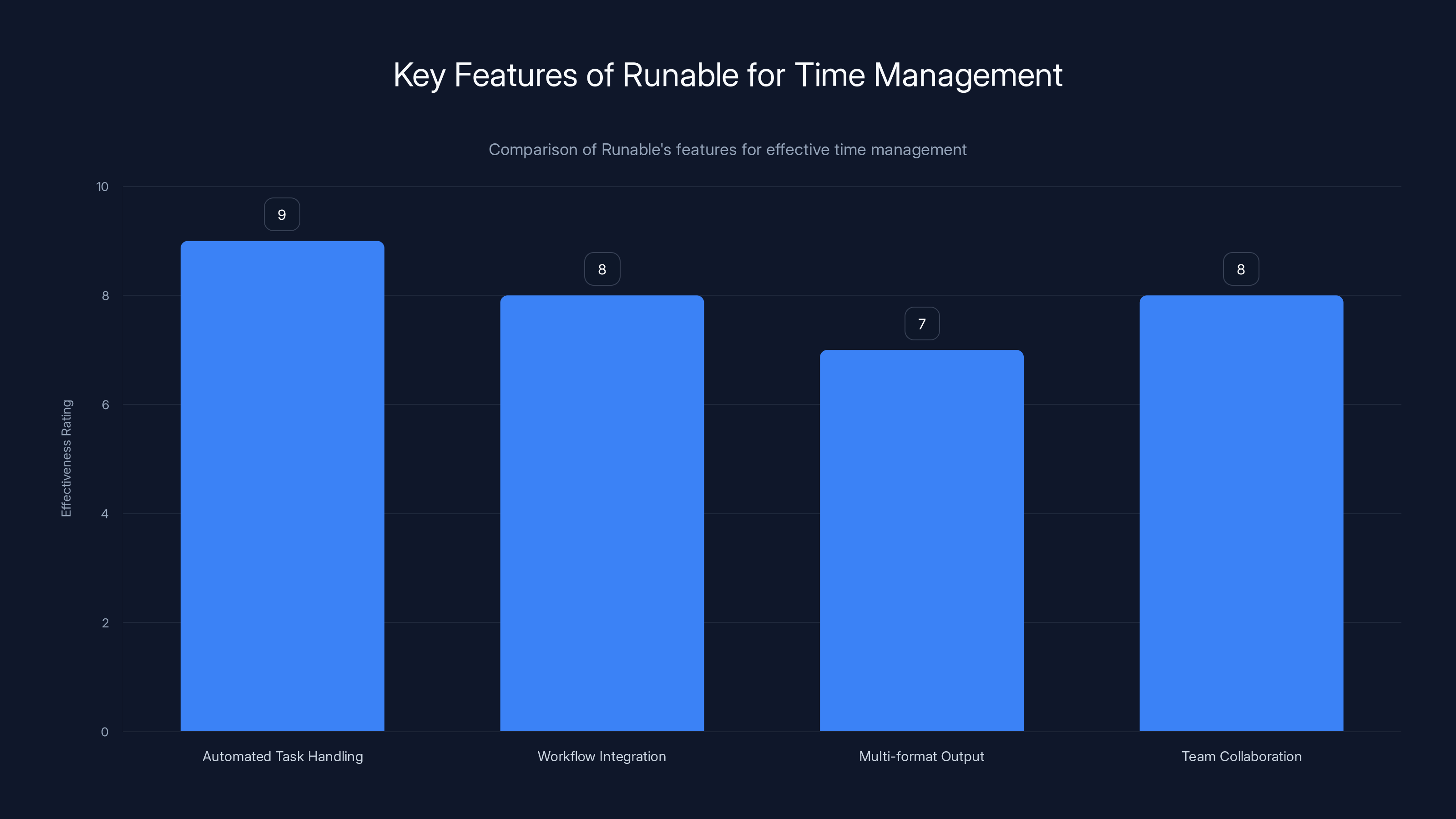
Runable excels in automated task handling and workflow integration, making it a strong choice for maintaining uninterrupted time blocks. Estimated data based on feature descriptions.
Runable: AI-Powered Workflow Automation for Seamless Time Management
Runable brings a fresh perspective to time management by combining AI-powered automation with intelligent scheduling. While not purely a time blocking app, Runable integrates time blocking with your broader workflow automation needs—ideal if you're managing both your calendar and your work processes.
The platform excels at automating the busy work that steals your time blocks. You can create AI agents that handle repetitive tasks, generate reports automatically, create presentations from data, and manage document workflows. This means you reclaim even more time to actually use those blocks for meaningful work.
What makes Runable different for time blockers:
- Automated task handling: AI agents handle routine work so you're not interrupted during blocked focus time
- Workflow integration: Automate handoffs between tools so context switching takes seconds, not minutes
- Multi-format output: Create presentations, documents, reports, and slides automatically
- Team collaboration: Share and manage workflows with your team without breaking your time blocks
Runable pricing starts at $9/month, making it one of the most accessible workflow automation platforms. The free tier lets you test the core features before committing.
Use case that stands out: You block 2 hours for strategic planning. Instead of spending 90 minutes pulling data and formatting reports, you trigger an AI agent that generates those assets in 10 minutes. You spend the full 2 hours actually thinking and planning.
The learning curve is minimal—you're building automation workflows, not writing code. It pairs beautifully with any calendar app on this list.
Use Case: Automate your weekly report generation so you reclaim 2+ hours of focus time for deep work instead of manual data compilation.
Try Runable For Free
Google Calendar: The Foundation Most People Never Optimize
Let's start with what most of you already use. Google Calendar is installed on roughly a billion devices worldwide. It's the default. It's free. Most people never realize it can actually handle time blocking.
The reason people miss Google Calendar's time blocking potential? The UI doesn't scream "time blocking tool." It looks like a basic calendar. And that's actually the point. It's simple enough that you'll use it, but flexible enough that time blocking works fine.
Time blocking in Google Calendar:
You create events for your work blocks just like you'd create them for meetings. 8:00-9:30am: Deep work on project X. 9:30-10:15am: Email. 10:15-10:30am: Buffer. It's that straightforward. The calendar shows everything, people see when you're available, and you have a protected schedule.
What Google Calendar does extremely well for time blocking:
- Color coding: Assign colors to different types of work (deep focus = blue, admin = gray, meetings = red). Scan your calendar and instantly see the balance.
- Event descriptions: Add notes about what each block is for. "Deep work block—please don't interrupt unless urgent."
- Calendar layers: Create separate calendars for different projects or work types, then toggle them on/off to see different views.
- Smart notifications: Set reminders 5 or 10 minutes before each block so you get a hard transition signal.
- Mobile access: Block time from your phone. Works flawlessly across devices.
Where Google Calendar falls short for dedicated time blockers:
- No conflict prevention: If you schedule a time block and someone sends a meeting invite for that exact time, Google doesn't protect your block. You have to manually say no.
- No AI suggestions: Most newer tools analyze your patterns and suggest optimal blocking times. Google Calendar doesn't.
- Limited analytics: No reports on what percentage of your week is actually blocked, how many context switches you're making, or whether your blocks are working.
- No integrations with other tools: Your time blocks exist in isolation. They don't talk to Slack, email, or project management tools.
Pricing: Free. That's it. If you have a Google Workspace account, it's included. This alone makes Google Calendar the default choice for millions of people.
Best for: People who want to dip their toes into time blocking without learning new tools. Freelancers and contractors who need to protect their hours from client requests. Teams already using Google Workspace.
Real example: A product manager using color-coded time blocks in Google Calendar discovered she was spending 60% of her week in meetings. By blocking focus time first and declining meetings that conflicted, she reclaimed 12 hours per week. Still used Google Calendar. Same tool, completely different results.

Implementing time blocking can increase productivity by 25-40%, as shown by the estimated productivity index. Estimated data.
Fantastical: The Swiss Army Knife of Time Blocking
Fantastical is what Google Calendar would be if it was designed specifically for people who take scheduling seriously. It's available on Mac, iPad, iPhone, and web, and it syncs everything flawlessly.
The biggest difference from Google Calendar: Fantastical treats time blocking as a first-class feature, not an afterthought.
Why Fantastical dominates for time blockers:
Predictive blocking: Fantastical analyzes your existing meetings and habits, then suggests optimal times for focus blocks, deep work, and different task types. You open the app and see "Best time for deep work tomorrow: 8-11am." It's like having a scheduling assistant.
Conflict prevention: When someone invites you to a meeting during a time block, Fantastical flags it and makes declining effortless. Your blocks are protected unless you intentionally override them.
Event templates: Create templates for recurring blocks. "Monday morning deep work" becomes a one-click event. Same for your daily standup prep, email block, or admin time.
Smart reminders: Get notified 5 or 10 minutes before each block so you can close Slack and get into focus mode. Not a big feature, but the difference between remembering your block and forgetting it.
Integration with your other calendars: Fantastical pulls in Google Calendar, Outlook, iCal, and custom calendars. Your entire schedule in one place. Time blocks respect all your other commitments.
Timeline view: Instead of a grid calendar, see your day as a continuous timeline. It's much easier to spot gaps where you can add time blocks, and you see your entire day at a glance without scrolling.
Pricing: Fantastical starts at
What Fantastical doesn't do well:
- Limited Android support: If your team uses Android, you'll have inconsistent experiences across devices.
- No AI agents or automation: Unlike Runable, Fantastical doesn't automate the work inside your time blocks. It just makes scheduling them easier.
- Smaller ecosystem: Fewer third-party integrations than some competitors. Works great with Apple ecosystem tools, but limited elsewhere.
Best for: Apple ecosystem users who want intelligent time blocking without complexity. People who get distracted easily and need strong conflict protection. Teams using a mix of Google and Outlook calendars.
Real example: A manager on an Apple-only team switched from Google Calendar to Fantastical specifically for time blocking. The predictive suggestions cut her planning time by 30 minutes per week. The conflict protection meant fewer "Wait, I already have a block then" moments. After three months, her team noticed she was more available during actual meetings because she wasn't scrambling before them.
Clockwise: The AI Time Blocker That Learns Your Patterns
Clockwise is built on a single insight: most people can't actually decide when to do deep work because they don't have good visibility into their own schedules. Clockwise solves this by using AI to analyze your patterns and suggest the optimal times automatically.
Think of it as a calendar app that's been taught to read your schedule the way a scheduling assistant would.
How Clockwise's time blocking actually works:
You tell Clockwise how many hours of focus time you need per day (say, 4 hours). You set your "focus hours" (8am-noon, or whatever makes sense for your job). Clockwise then looks at your existing meetings and automatically rearranges flexible meetings to protect your focus blocks.
Yes, you read that right. It doesn't just suggest blocks. It rearranges your calendar to create them.
Key features for time blockers:
- Automatic meeting consolidation: Clockwise finds meetings that can move and bunches them together, creating larger blocks of uninterrupted time. A 9am meeting and a 2pm meeting both move to 1-2pm, creating a 9am-1pm block.
- Focus hours enforcement: Set your core focus hours (say, 8-11am daily). Clockwise actively prevents meetings from being scheduled there.
- AI-suggested blocks: Not sure when to schedule deep work? Clockwise suggests times based on your energy patterns and existing commitments.
- Buffer time: Automatically inserts 5-10 minute buffers between meetings so you're not context-switching constantly.
- Team-wide calendar: See your team's blocks and focus hours, so you don't schedule meetings during their deep work time.
- Slack integration: Clockwise sets your Slack status to "Do not disturb" during focus blocks and notifies teammates you're unavailable.
Pricing: Clockwise has a free tier for individuals, but the real power comes at $6-8/month. Team plans are available.
What makes Clockwise unique: Most time blocking apps let you create blocks. Clockwise actually modifies your calendar to ensure blocks happen. It's more invasive, but if you trust the AI, it's also way more effective.
Potential downside: Not everyone is comfortable with an app that automatically reschedules meetings. If you have a very structured day with fixed meeting times, Clockwise can't help much.
Best for: People with unpredictable schedules who want deep work time but can't manually find it. Teams willing to embrace AI-driven scheduling. Anyone who's ever said "I know I need focus time but I can never find blocks."
Real example: A software engineering team had focus time in theory but not in practice. Meetings were scattered throughout the day. They implemented Clockwise, which consolidated meetings to specific afternoon blocks and created protected 8-11am focus windows. After one month, the same team completed projects 23% faster because interruptions dropped dramatically.
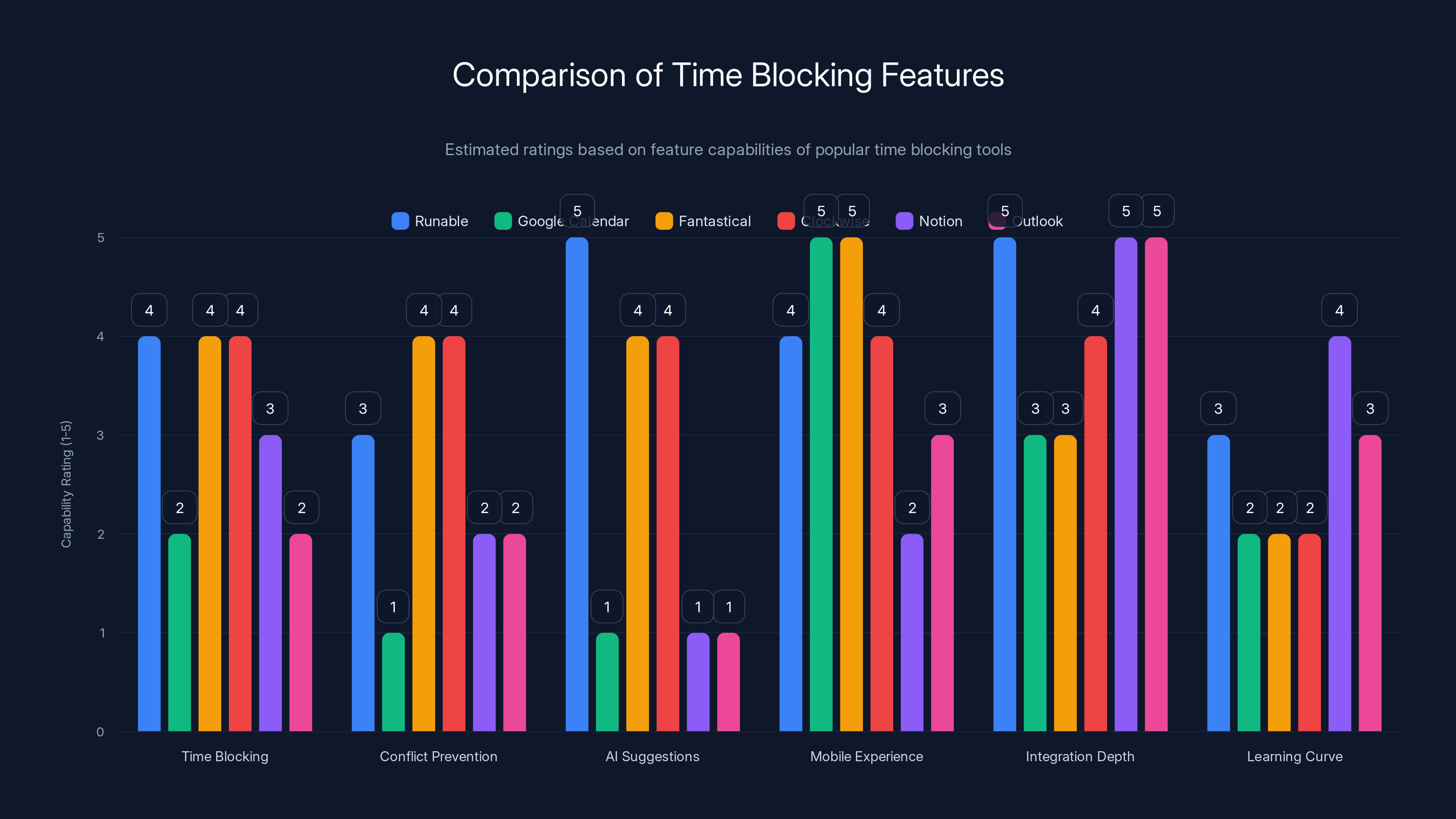
This chart compares the key features of popular time blocking tools. Fantastical and Clockwise excel in advanced features, while Runable offers extensive integration options. (Estimated data)
Notion: The All-in-One System That Can Do Time Blocking (If You Build It Right)
Notion isn't a calendar app. But millions of people use it as their entire productivity system, and it's absolutely capable of handling time blocking if you set it up right.
The appeal of using Notion for time blocking: You can see your calendar, your projects, your tasks, and your time blocks all in the same workspace. No context switching between apps.
How time blocking works in Notion:
You create a database with "Time Block" entries. Each block has a date, time, duration, category (deep work, admin, meetings), and linked project. Create a calendar view of that database and you see your blocks like a real calendar.
Then you link that to your Google Calendar or Outlook using integrations like Zapier so when you create a time block in Notion, it automatically appears in your actual calendar.
Strengths of Notion for time blocking:
- Customization: Design your exact time blocking system. Notion doesn't force a workflow on you.
- Integration with your projects: Link time blocks directly to your projects and tasks. See which blocks are assigned to which work.
- Team visibility: Everyone's time blocks in a shared workspace. Easy to see who's available when.
- Free or cheap: Notion is $0-8/month depending on features. Very accessible.
- Templates available: The community has created dozens of time blocking templates you can use immediately.
Weaknesses for dedicated time blockers:
- Setup time: You need to actually build your system. 2-4 hours upfront before you're productive.
- No conflict prevention: Unlike Clockwise or Fantastical, Notion won't protect your blocks or warn you when someone schedules over them.
- Sync delays: If you use Zapier to sync with Google Calendar, it's not instant. Can be 5-15 minutes behind real-time.
- Not optimized for mobile: Notion works on mobile, but it's slower and less intuitive than native calendar apps.
Best for: People who already use Notion as their main productivity system. Teams doing extensive project work who want time blocks tied to specific projects. Developers and power users comfortable with building their own system.
Real example: A consulting firm used Notion to create a unified system where clients could see consultants' availability, consultants could see their own time blocks and billable hours, and managers could see team capacity. Took 6 hours to build. Saved them from thousands in scheduling conflicts within the first month.

Outlook Calendar + Microsoft 365: The Enterprise Option
If you're in a Microsoft shop, Outlook Calendar deserves consideration. It's not the most elegant calendar app, but it's deeply integrated with the Microsoft ecosystem and handles time blocking as well as Google Calendar does.
Time blocking in Outlook Calendar:
Create events for your time blocks just like any calendar app. But the real power is in the integration with Microsoft 365 tools: Teams, Project, Dynamics CRM, and Power Automate.
You can build automations where blocking time triggers actions in other tools. Schedule a deep work block and automatically set your Teams status to "Do Not Disturb." Create a client meeting and trigger a task in Project for follow-up work.
Strengths for time blocking in the Microsoft ecosystem:
- Seamless Teams integration: Your focus blocks appear in Teams. Teammates see when you're unavailable.
- Power Automate possibilities: Build complex automation around your time blocks.
- Outlook tasks connection: Your time blocks can auto-generate follow-up tasks in Outlook Tasks.
- Calendar sharing: Deep calendar sharing and delegation options for teams.
Weaknesses:
- UI feels dated: Outlook's design hasn't changed much in years. It works, but it's not inspiring to use.
- Not designed for time blocking: Like Google Calendar, time blocking works but feels like a side feature.
- Limited intelligence: No AI-suggested blocks or smart conflict resolution.
Best for: Enterprises using Microsoft 365. Organizations where calendar integration with Teams is non-negotiable. Teams already deep in the Microsoft ecosystem.
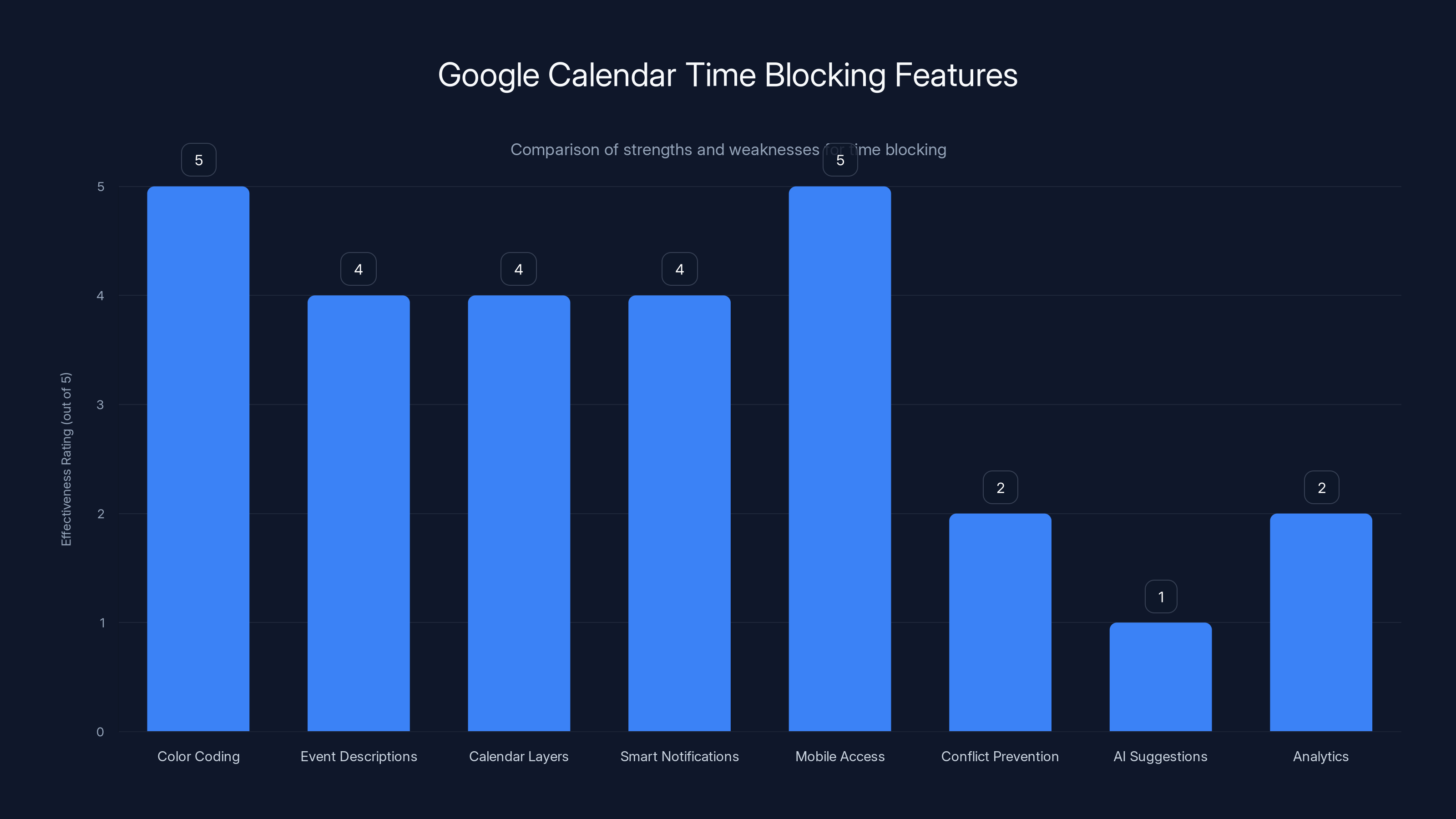
Google Calendar excels in features like color coding and mobile access for time blocking, but lacks in conflict prevention and AI suggestions.
Apple Calendar: Minimum Viable Time Blocking
Apple Calendar is the calendar app that comes with macOS, iPad, and iPhone. It's simple, free, and integrates deeply with Apple devices.
For time blocking, it's basically the Apple equivalent of Google Calendar. No special features, but it works fine. You create events for your blocks, color-code them, set reminders. It syncs across all your devices instantly.
The main reason to use Apple Calendar for time blocking: You're already invested in Apple ecosystem and don't want another app.
The integration advantage: If you use Fantastical, Clockwise, or any other third-party calendar app, they all sync with Apple Calendar in the background. Your time blocks are always available natively on your devices.
Best for: Apple users who want a simple, native solution. Not the most powerful option, but zero learning curve and zero cost.

Structured Time Blocking Frameworks That Work With Any Calendar App
Now that we've covered the tools, let's talk about the actual time blocking methods that make the most impact.
The "Pomodoro Plus" Framework
Pomodoro technique is 25 minutes of work, 5 minute break. But for actual time blocking, extend it: 90 minutes of focused work, 15 minute break. 90 minutes matches the body's natural ultradian rhythm (90-minute cycles of high focus, then decline).
Schedule these 90-minute blocks back-to-back with 15-minute breaks. Your calendar looks like: 8-9:30am (block), 9:30-9:45am (break), 9:45-11:15am (block), etc.
Why it works: You're protecting long enough blocks that you actually get into flow state. The breaks are short enough that you don't lose momentum. One full day of this is 6 hours of focused work, which is legitimately hard to argue is insufficient.
The "Energy-Based" Framework
Instead of scheduling the same time blocks every day, schedule them based on your energy patterns.
Step 1: Track your energy for one week. Note when you feel sharpest and when you feel sluggish. Most people peak 2-4 hours after waking, dip in early afternoon, and have a small second peak 3-4pm.
Step 2: Assign your hardest, most important work to peak hours. Harder work that requires less creative thinking to "dip" hours. Administrative work to afternoon slump hours.
Step 3: Lock those blocks on your calendar. Deep architectural work always 8-10:30am. Email and admin always 2-3pm.
Why it works: You're not forcing your brain to do hard work when it's running on empty. Same work, but scheduled when you're actually capable of doing it well.
The "Maker vs. Manager" Schedule
This framework, popularized by Paul Graham in his essay on the topic, divides people into two categories:
Maker's schedule: People who need long, uninterrupted blocks to do their work. Engineers, writers, designers, architects. A single meeting can destroy a 4-hour focus block because you lose context.
Manager's schedule: People whose work is coordinating other people. Meetings are how work happens. Back-to-back meetings are normal.
If you're on a maker's schedule, your time blocking should look completely different from someone on a manager's schedule. Makers should block 3-4 hour continuous windows. Managers should put all meetings on one side of the day and leave the other side flexible.
The mistake most people make: Try to apply manager's schedule time blocking to maker's work. Doesn't work. You end up with scattered 1-hour blocks that never give you deep focus.
The "Context Batching" Framework
Instead of mixing work types throughout the day, batch them by context.
Example structure:
- 8-9am: Email and Slack (context: communication)
- 9am-12pm: Deep work (context: creative or complex problem-solving)
- 12-1pm: Lunch and transitions
- 1-2:30pm: Meetings (context: interaction)
- 2:30-4pm: Administrative work (context: routine tasks)
- 4-5pm: Planning and review
Why it works: Your brain doesn't have to shift contexts seven times a day. You stay in one context for hours, get into a rhythm, and actually finish meaningful work.
Context switching is expensive. Research shows it costs 40% of your productive time when switching between complex tasks. Batch your contexts and you reclaim hours per week.
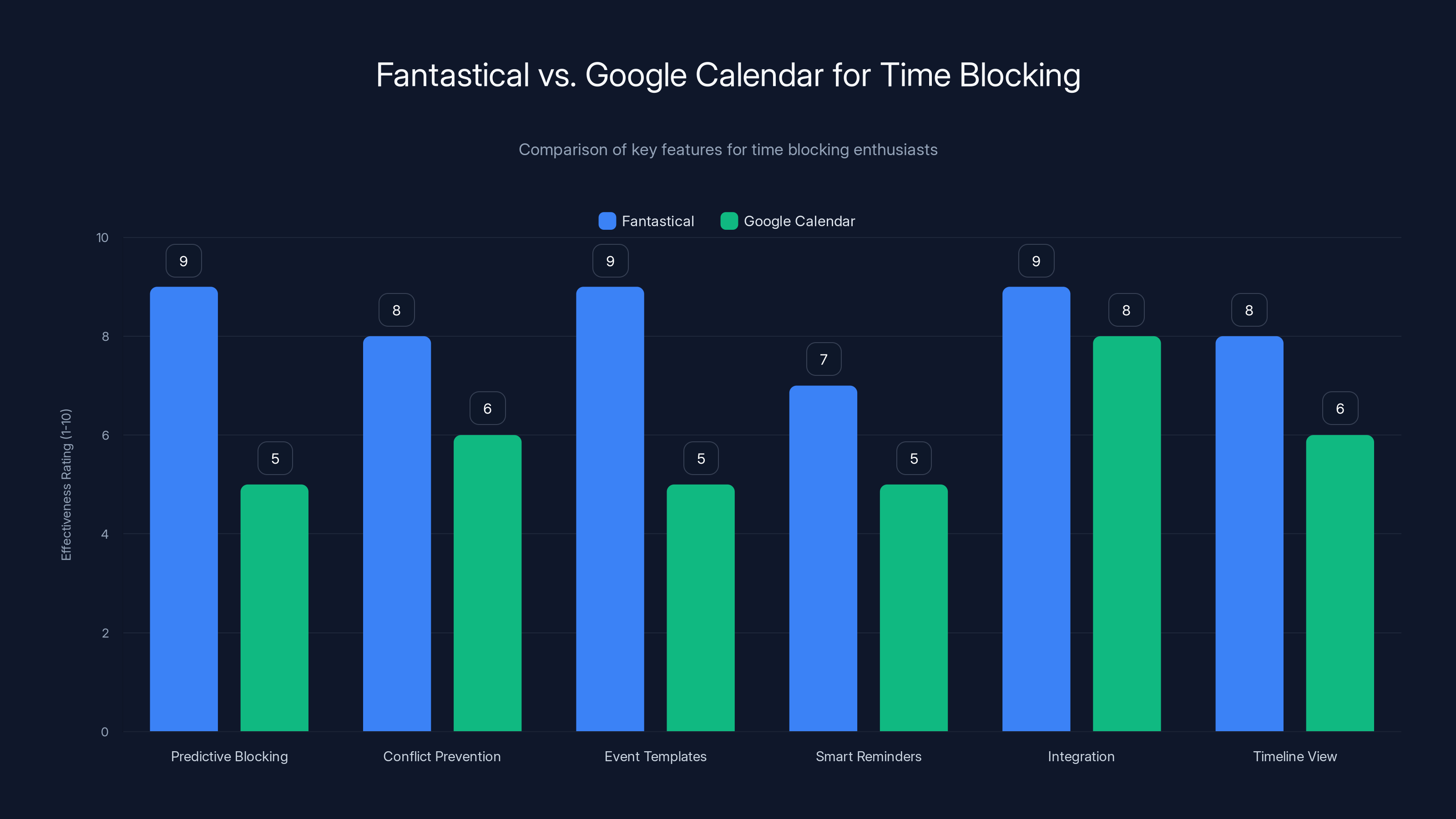
Fantastical excels in predictive blocking and event templates, making it superior for dedicated time blockers compared to Google Calendar. Estimated data based on feature descriptions.
Building Your Time Blocking System: A Step-by-Step Process
Picking the right calendar app is only step one. You also need to actually implement time blocking in a way that sticks.
Step 1: Choose Your Calendar App (1 hour)
Based on the tools above, pick one. Don't overthink it. If you use Google Workspace, start with Google Calendar or upgrade to Fantastical. If you're on Microsoft, use Outlook. If you're on Mac/iPad/iPhone, try Fantastical or Clockwise.
You can always change later. The app matters less than the habit.
Step 2: Define Your Block Types (30 minutes)
What types of work will you block? Common ones:
- Deep work / focused coding / creative work
- Meetings
- Administrative tasks (email, expense reports, etc.)
- One-on-ones
- Planning and review
- Breaks and lunch
For each type, assign a color in your calendar. This makes patterns visible instantly.
Step 3: Choose Your Framework (1 hour)
From the frameworks above, which one fits your job? Choose one:
- Maker vs. Manager: Are you a maker (need long blocks) or manager (coordinate people)?
- Energy-based: Do you want to schedule based on energy patterns?
- Context batching: Do you want to batch similar work together?
- Pomodoro Plus: Do you want 90-minute blocks with breaks?
Pick one. Run it for a month. Then adjust.
Step 4: Block Your First Week (1-2 hours)
Open your calendar. Look at next week. Identify:
- What you already have scheduled (meetings, commitments)
- When you have gaps
- Which gaps correspond to your peak energy/best context
Now schedule your blocks. Start conservative. If you think you need 20 hours of deep work, block 15. Under-promise, over-deliver.
Step 5: Protect Your Blocks (ongoing)
This is the hard part. Every time someone asks for a meeting during a block, you have to say no or reschedule.
Set expectations: "I have focused work time 8-11am. I can meet 2-3pm or tomorrow morning."
Your calendar should reflect this. Most people will respect it once they see it's consistent.
Step 6: Review and Adjust (weekly)
Every Friday afternoon, spend 15 minutes looking at your week. Did the blocks work? Where did they get interrupted? What should change next week?
Adjust ruthlessly. If 2-hour blocks are too long, switch to 90 minutes. If morning focus time isn't working, move it to afternoon. Time blocking is a system you're tuning, not a law.

Common Time Blocking Mistakes (And How to Fix Them)
Mistake 1: Blocking Too Much Time
You see time blocking works, so you block every hour of your day. Deep work 8-11am, meetings 11-1pm, admin 1-3pm, more deep work 3-6pm. Your calendar is 100% scheduled.
This breaks immediately because:
- Meetings run over
- Emergencies happen
- You need breaks
- Unexpected conversations are often valuable
Fix: Block 60% of your time maximum. Leave 40% flexible for "stuff that comes up." This is actually more productive because the flexible time prevents your system from breaking when reality intrudes.
Mistake 2: Not Protecting Blocks
You schedule deep work 8-11am. Someone asks to meet at 9am. You say yes because it feels rude to decline. By Friday, your deep work blocks are obliterated.
Fix: Treat your time blocks like real meetings. Someone's depending on you showing up—that someone is you. Decline or reschedule. "I'm booked 8-11 but I have 2-3pm free" becomes your default response.
Mistake 3: Blocking Without a Goal
You read that time blocking is productive, so you start blocking time. But you haven't decided what you're blocking time for. The block arrives, you open your editor, and... you sit there because you haven't actually decided what to work on.
Fix: Name your blocks specifically. Not "deep work." Something like "Q1 feature architecture" or "design system component library" or "refactor payment module." When the block arrives, you know exactly what to do.
Mistake 4: Ignoring Energy Patterns
You're most productive 9-11am and 3-4pm, but you block deep work 2-5pm because "that's when I usually have open time." You spend those afternoon blocks feeling sluggish and accomplishing nothing.
Fix: Track your energy for one week. See when you actually feel sharp. Block your hardest work in those windows. It feels counterintuitive to protect premium hours by leaving them free if meetings come in, but it's better than wasting them on low-energy work.
Mistake 5: Changing Your System Too Often
You try time blocking for two weeks. You get interrupted twice, so clearly it's not working. You switch systems. Two weeks later, same story.
Fix: Commit to one system for at least a month before judging it. You'll get interrupted. Your first system will need tweaking. That's normal. A month of data tells you if it's actually working.
Time Blocking With a Remote or Distributed Team
Time blocking gets harder with remote teams because you're invisible. Someone can schedule a meeting without realizing you have a focus block because they can't see the context.
Making Time Blocks Visible to Your Team
In calendar apps: Most support custom event titles that broadcast your intention. Instead of just a blank block called "calendar event," use "Do Not Schedule: Focus Time" or "🔴 Deep Work: App Architecture." The title tells people why you're unavailable.
In Slack: Integration with Clockwise or Fantastical automatically sets your Slack status to "In focus mode" during blocks. Zapier workflows can do similar things with other apps.
In team calendars: Share your time block types with your team. "Ava blocks 8-11am daily for focus work. She's available 2-4pm for meetings and 4-5pm for one-on-ones." Once people know the pattern, they adapt.
Managing Time Blocks Across Time Zones
If your team spans time zones, time blocking becomes more complex. What's your peak energy time might be another person's sleep time.
Solution: Schedule your focus blocks during the overlap hours when your team is online. Use focus hours outside overlap times for solo work that doesn't require collaboration.
Example: Team spans 8am Pacific to 5pm Eastern (1pm-5pm Pacific is overlap). Block your deep work during overlap if it needs collaboration. Block solo work 8-1pm Pacific. Keep 4-5pm Eastern open for your Eastern teammates.
Protecting Blocks in Async-First Teams
If your team is intentionally async (no expectation of immediate response), time blocking is easier because interruptions are lower. But you still need to communicate your blocks.
Post your weekly blocks in a shared channel every Monday: "Focus blocks this week: 8-11am daily. Will respond to messages/docs by EOD." This sets expectations.
Advanced Time Blocking: Metrics That Actually Matter
Once you've been time blocking for a few weeks, you can measure whether it's actually working.
Metric 1: Time Block Adherence Rate
How many of your scheduled blocks happened without interruption?
Target: 80%+
What it means: If you're hitting 80%, your time blocking system is working. Below 60%, you need to adjust (block fewer hours, increase protection, or reduce external interruptions).
Metric 2: Deep Work Hours Per Week
Add up all your completed focus blocks. How many hours per week of actual uninterrupted work do you have?
Most knowledge workers need 15-25 hours per week of focused work to actually get things done. Meetings, admin, context switching fill the rest.
If you're getting less than 10 hours per week, your time blocking isn't aggressive enough.
Metric 3: Context Switching Frequency
Count how many times per day you switch between different types of work.
Before time blocking: Might be 8-12 switches per day (email, then code, then meeting, then Slack, etc.)
After time blocking: Should be 3-5 switches per day.
Each switch costs you 10-25 minutes of refocus time. Reducing switches from 10 to 4 reclaims 1-2 hours per day.
Metric 4: Project Completion Rate
The ultimate metric. Are you actually finishing more projects? Are projects taking shorter to complete?
Track the number of projects you complete per quarter before and after time blocking. Most people see 20-30% improvement within two quarters.
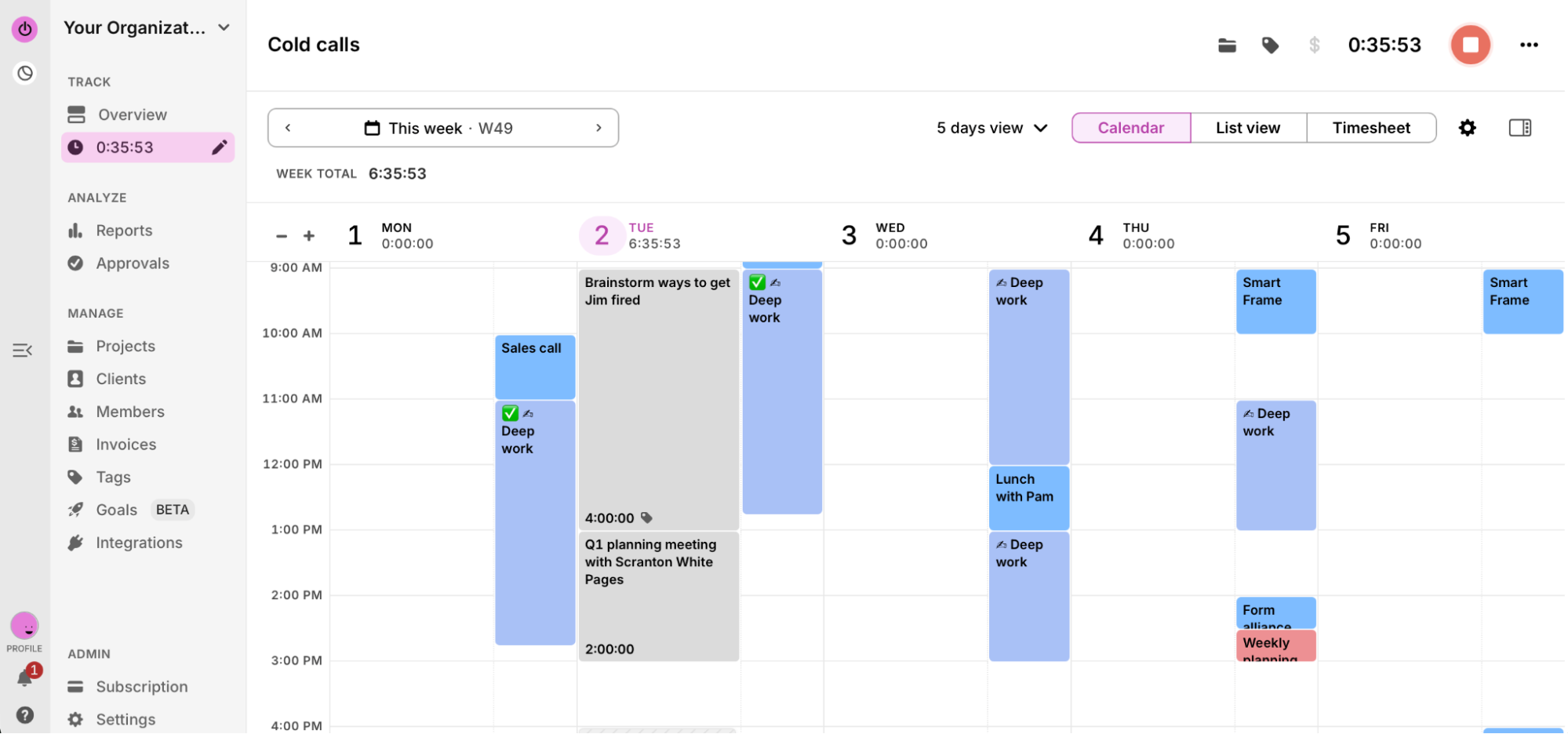
The Future of Time Blocking: AI, Automation, and Predictive Scheduling
Time blocking is about to change significantly. AI is becoming sophisticated enough to not just suggest blocks, but actively manage your calendar to optimize for your goals.
Predictive Calendar Management
The next generation of calendar tools (like Clockwise with AI) will analyze your schedule and automatically rearrange meetings to create optimal focus blocks. You won't have to manually create time blocks—the system will do it for you.
This is already happening, but expect it to become standard across all calendar apps within 2 years.
AI-Powered Task Scheduling
Tools like Runable are bridging the gap between time blocking and task management. You'll block time, and the AI will automatically pull relevant tasks into that block. "Here's your 2-hour block. Based on your priorities, here are the three tasks that fit this window."
Energy Pattern Recognition
Calendar apps will use your historical data to predict your energy patterns. Wednesday afternoon slump? The system won't schedule deep work then. Friday morning peak? That's automatically protected for focus time.
These tools already exist in beta form. Expect them mainstream by 2027.
Natural Language Scheduling
Instead of manually creating time blocks, you'll just tell your calendar: "Block 4 hours for the payment refactor. I want it done 8-11am or 2-4pm. Protect it if meetings come in."
The calendar system parses your requirements and handles it. This is harder than it sounds (requires understanding context, priorities, and constraints), but it's coming.
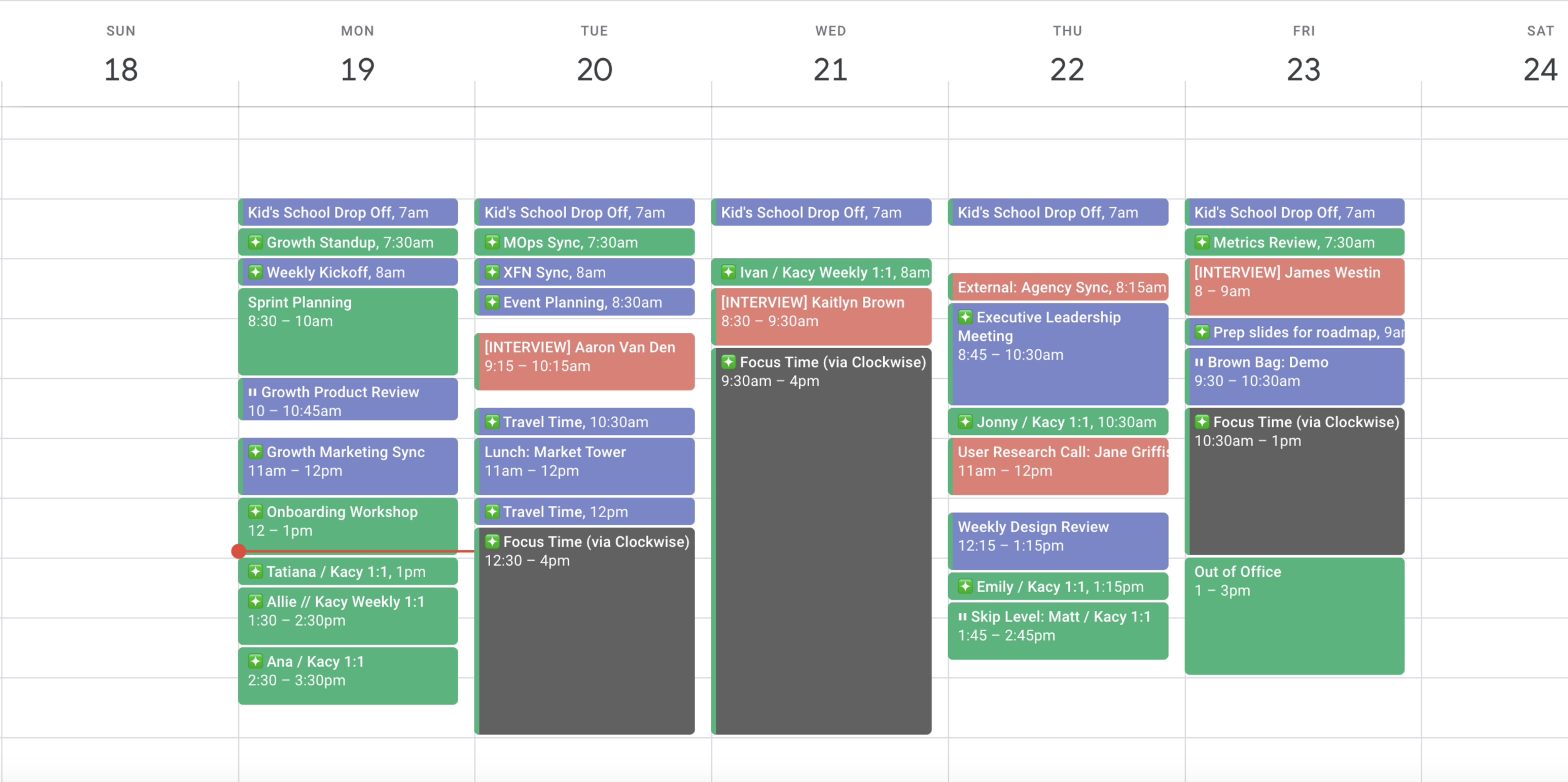
Time Blocking for Different Jobs and Industries
Time blocking doesn't work the same way for everyone. Your job type determines your ideal system.
For Software Engineers and Developers
Flow state is everything. You need 2-4 hour uninterrupted blocks minimum. Anything shorter and you barely get ramped up before time's up.
Best approach: Maker's schedule framework. 8am-12pm focus block, 12-1pm lunch, 1-3pm focus block, 3-5pm meetings and interruptions. Or alternatively, "focus days" where you have zero meetings, and "meeting days" where you take all your meetings.
Tools: Fantastical or Clockwise, configured aggressively to protect blocks.
For Managers and Leads
Your job IS meetings and coordination. You can't block out 4 hours because your team needs you.
Best approach: Context batching. Morning for deep thinking work (strategy, planning, decisions). Afternoon for collaboration (meetings, mentoring, one-on-ones). Early morning 30-min "planning block" to set your day.
Tools: Outlook or Google Calendar with Slack integration to broadcast your availability.
For Sales Professionals
Your day is driven by external commitments (calls, meetings, deals). You need focus time to prepare for calls and do follow-up, but it has to be flexible.
Best approach: "Preparation and follow-up" blocks around your core selling hours. If you typically close calls 10-2pm, block 8-10am for prep and 2-4pm for follow-up. Morning and late afternoon flexible for unexpected calls.
Tools: Clockwise (can rearrange prep time if your call schedule changes).
For Creative Professionals (Designers, Writers, Product Managers)
You need deep work but also heavy collaboration. The key is protecting your deep work while staying available for collaboration.
Best approach: Alternating days. "Heads-down Wednesday" for deep creative work. Other days available for collaboration and feedback. Or energy-based: deep work during your peak hours, collaboration during lower-energy hours.
Tools: Fantastical (timeline view makes seeing your week patterns easier).
For Customer-Facing Roles (Support, Success, Customer Ops)
Customers don't wait. You can't block time because they might need you.
Best approach: Time blocking for personal development and admin work during low-customer-activity hours (often early morning or late afternoon). Shifts with on-call rotation.
Tools: Google Calendar (integrates with most support tools). Zapier automations to highlight your available windows.
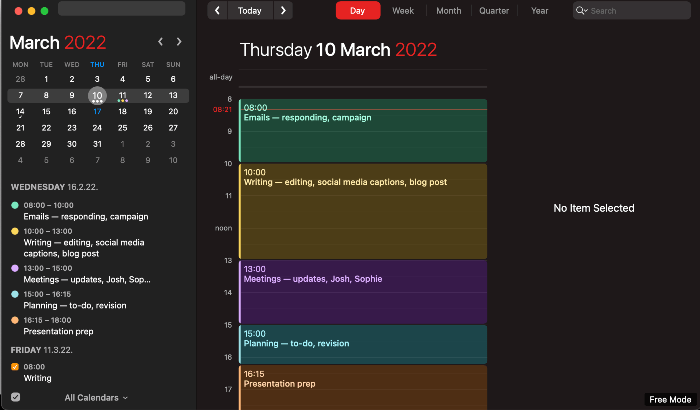
Comparison Table: Time Blocking Features at a Glance
| Feature | Runable | Google Calendar | Fantastical | Clockwise | Notion | Outlook |
|---|---|---|---|---|---|---|
| Time blocking capability | Via workflow automation | Basic (events) | Advanced (predictive) | Advanced (AI rearrangement) | Custom (if configured) | Basic (events) |
| Conflict prevention | Workflow-based | None | Yes | Yes | Manual | Basic |
| AI suggestions | Yes (agents) | No | Yes | Yes | No | No |
| Mobile experience | Good | Excellent | Excellent | Very Good | Fair | Good |
| Integration depth | Extensive (8000+ apps) | Good (Google Workspace) | Good (Apple ecosystem) | Very Good (Slack, Teams) | Excellent (custom) | Excellent (Microsoft 365) |
| Learning curve | Medium | Low | Low | Low | High (customization) | Medium |
| Pricing | $9/month | Free | $39.99/year | $6-8/month | $0-8/month | Free (Microsoft 365) |
| Best for | Workflow automation + blocks | Beginners | Apple users | AI-driven scheduling | Custom systems | Enterprise/Microsoft |
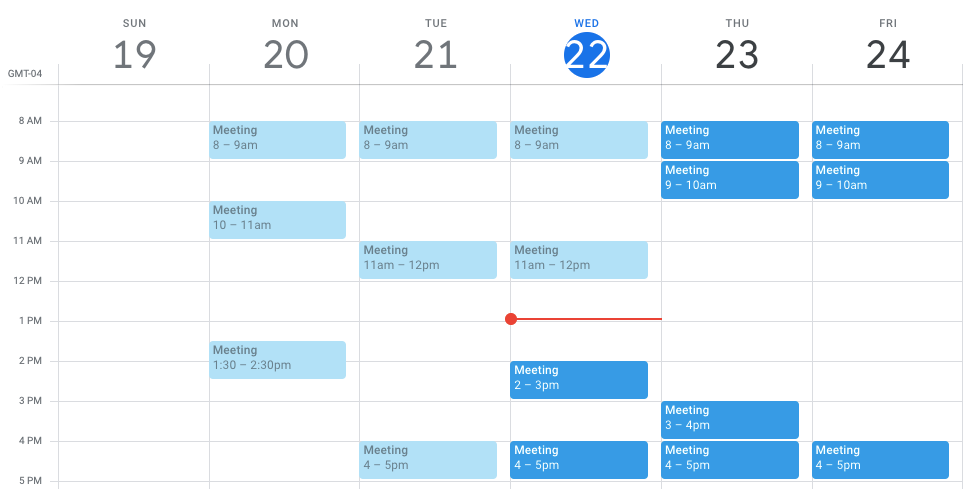
FAQ
What is time blocking and how does it differ from other scheduling methods?
Time blocking is a scheduling method where you divide your calendar into fixed blocks of time, each dedicated to a specific task or activity type. Unlike to-do lists or traditional calendar management where you only track meetings, time blocking involves actively scheduling all work activities—including deep work, admin tasks, and breaks. This prevents your day from being driven solely by reactive meetings and ensures important work actually gets scheduled.
How much time should I block for different types of work?
The optimal block length depends on the work type. Deep, focused work needs 90-120 minute blocks minimum (shorter blocks don't allow you to reach flow state). Administrative tasks can work in 60-90 minute blocks. Meetings don't need to be blocked in advance if they're naturally on your calendar, but leaving meeting buffer time (30 min between meetings) helps with context switching. Most knowledge workers need 15-25 hours per week of focused, uninterrupted time to accomplish meaningful work.
Can time blocking work if my job involves constant interruptions?
Yes, but you need a different approach. Instead of trying to protect 4-hour blocks, use time boxing: schedule specific hours as "interruptible" and others as "protected." For example, 8-10am is protected focus time, 10am-12pm is available for interruptions, 1-3pm protected again. This gives people predictable windows when they can reach you while still protecting your deep work time.
What's the best time blocking app if I use multiple devices?
Fantastical excels here if you use Apple devices (Mac, iPad, iPhone). For mixed device environments, Clockwise works across platforms and syncs in real-time. Google Calendar is the most universally compatible option. If you're in a Microsoft environment, Outlook Calendar with Power Automate integrations offers deep customization without switching apps.
How do I protect my time blocks when people constantly try to schedule over them?
Set expectations explicitly: "I have focused work time 8-11am. I can meet you 2-3pm or tomorrow afternoon." Your calendar title should communicate this: "🔴 DO NOT SCHEDULE: Focus Time." Use Slack integration if available to broadcast your unavailability. After 2-3 weeks of consistency, most colleagues adapt and stop trying to schedule during your protected hours.
How long does it take to see productivity improvements from time blocking?
You'll notice small improvements immediately (the act of scheduling work makes you more intentional). Meaningful productivity gains typically appear within 2-4 weeks as the habit solidifies. Significant improvements (20-30% faster project completion) usually take 2-3 months, once your system is tuned and your team respects your blocks.
Is time blocking compatible with agile development and flexible work?
Absolutely. Many engineering teams use time blocking: sprints are planned with focus blocks, stand-ups happen at fixed times, and deep work is protected in the mornings. The key is communicating your blocks to the team so they know when you're available for collaboration and when you're not. Agile benefits from better time management because the team isn't constantly interrupted.
What should I do if my time blocks keep getting interrupted despite my best efforts?
This usually means one of three things: (1) Your blocks aren't actually protected in your calendar title/description, (2) Your organization culture doesn't respect calendar blocks, or (3) You're not being firm about declining conflicts. The first two are fixable through communication and system setup. The third requires changing your behavior: treat blocks like real meetings and decline interruptions. If the culture doesn't support it, time blocking won't work until that changes.
Conclusion: Making Time Blocking Actually Stick
Time blocking is simple in theory. Harder in practice. But the difference between people who do it and people who don't is stark.
People who block time report feeling more in control of their schedules. They finish projects they started. They have actual focus time for deep work. They're not reactive all day.
The app matters less than you think. A good calendar app (Google Calendar, Fantastical, Clockwise) makes time blocking easier. But a mediocre app with consistent execution beats a perfect app with inconsistent execution.
Here's what actually matters:
First: Pick an app you'll actually use every day. If it's too complicated, you won't maintain it. If it doesn't integrate with your workflow, you'll abandon it.
Second: Choose one framework and stick with it for a month. Don't mix "maker's schedule" with "context batching" with "energy-based" all at once. Pick one, run it, measure it, then adjust.
Third: Protect your blocks like they're real meetings. Because they are. You're the attendee, and you're depending on yourself to show up.
Fourth: Measure the right thing. Not "Did my calendar get interrupted?" but "Did I complete my important work?" Some interruptions are valuable. The question is whether you still got your deep work done.
Start this week. Pick your app. Block your first week. See what happens.
If you're looking to go deeper and actually automate the work that fragments your time blocks, Runable handles the background stuff so you can focus on what you blocked time for. Automate the routine reports, the data pulls, the document generation. That frees up even more of your focus time for thinking and creating.
But even without automation, time blocking alone is transformative. Try it.
Use Case: Block your first week of focus time with your calendar app, then automate the administrative work that usually interrupts those blocks with Runable to reclaim 3+ hours weekly.
Try Runable For Free
Key Takeaways
- Time blocking increases productivity by 25-40% because it prevents reactive scheduling and protects deep work time
- Google Calendar is free and functional, but Fantastical and Clockwise offer AI suggestions and conflict protection that make blocking easier
- Choose your framework first (Maker vs Manager, Energy-Based, or Context Batching) then pick a tool that supports it
- Protect blocks like real meetings—treat them as non-negotiable commitments, and your team will adapt within 2-3 weeks
- It takes 4-6 weeks for time blocking to feel natural; expect disruption in weeks 1-2 but significant improvements by week 4


